

In this article, we'll show you how to use a Rectangular/Triangular pattern with the Point Grid feature that allows you to simulate traditional land survey methods virtually, enabling fast and easy creation of hundreds to thousands of points from your drone survey data.
One of the most common traditional land survey methods is to create a topo over an area that runs in parallel transects to capture the X, Y, and Z coordinates at set intervals, which are then used in your surface creation. The Point Grid feature works similarly by placing points in either a Rectangular or Triangular pattern, with a constant X and Y spacing between every point based on your input Grid Size, along with the Z elevation from the underlying drone data.
The final output of a Rectangular/Triangular Point Grid are Multi-points that can be selected simultaneously from the Layers panel. You can find the Rectangular/Triangular Type as part of the Point Grid options within the HOME tab.

Overview
- How to Create a Rectangular/Triangular Point Grid
- Rectangular and Triangular Grid Feature Settings
- Tips to Get the Most from Point Grids
How to Create a Rectangular/Triangular Point Grid
- Draw a Boundary around the area you wish to create a Point Grid and select it.
- In the Home tab, navigate to the Point Grid section and choose Rectangular/Triangular in Type.
- Set a Grid Size parameter.
- Set an Azimuth direction (optional).
- Click on the Point Grid button to start generating Rectangular/Triangular patterned points.
A progress bar displays in the bottom left of the software while points are created on your terrain. - The Rectangular/Triangular points display in the Viewport and can be selected as Multi-points from the layers panel.
Rectangular and Triangular Grid Feature Settings
- Type: Choose either Rectangular or Triangular to set the pattern that is used for your Point Grid.
- Grid Size: Sets the spacing of your grid type with every point having equidistance, based on the set grid size.
- The minimum grid size that can be created is 0.1m (10cm) or 0.3 ft.
- Azimuth: Sets the direction of the point grid pattern with 0° being true North, and increasing degrees rotating the direction from there clockwise.
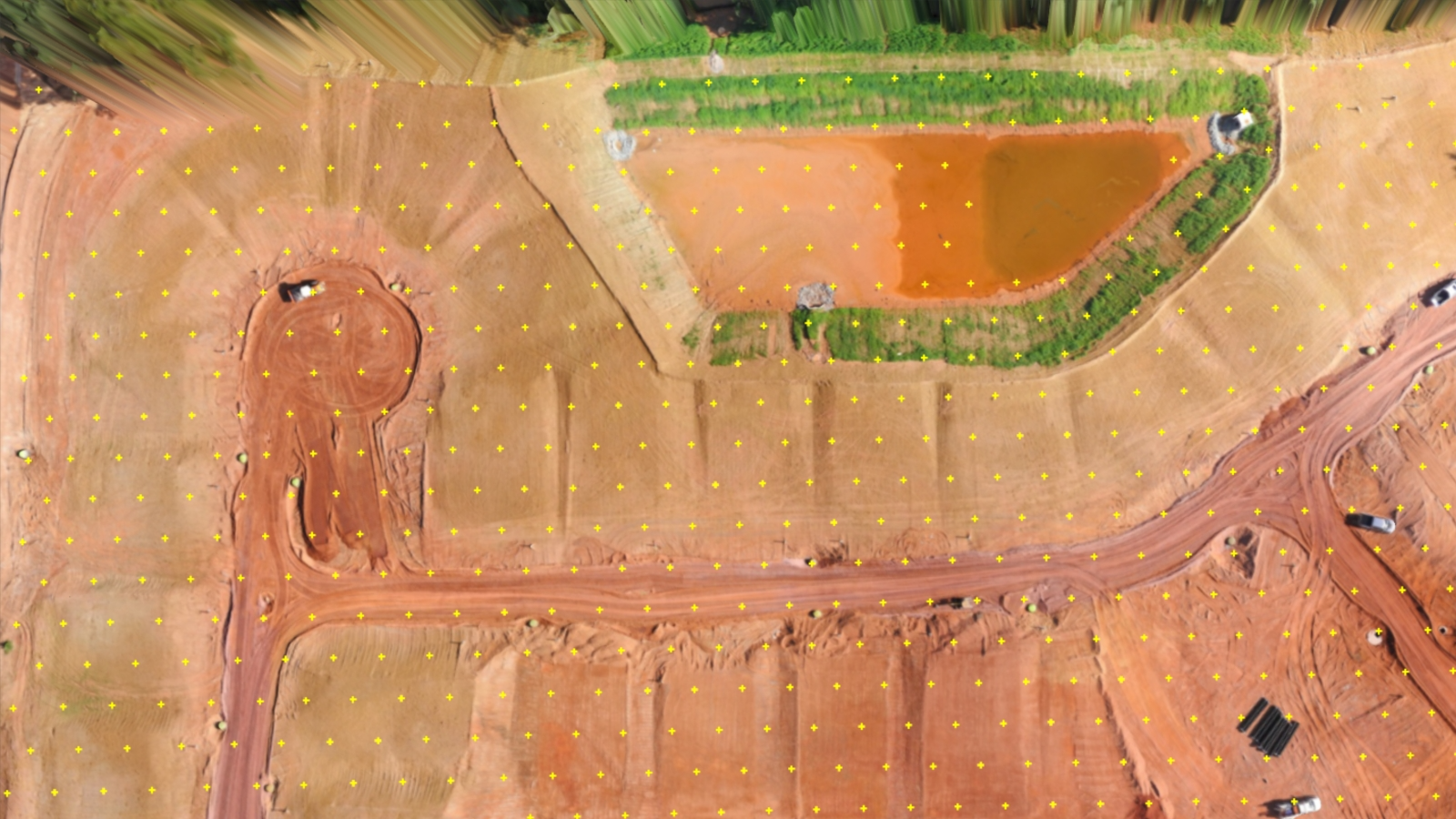
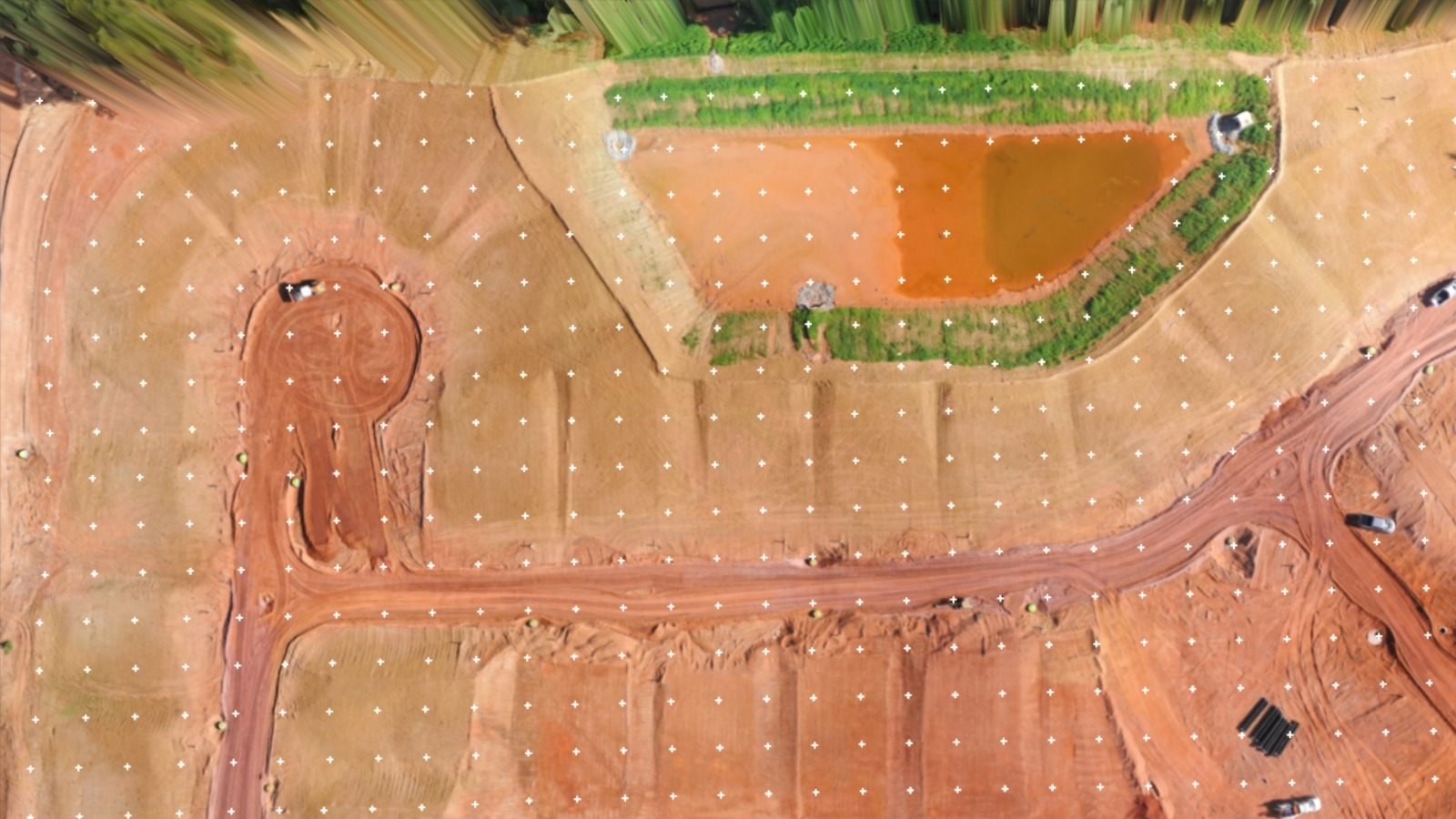
Triangular and Rectangular Point Grid Patterns
Both triangular and rectangular grid types place points with equal spacing in their respective patterns.
| Triangular point grid at 10 m interval | Rectangular point grid at 10 m interval |
 |  |
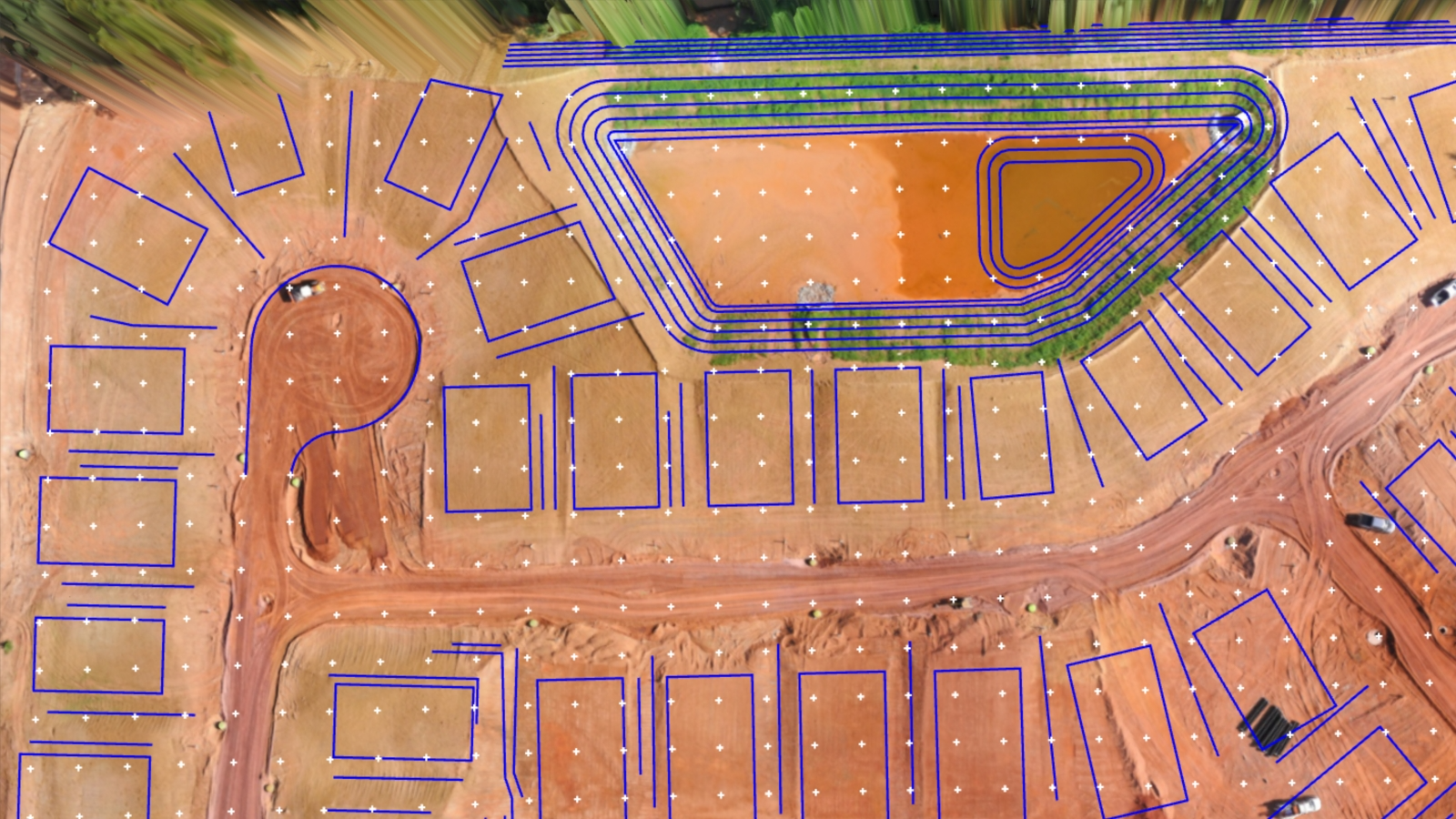
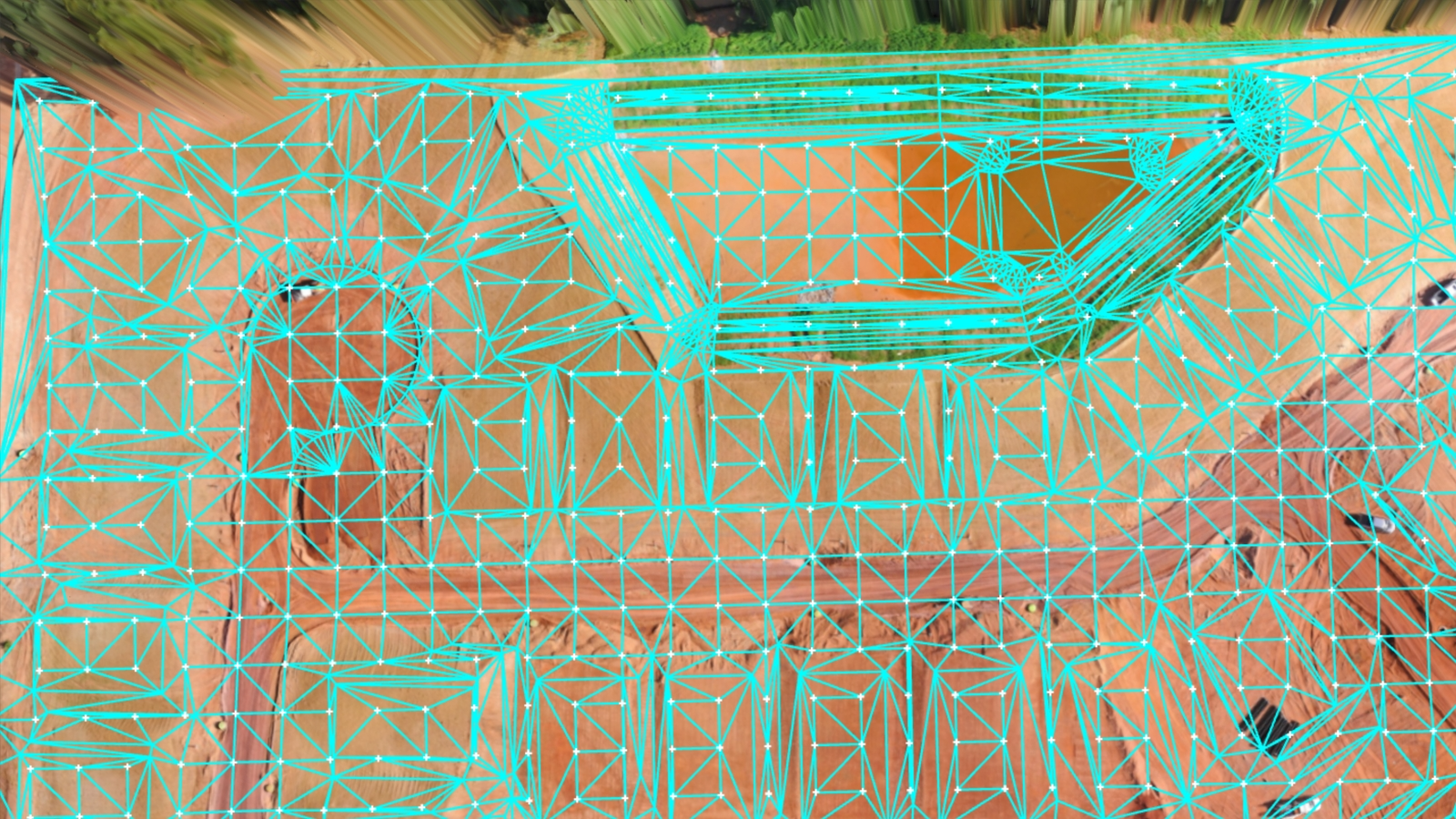
Point Grid with Sections and Breaklines
Point grids are commonly used in combination with your other survey geometries (breaklines and boundaries) in your surface creation.
| Point grid with lines and boundaries | Point grid with surface generated from all survey geometries |
 |  |
You can use the point grid features along with, to optimize both the amount of detail for your surface and the size of your data set for use in CAD.
Tips to Get the Most from Point Grids
- A common question is "What grid size should I use?"; the simple answer is that it is project dependent, however you can start most projects by thinking what grid size you would use in a traditional survey and halving it.
- By halving the grid size of a traditional field survey, you get more detail for the surface without overwhelming yourself with data, e.g., your traditional survey is normally collected at a 15 m (50 ft) spacing, you can instead use 10 m (25 ft) or even 5m (15 ft) for a more detailed surface with more detailed results.
- Decrease the Grid Size to add more detail to your surface.
- If you set your grid size measurement below 1 m (10 ft), ask yourself if that is necessary for your project and if you really need that much detail.
- It is often better to add more detail to the surface by using breaklines, boundaries, and manually placing points rather than solely relying on an extremely dense grid.
- The smaller you make your grid size the larger your data set becomes, which can make it difficult to load your data into CAD, so be sure to find a good balance of data size and surface detail.
- You can always use any type of Point Grid (Rectangular, Triangular, Low-Pass, or Q-Points) over small subsets of your whole project, or even break your project into smaller areas using different point grid types.
- For example: Use the Low-Pass Points in densely vegetated areas, Q-Points for bare earth terrain, and Rectangular/Triangular Point Grid types in the areas they can best be utilized.
- You can also create a hybrid point grid by combining a point grid with breaklines and manually placed points or by combining a rectangular grid with Q-points.
- A hybrid point grid allows you to create a lower density Rectangular grid while also having the benefit of a Q-Points grid to fill in the smaller details for elevation changes.