

A workflow we often come across involves generating a very dense grid of points on a classified point cloud, usually focused on ground classes. While this might seem like a good way to capture detail, it actually creates the exact problem Virtual Surveyor is designed to solve: too many points, resulting in oversized CAD files that are slow, difficult, or even impossible to work with.
Capturing accurate topography doesn’t require a small grid size. A more effective approach is to start with a larger grid size to represent the overall terrain shape, then refine it by manually adding points in key high and low areas. Complementing this with well-placed breaklines along tops and toes ensures the important details are preserved—without overwhelming your CAD environment.
At its core, the VirtualSurveyor app was built to help you create lightweight, efficient CAD models and remain easy to use without sacrificing quality. In this article, we'll explore how different point grid densities impact exported surface data and file sizes. We'll also share practical tips for combining point grids, breaklines, and manually placed points to achieve detailed topography in a compact, manageable file.
Overview
- Issues with Small Grid and LiDAR-Generated Contours
- Testing Different Point Grid Sizes
- Tips for Getting the Most out of a Point Grid
Issues with Small Grid and LiDAR-Generated Contours
Both small grid and LiDAR made contours are often computer generated, and while they contain a certain amount of detail you might be looking for, they cannot be used by CAD software because the file sizes are much too large.
It's easy to see why small grids are appealing. With just a few clicks, you can generate a dense dataset that feels complete and reassuring—no need to second-guess whether you’ve captured enough detail. But this convenience can be misleading. Instead of simplifying your workflow, it can recreate the very problem you’re trying to avoid: excessive data and heavy files driven by raw LiDAR density.
For example, consider contour lines generated from the full detail of a LiDAR point cloud. At first glance, the level of detail looks impressive. But a closer look reveals highly jagged lines—often a sign of too much detail rather than accuracy. These contours don’t just represent the terrain surface; they also capture small, irrelevant features like vegetation, tree bases, and other noise. In other words, they show more than just the ground.
The result is a dataset that is both visually cluttered and computationally heavy.
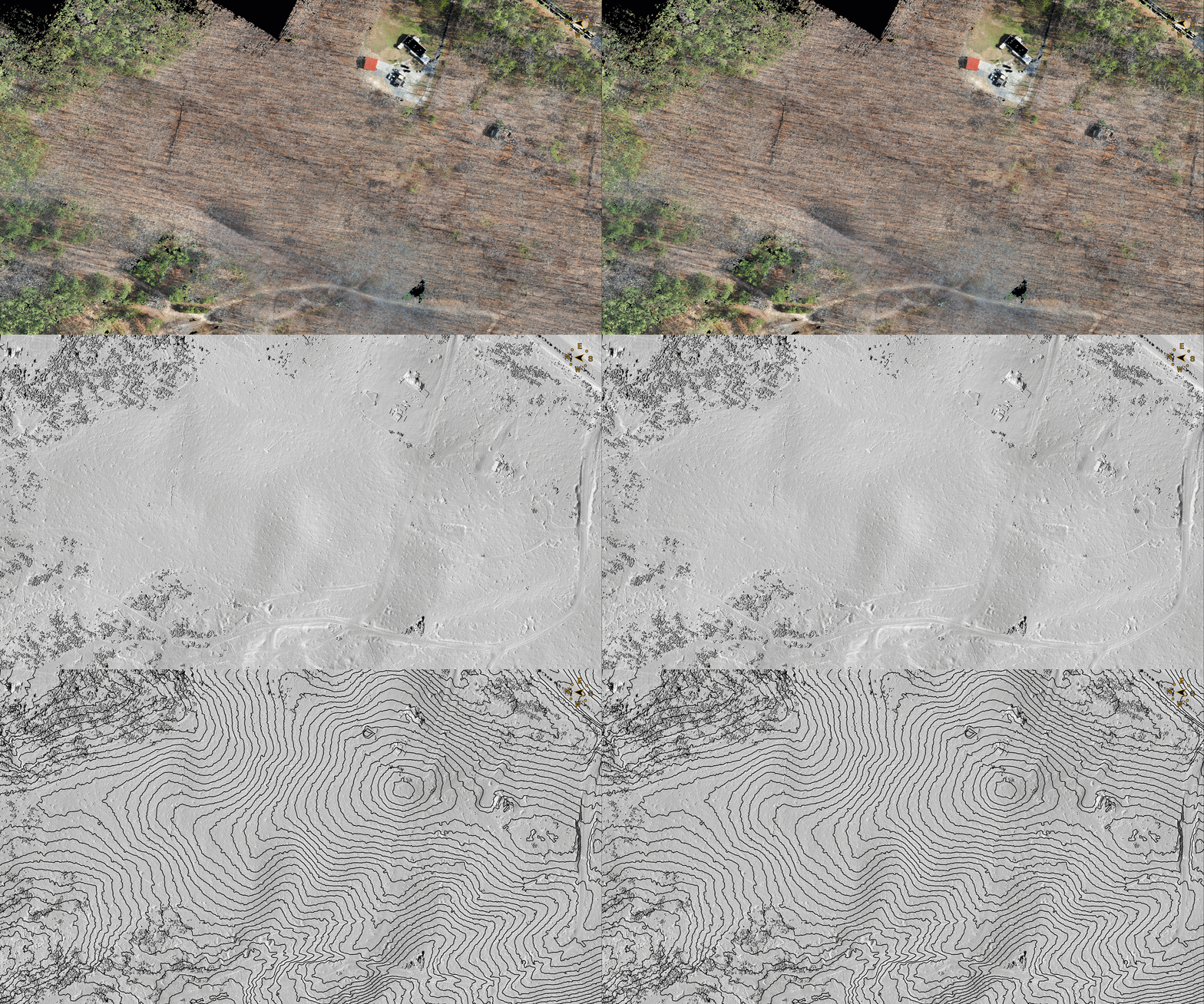
When exported, these contour lines produced a file size of 94 MB. By contrast, using a larger grid size can still capture the essential terrain shape while filtering out unnecessary detail—resulting in a cleaner model and a much smaller, more usable file.
Testing Different Point Grid Sizes
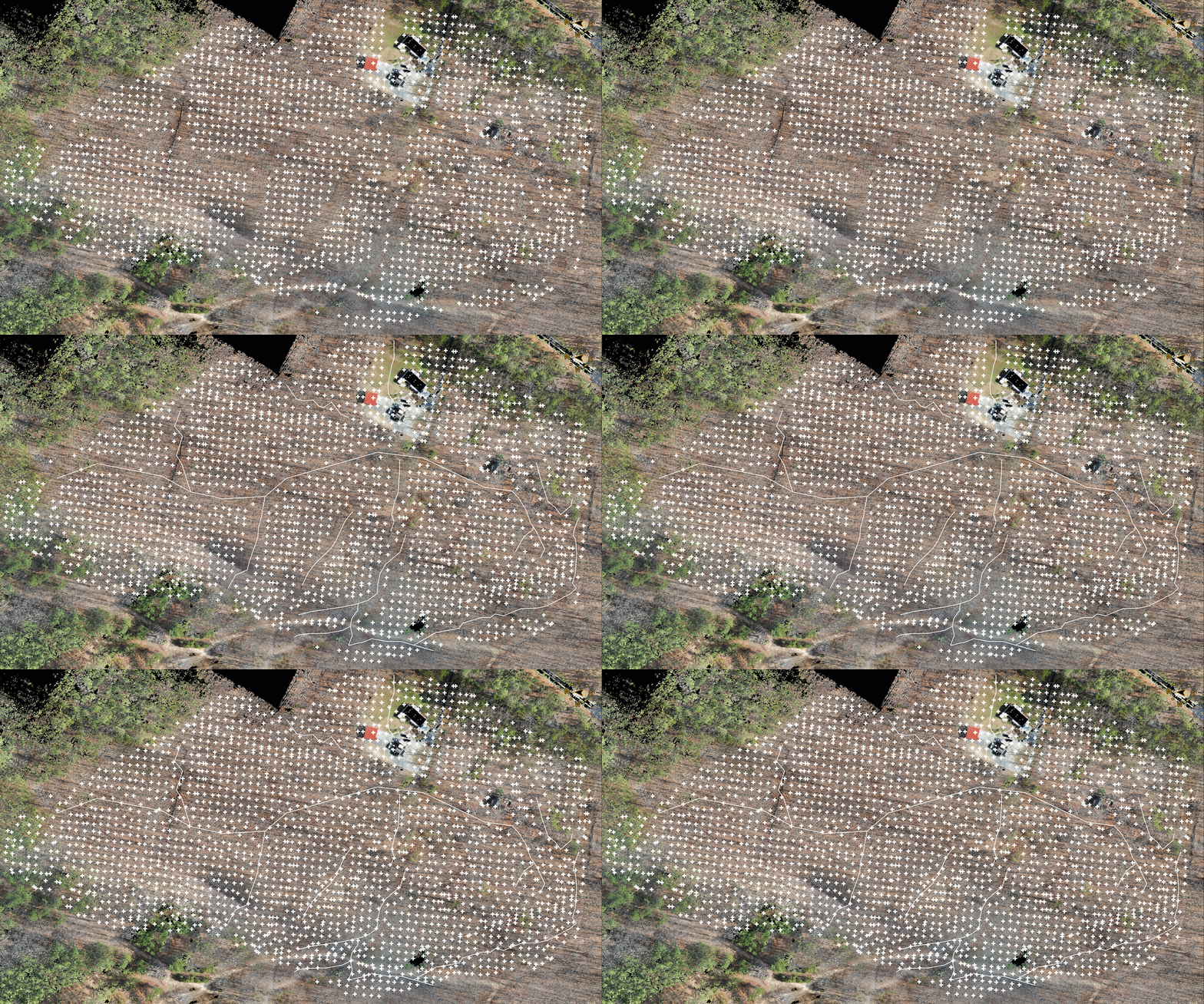
To better understand the impact of grid density, we created several point grids at different spacings: 30 cm, 1 m, 5 m, and 15 m (approximately 1 ft, 3 ft, 16 ft, and 50 ft). Then we cleaned each grid by removing points located on buildings, trees, and foliage using the Erase or Area Select tools.
| Point Grid Density Comparison | |||
|---|---|---|---|
| 30 cm Point Grid (413,993 points) | 1 m Point Grid (40,043 points) | 5 m Point Grid (3,363 points) | 15 m Point Grid (372 points) |
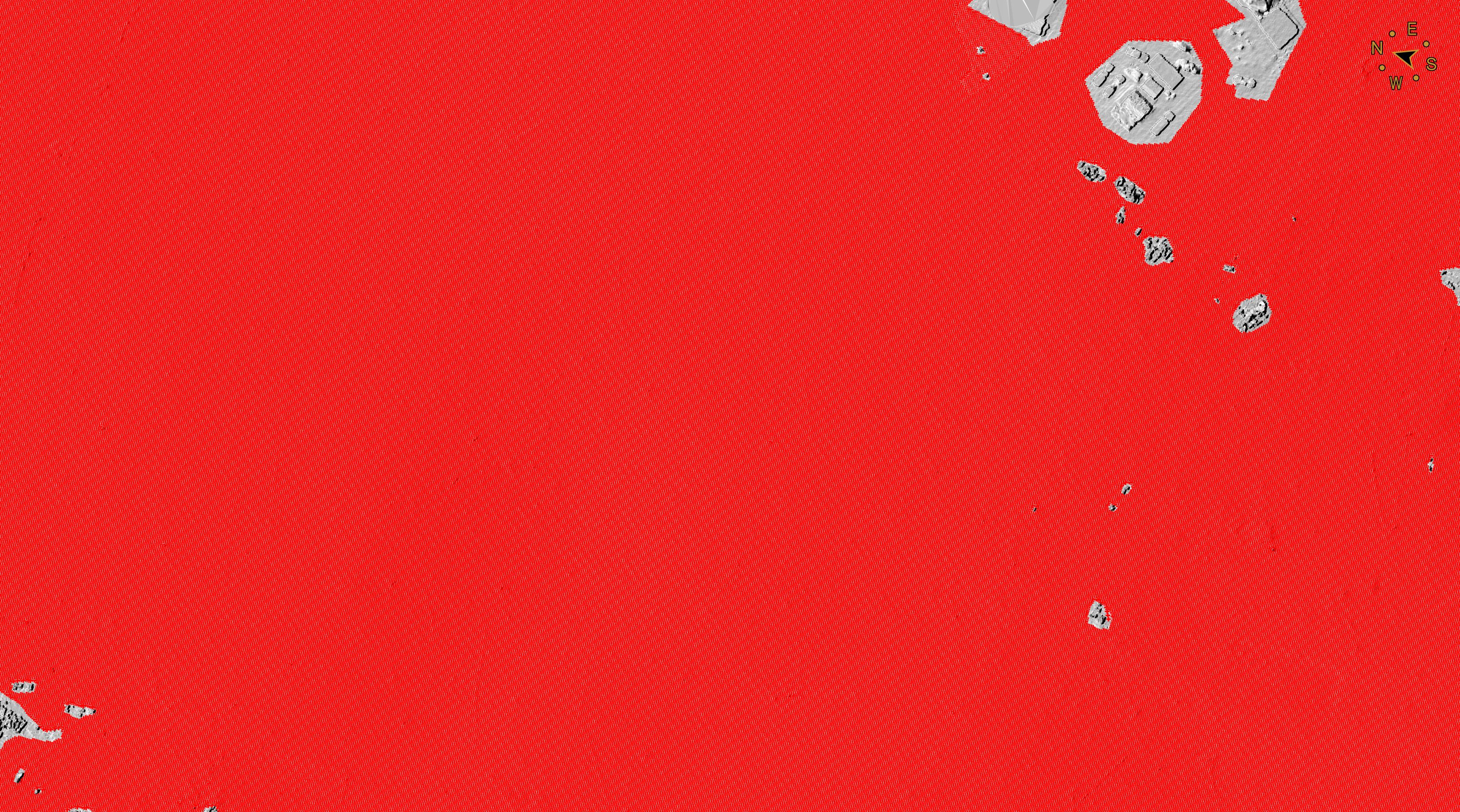 | 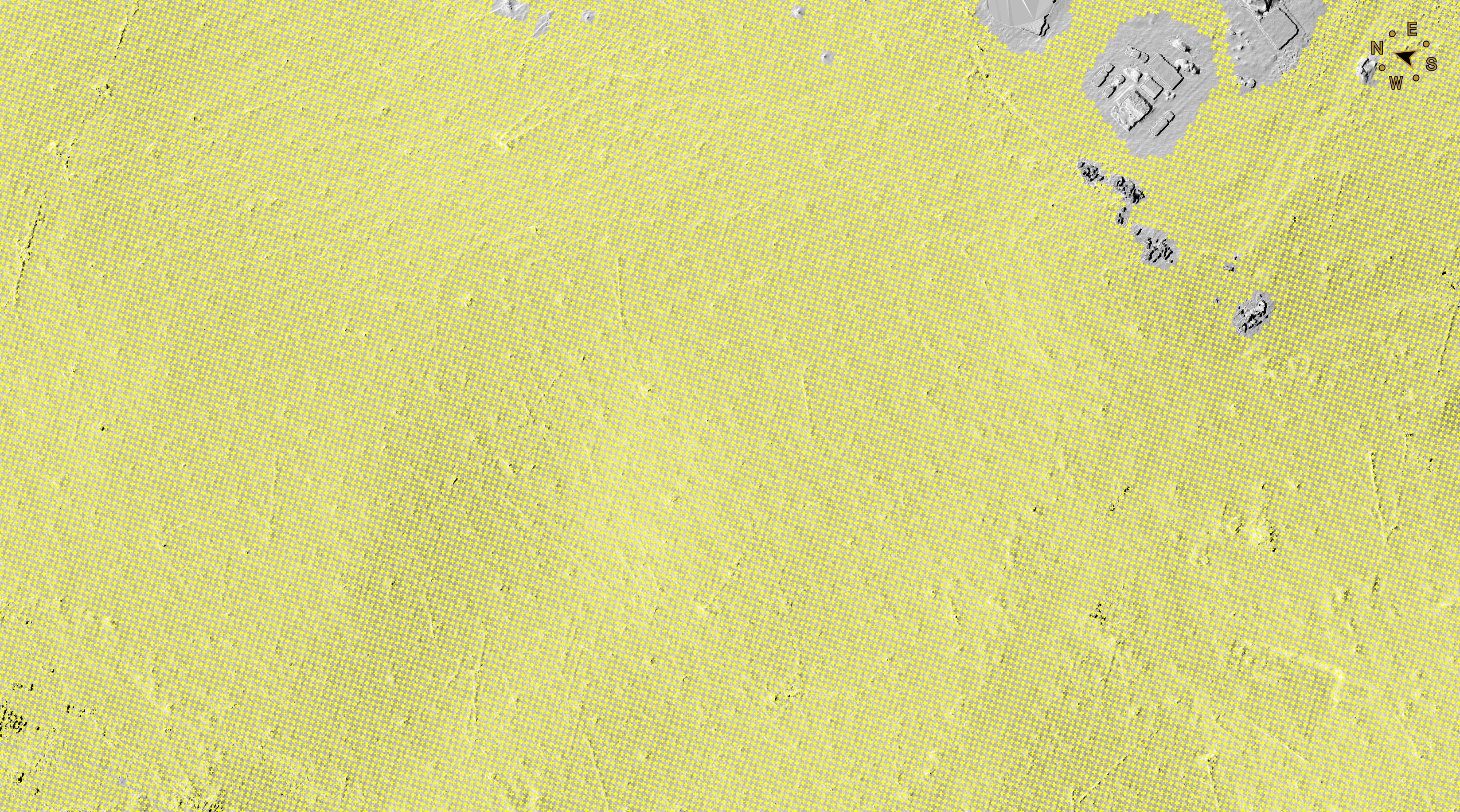 | 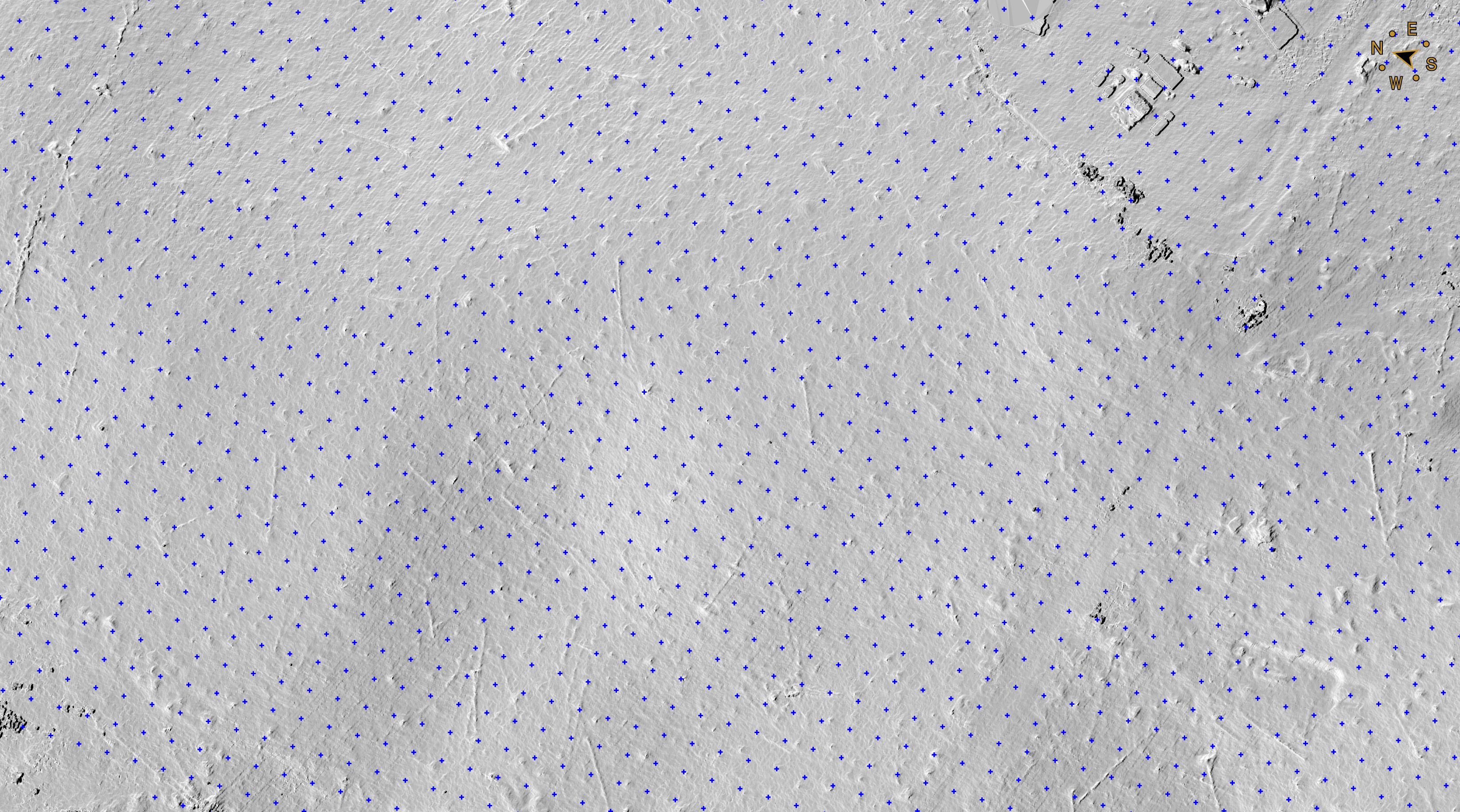 | 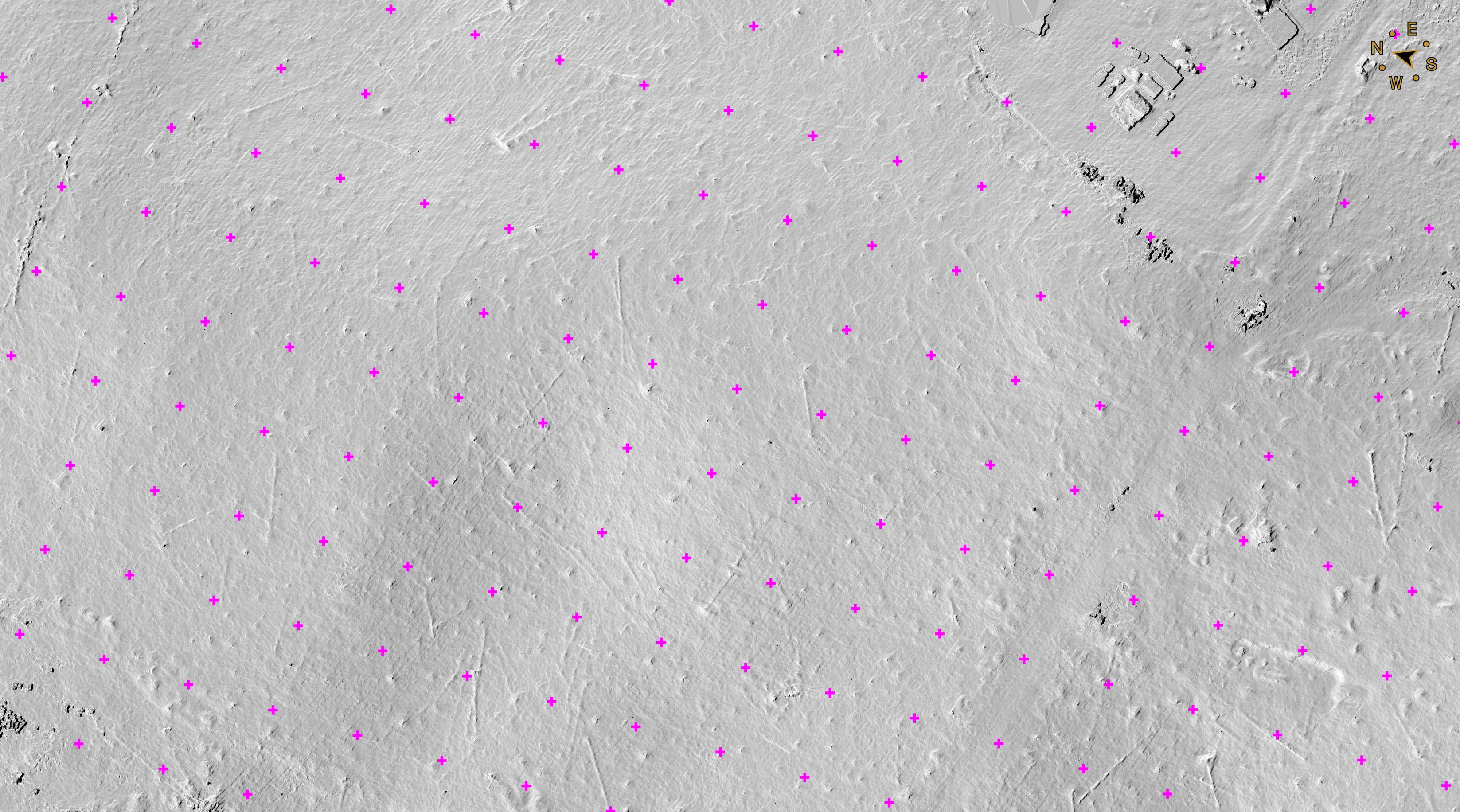 |
As shown above, the 30 cm grid contains over 400,000 points—so dense that, at a typical viewing height, the ground surface becomes difficult to distinguish. In contrast, the 15 m grid drastically reduces the dataset to just a few hundred over the same area.
A helpful way to think about this is to ask: How far apart would you realistically place points in the field? Surveying virtually allows for greater flexibility, but the same principle applies—capturing meaningful terrain detail without unnecessary density.
After creating each grid, we generated contours to compare how much detail was actually preserved.
Contour Overlay of Point Grids and LiDAR Point Clouds
To evaluate how much detail is retained with larger point grid spacing, we overlaid contours generated from each grid size with contours derived directly from LiDAR.
Contour Overlay Comparison | |||
|---|---|---|---|
| 30 cm Grid Contours vs LiDAR Contours | 1 m Grid Contours vs LiDAR Contours | 5 m Grid Contours vs LiDAR Contours | 15 m Grid Contours vs LiDAR Contours |
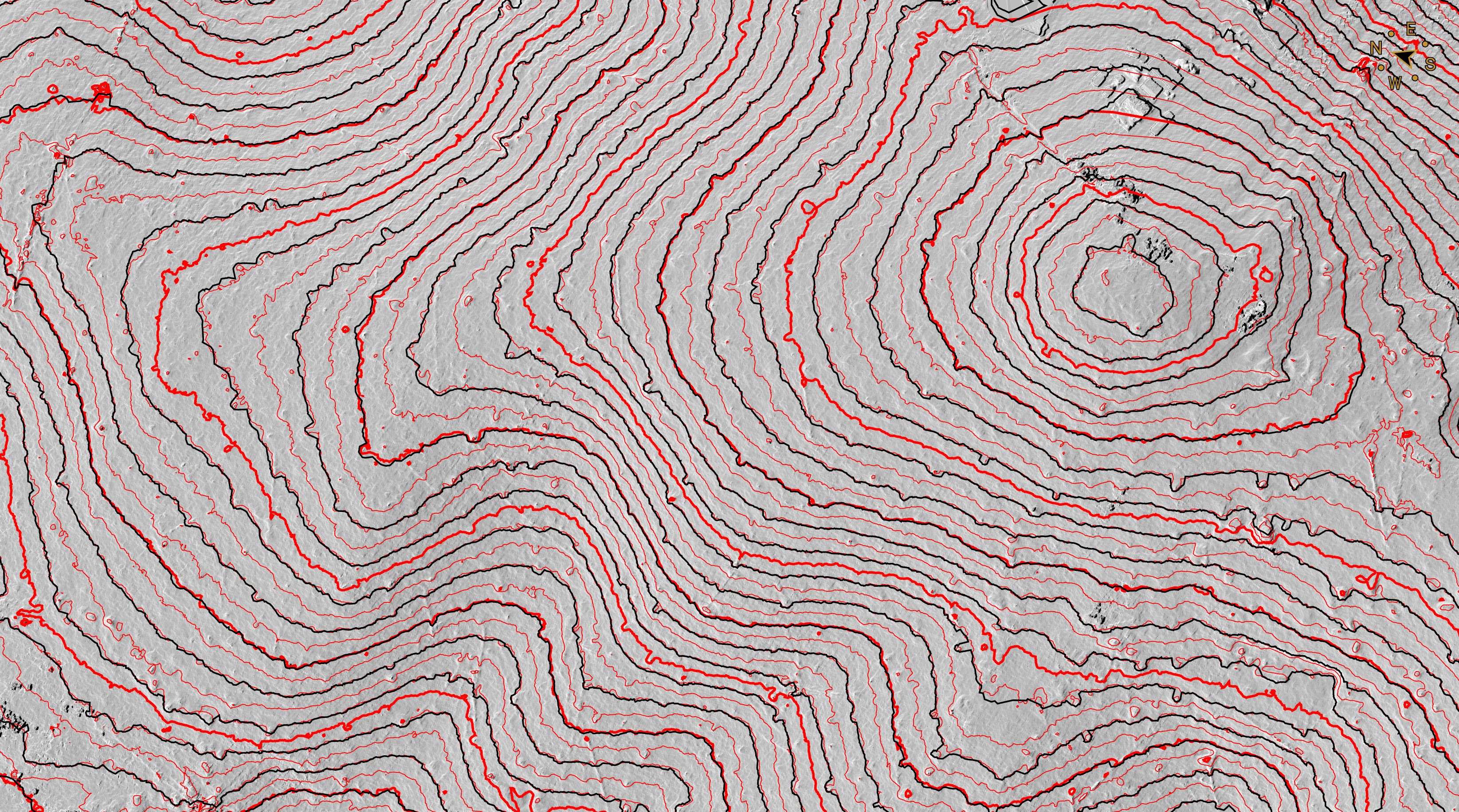 | 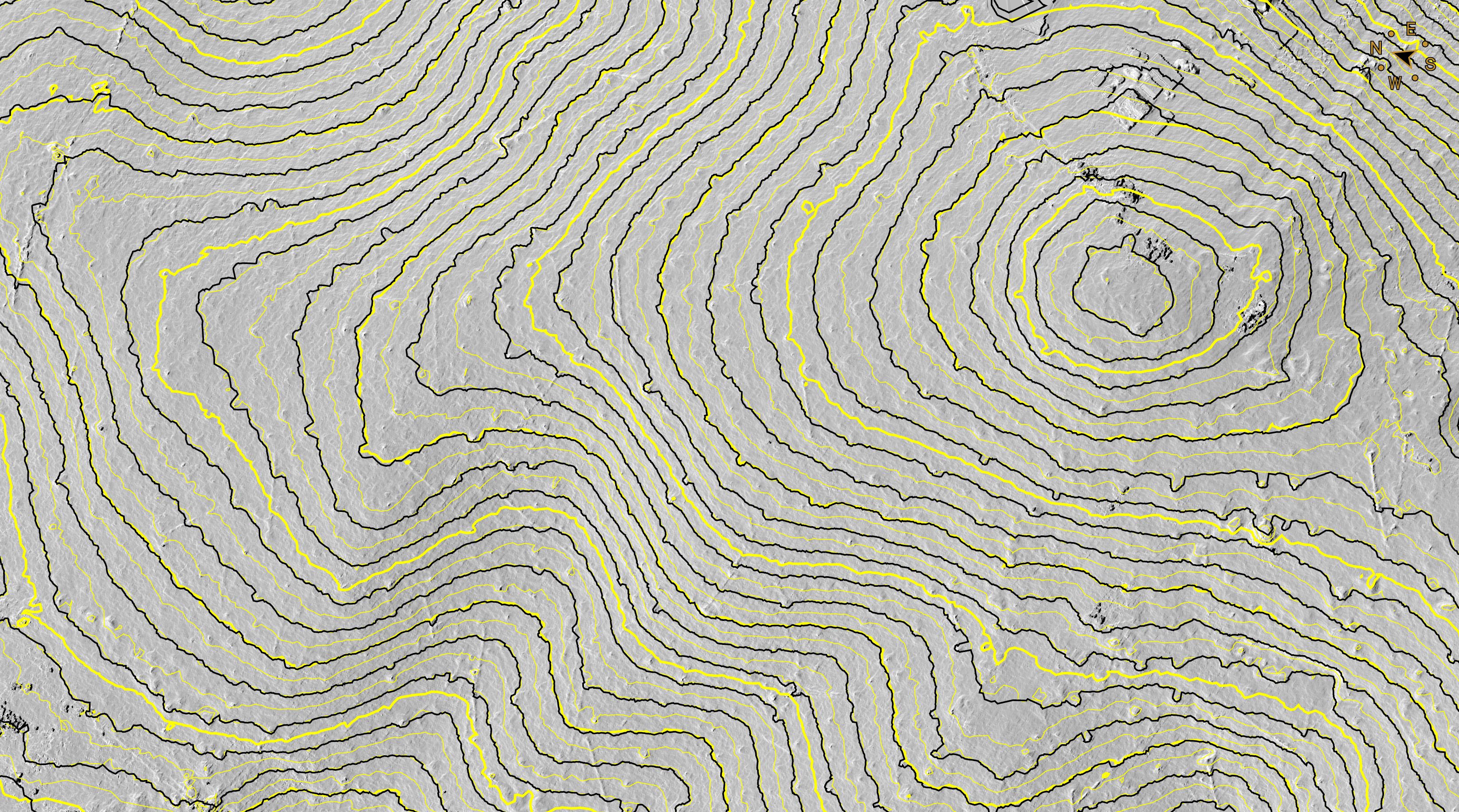 | 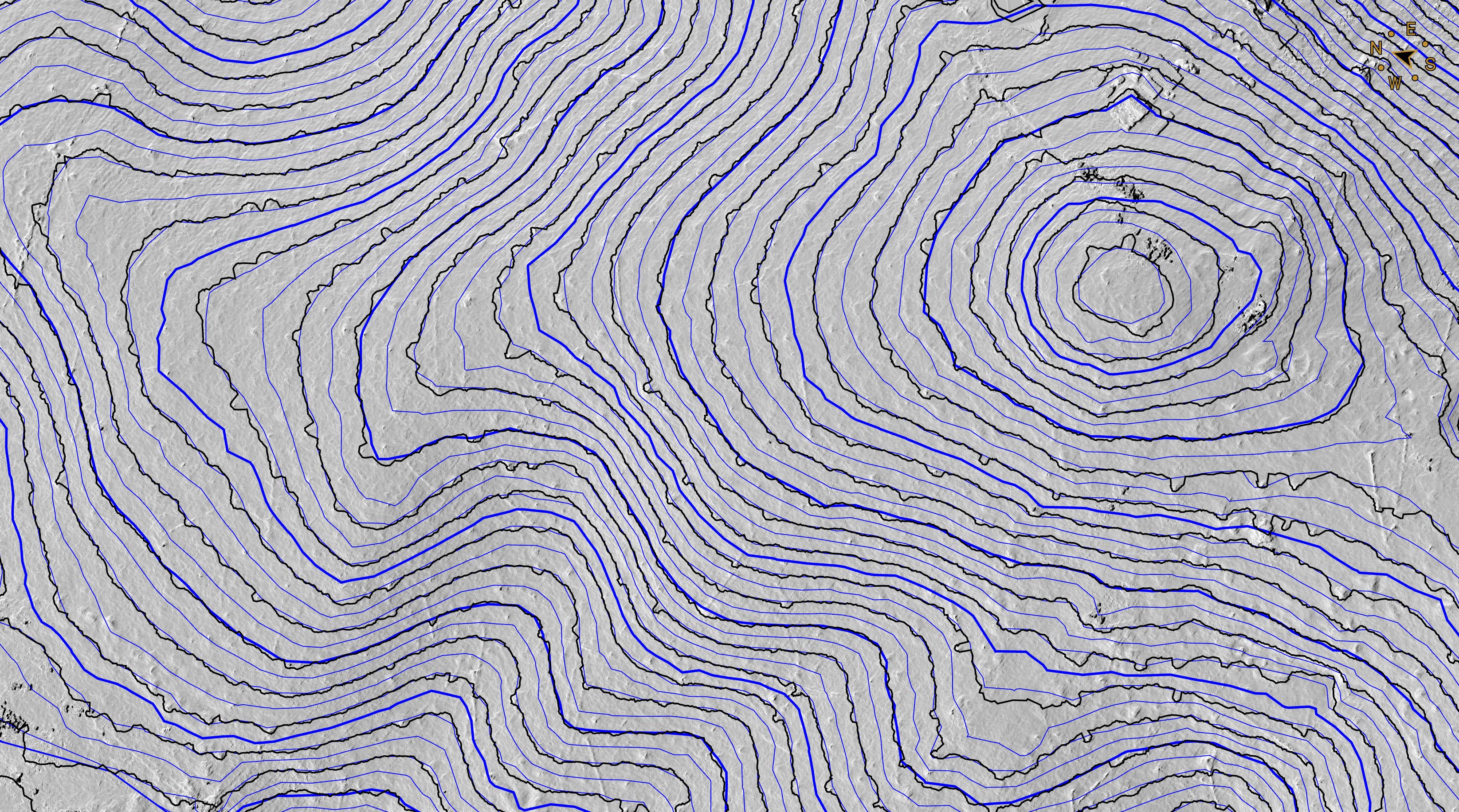 | 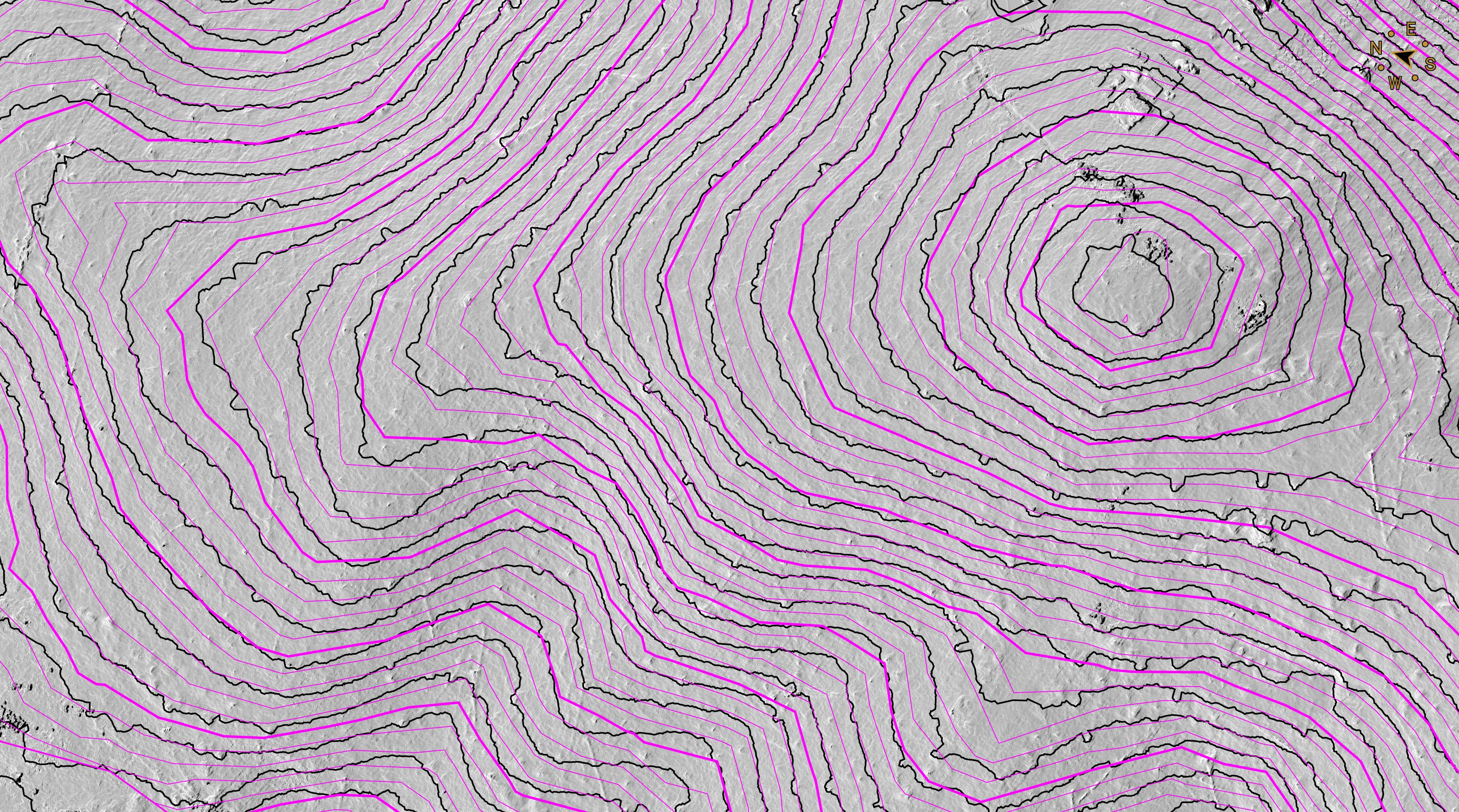 |
Across these comparisons, the overall terrain shape remained surprisingly consistent. The primary differences were in contour smoothness, noise, and file size—not in meaningful elevation detail.
Even with wider grid spacing, key terrain features remain intact. The main improvement is in how clean and usable the contours become.
Observations from Survey-Grade Contours:
- A 30 cm (~1 ft) grid size or other grids sizes below 1 m creates the problems we are trying to avoid: Jagged, cluttery, and overly detailed contour lines.
- A 1 m (~3 ft) grid size generates detail that may be at the edge of acceptable, and can have smooth contours so long as it avoids or is cleaned up to exclude unnecessary terrain details.
- A 5 m (~15 ft) grid size retains a strong level of detail while producing smooth, readable contours.
- A 15 m (~50 ft) grid size simplifies the terrain further—useful for broader overviews but may omit smaller features.
When compared directly to LiDAR-generated contours, the benefit becomes clear. The manually guided results remove unwanted terrain noise while preserving the true ground surface. Instead of jagged, overly detailed lines, you get clean contours that closely match the terrain—without the clutter.
Another important consideration is performance. Grid sizes below 1 m can be taxing on a computer, increasing processing time and making workflows less efficient.
Overall, the data shows that overly dense grids introduce more problems than they solve. They require more cleanup, increase processing time, add unnecessary noise, and raise the risk of including inaccurate surface data.
Of course, the level of detail you need will completely depend on your project. The strength of the VirtualSurveyor app is that you’re not locked into a single approach—you can refine your model by adding or removing points and breaklines as needed to balance accuracy and efficiency.
Comparing File Sizes
After generating contours from each grid size, we exported them individually to compare file sizes.
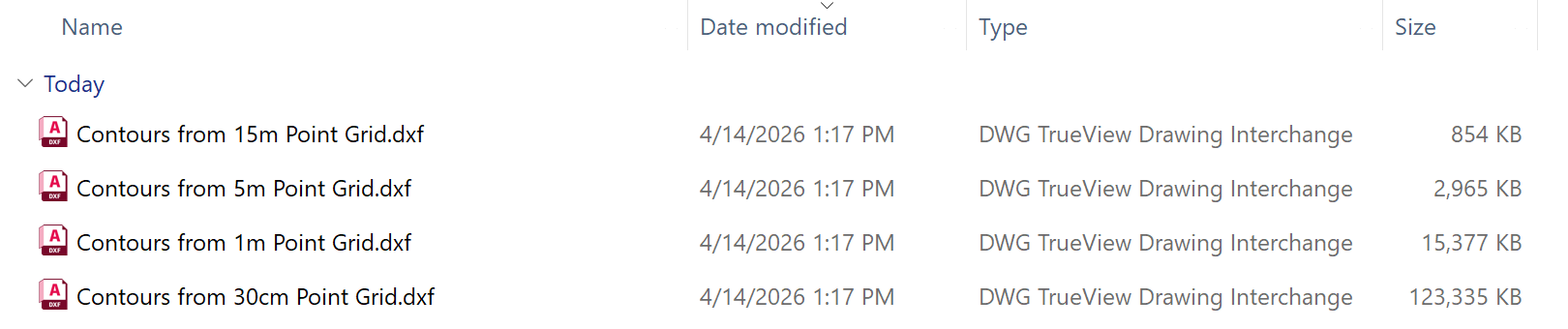
As expected, denser grids produce significantly larger files, while larger grid spacing dramatically reduces file size—without a proportional loss in useful detail.
This reinforces a key takeaway: more points don’t necessarily mean better results. A well-structured dataset with the right level of detail will almost always outperform a dense, noisy one.
(You can read more about exporting contour lines here.)
Tips for Getting the Most out of a Point Grid
The most effective workflows don’t rely on grid density alone—they combine multiple tools to capture detail where it matters most.
- Start with a practical grid size
Begin with a moderate spacing of around 5 m (15 ft) to test your baseline, then move the grid size up or down to best establish the overall terrain detail you are looking to achieve. You can also use the Low-Pass tool to avoid placing points on unwanted objects. This keeps your dataset efficient from the start. - Add breaklines to define structure
Use breaklines along tops, toes, edges, and other key features. These guide the surface model and ensure sharp changes in elevation are accurately represented. - Place points strategically—not everywhere
Instead of increasing grid density across the entire site, manually add points in critical high and low areas. This gives you precision where it matters without inflating file size. - Focus on the ground, not the noise
Avoid capturing unnecessary detail like vegetation or small surface artifacts. Clean data leads to cleaner contours and better performance. - Iterate with purpose
Refine your model as needed—add detail where required, simplify where possible. The goal is not maximum data, but usable and accurate data.
Result:
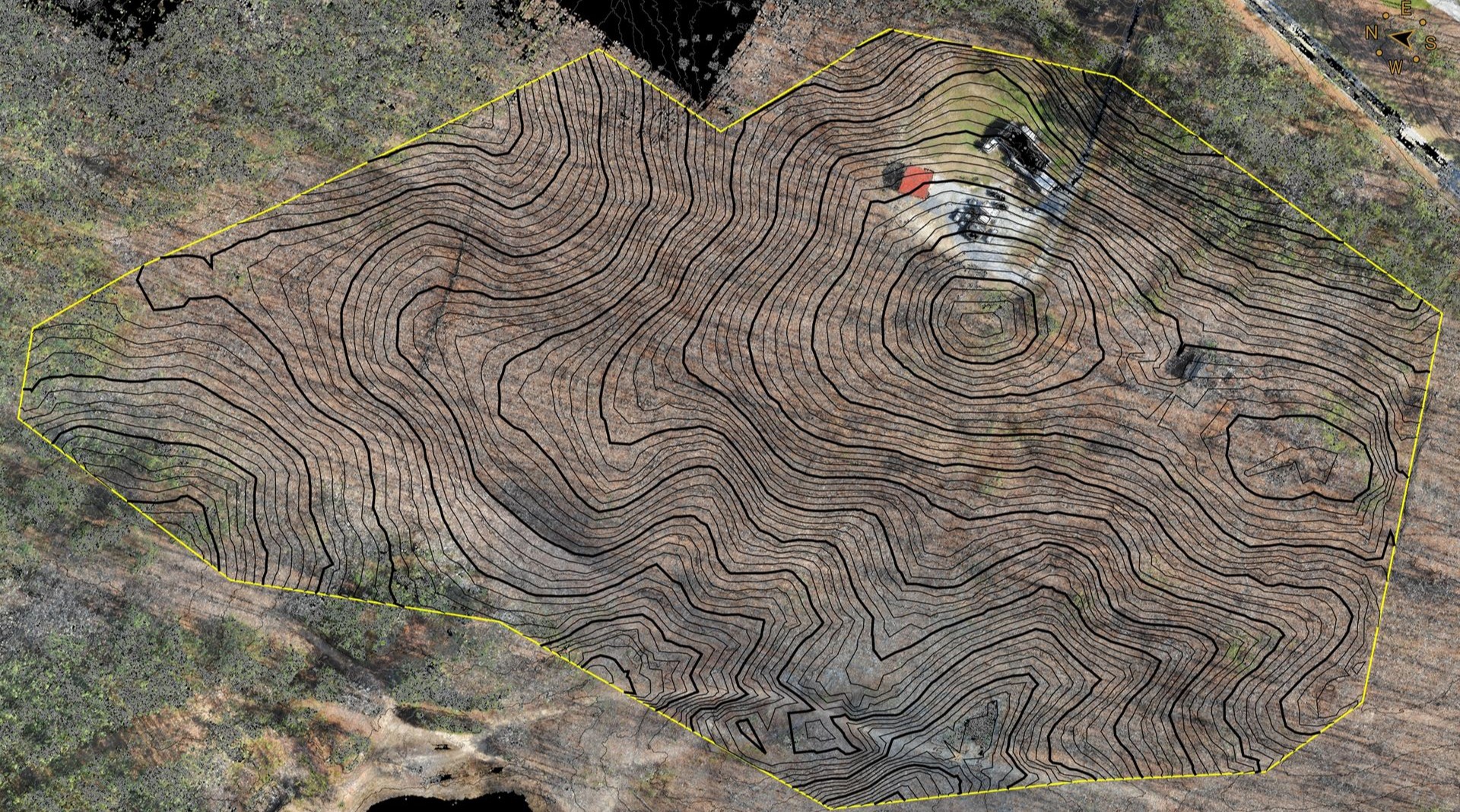
By combining a well-sized point grid, breaklines, and strategically placed manual points, you can create contours that are both highly detailed and lightweight—making them easy to work with in any CAD environment.
Point Grid, Breaklines, Manually Placed Points | Contour Results |
|---|---|
 |  |
(The example workflow for low-pass points on a ridge can be found here: On Low-Pass Points and Ridges)