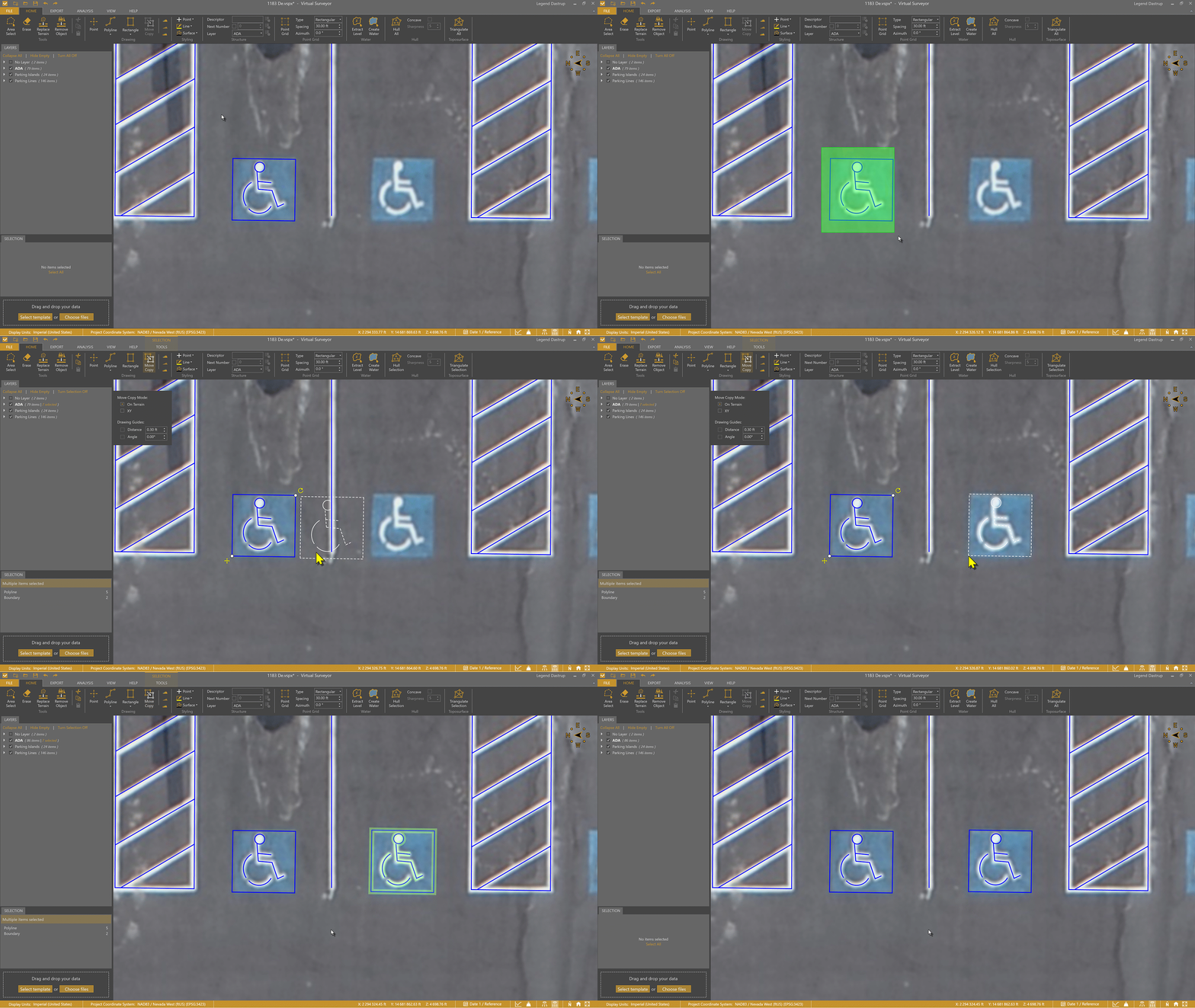
Move/Copy is especially helpful in planimetric surveys where you’re working with repetitive features such as paint lines, manholes, drainage structures, parking lot markings, and other similarly drawn geometries.
Instead of redrawing the same geometry multiple times, you can quickly duplicate, reposition, and rotate existing drawings. You can also select multiple geometries and move or copy them together, allowing you to treat them as a single unit during placement. This article will show you how to do all these actions.

Overview
Move, Copy, and Rotate
Use Move/Copy when you want to duplicate, move, or reposition drawn geometries in your survey.
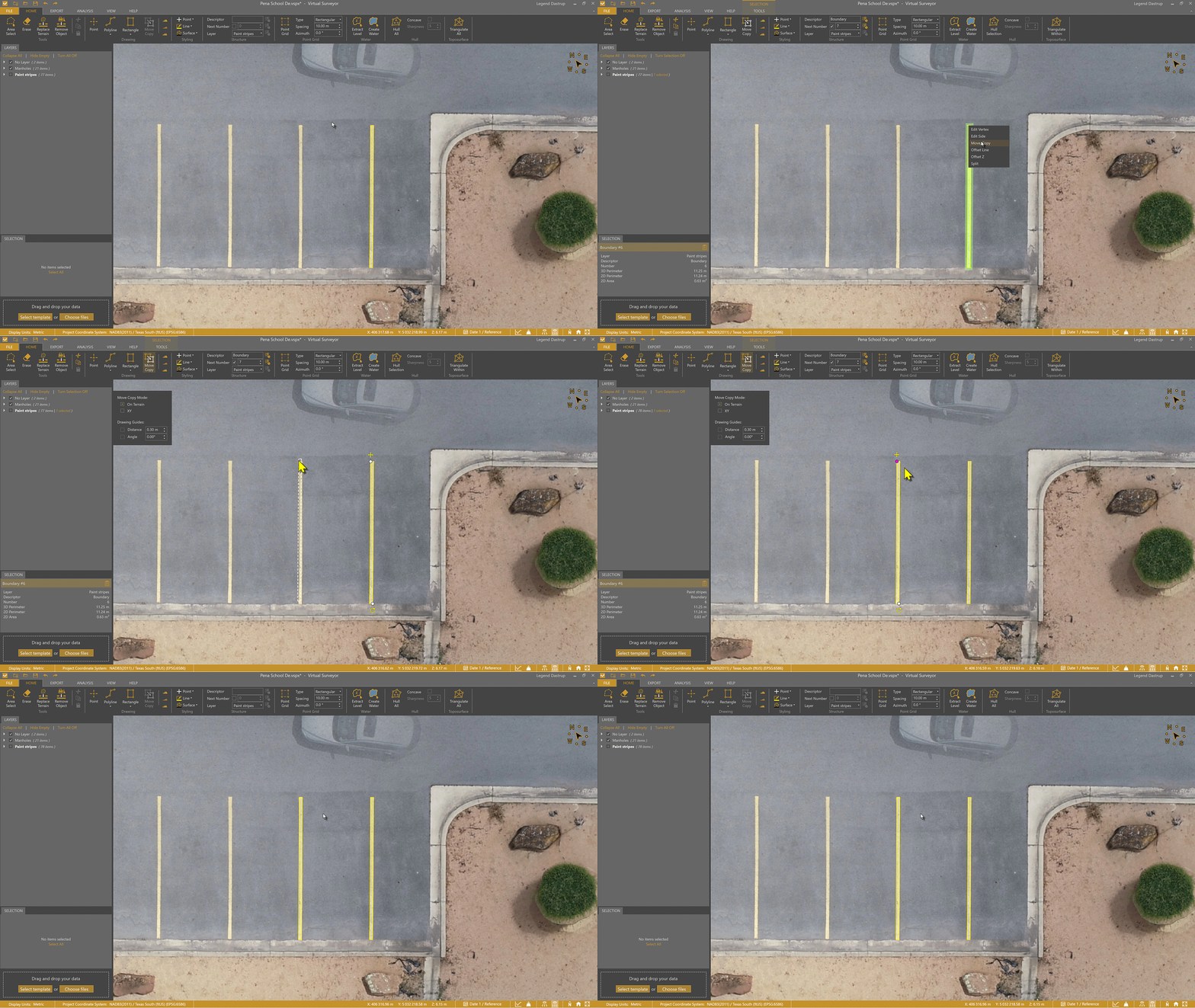
Copy a Geometry
- Select the geometry in the Viewport and right-click to open the Mini Toolbar.
- Select Move/Copy
- Move the dotted outline to the desired location.
- Left-click to place the copy.
Move a Geometry
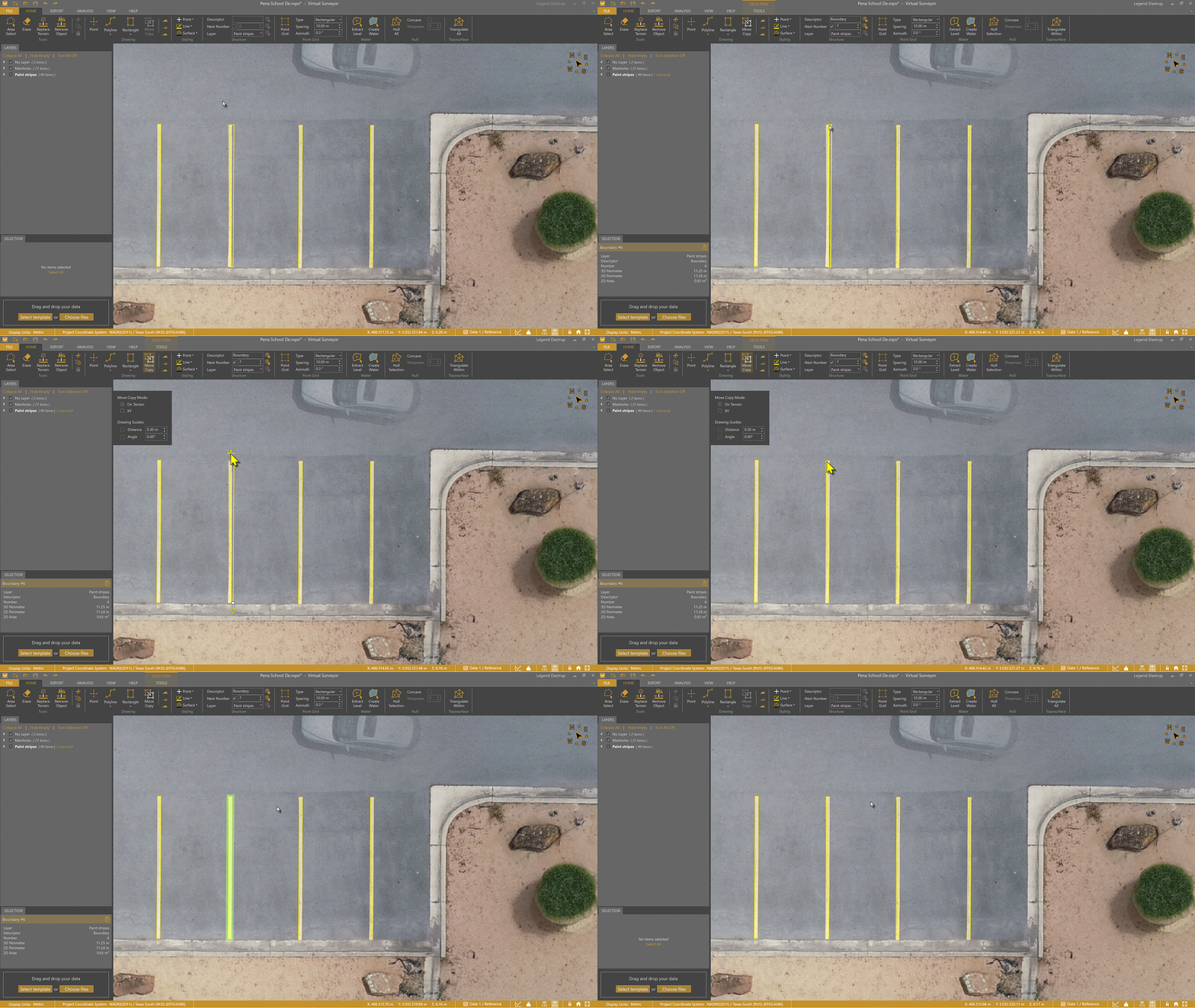
If you need to adjust the position of a geometry after drawing or copying it:
- Select the geometry.
- Left-click and hold the Move anchor (arrow cross) that appears next to it.
- Drag the geometry to the intended location.
- Release the mouse button to place it.
Rotate a Geometry
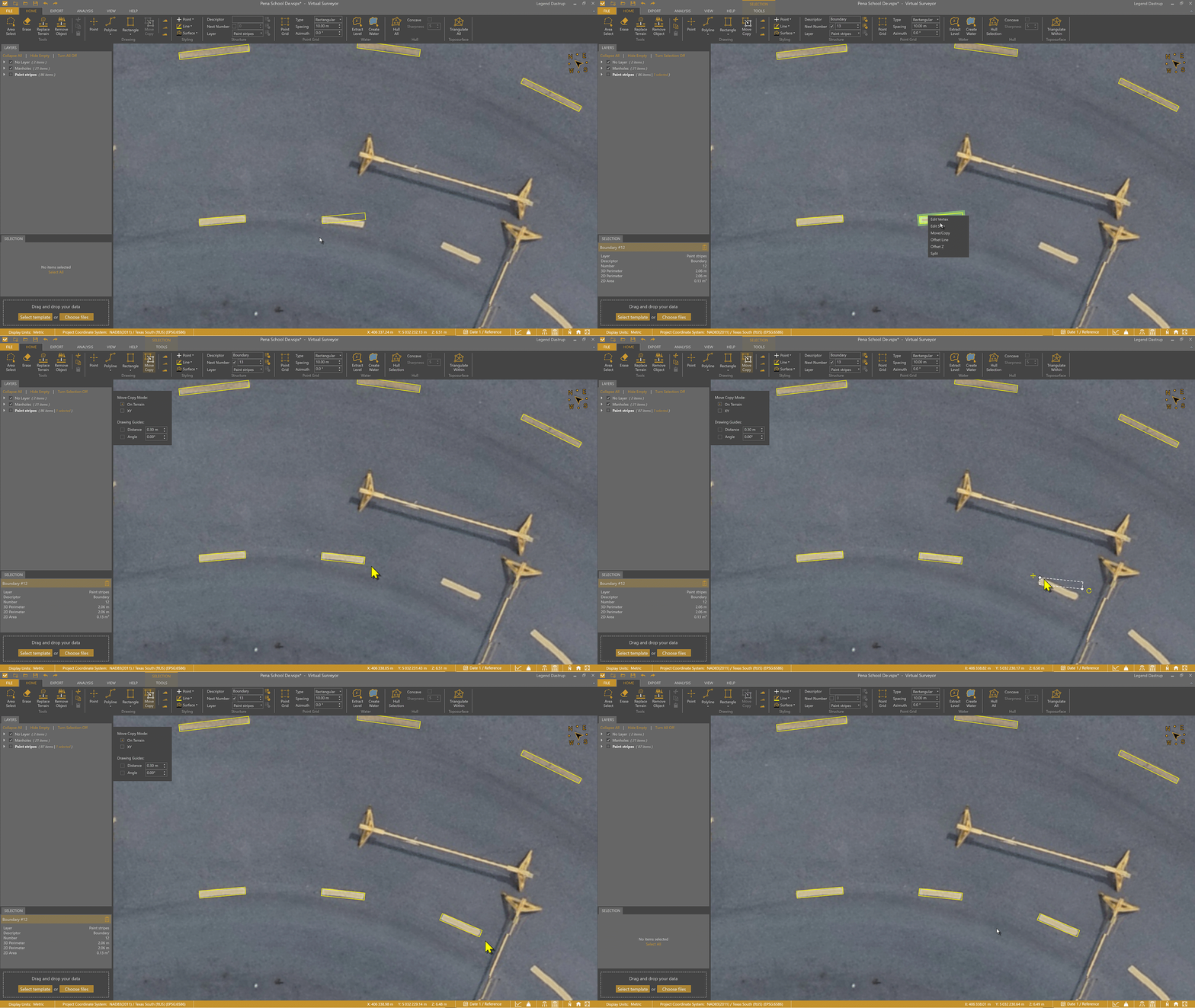
Planimetric features often have repetitive features — such as drains, parking lines, light poles, etc. — with different orientations and Rotate can help reposition them properly.
- Select the geometry.
- Right-click to open the Mini Toolbar and select Move/Copy.
- Use the rotate button to pivot the geometry around the anchor point.
- Release the mouse button to finish the rotation.
Move Copy Modes and Drawing Guides
The move copy modes and drawing guides help you place geometries more precisely when moving, copying, or rotating.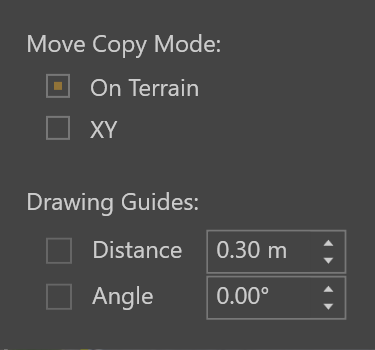
Move Copy Modes
Move Copy Modes control how a geometry behaves in relation to elevation during placement.
- On Terrain mode places the geometry directly on the terrain surface.
- XY mode keeps the geometry at the same elevation relative to the anchor point.
This allows you to choose whether the geometry follows the terrain or maintains a consistent height.
Drawing Guides
Drawing Guides appear as white guidelines in the Viewport and help you position geometries with precision. They allow you to:
- Snap to a specific distance from the anchor point.
- Align movement using a direction or angle with controlled 360° degree increments.
These guides make it easier to place geometries exactly where you need them, especially when working with precise layouts or repeated patterns.
Anchors
Anchors control how a geometry moves and rotates. Adjusting their position allows for more precise placement, snapping, and alignment.
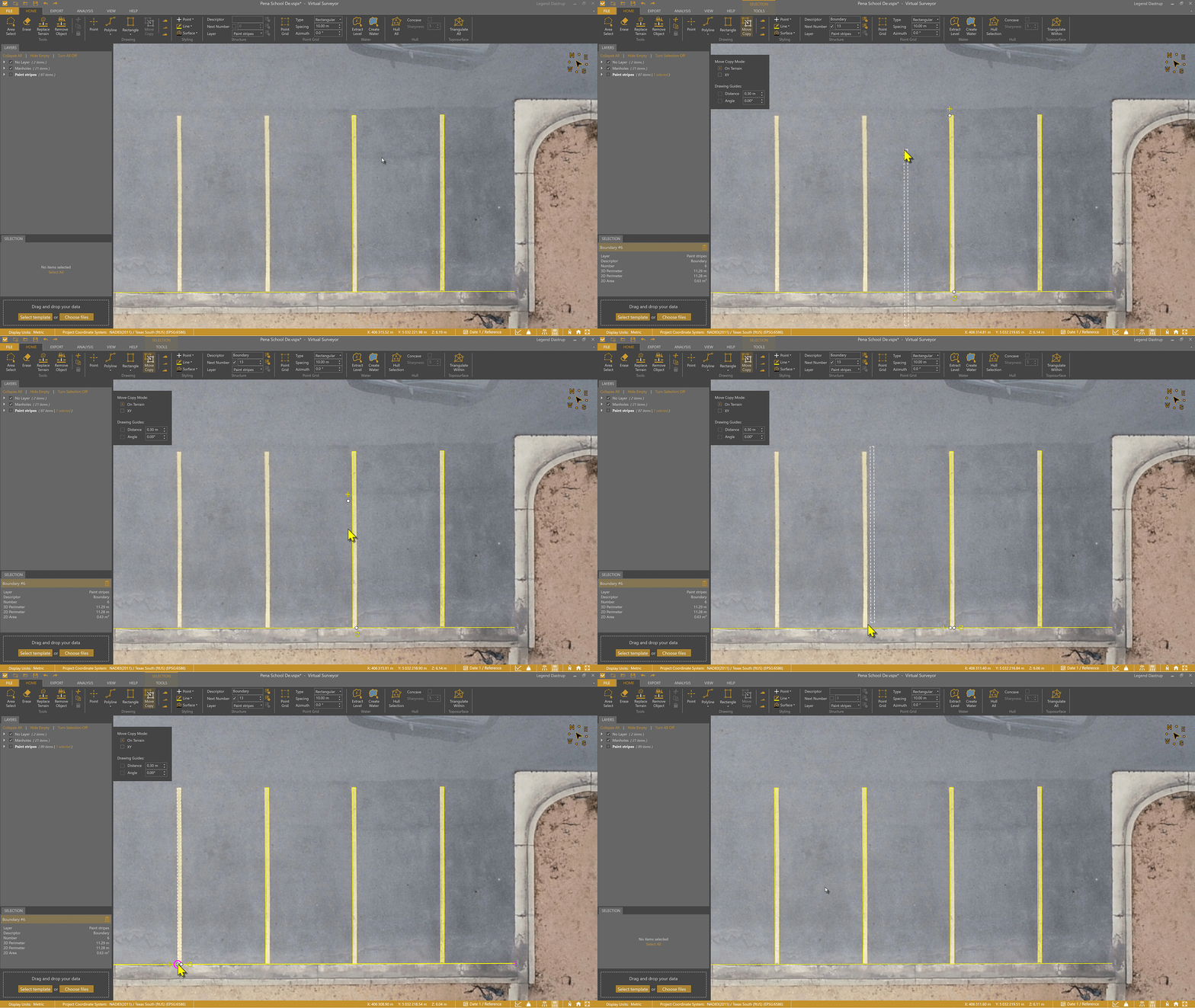
Change the Move Anchor Location
The Move anchor determines where the geometry snaps and aligns when copying or moving. Adjusting the anchor can make alignment much more intuitive, especially when matching corners, endpoints, or edges.
- Select the geometry.
- Left-click and hold the white anchor next to the Move symbol (it highlights in purple).
- Drag the Move anchor to new location on or around the geometry.
- Use the updated anchor position to snap or place the geometry exactly where needed.
Rotate Around a Different Point
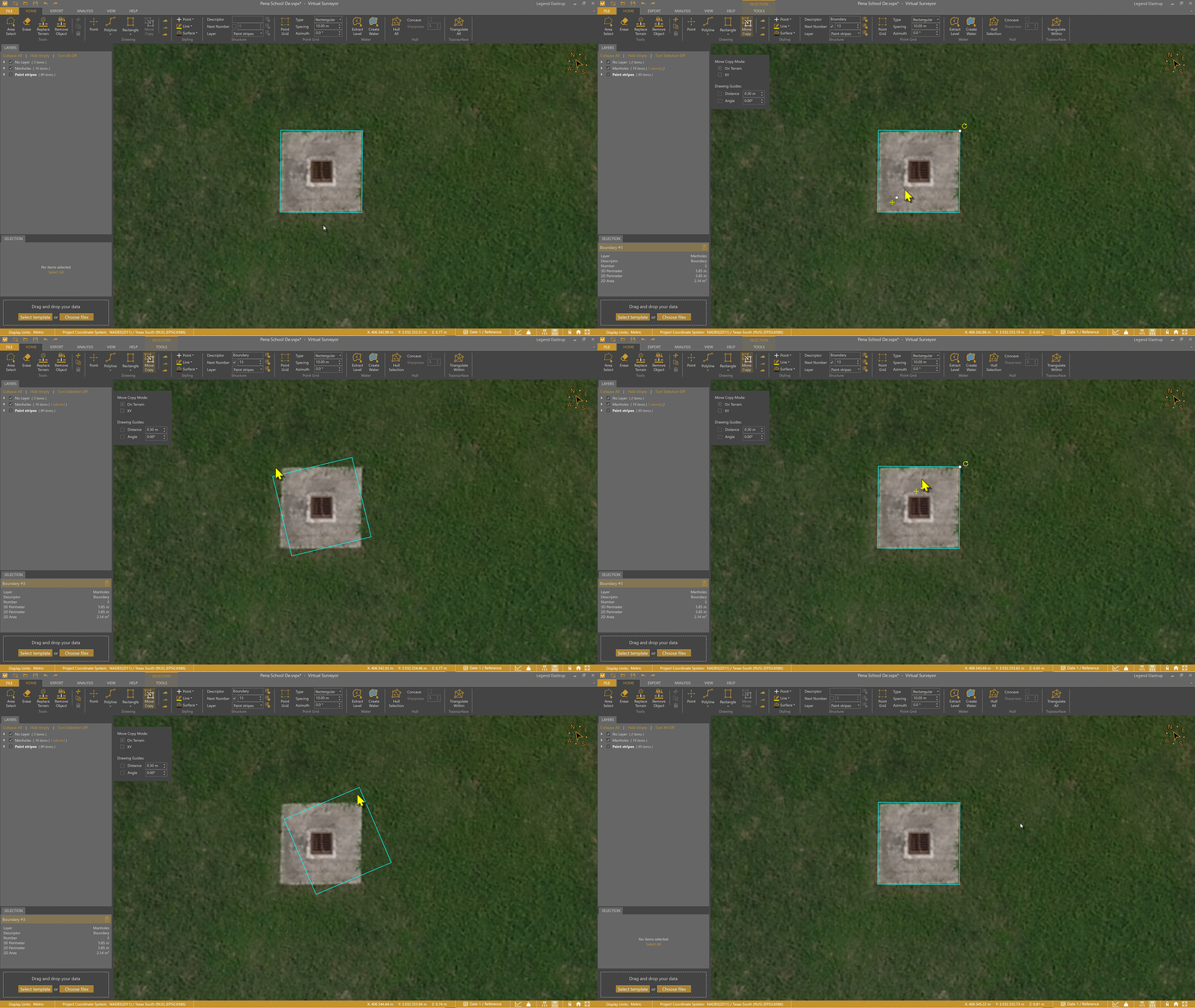
With the Rotate function, rotation always occurs around the Move anchor. To rotate around a different point, reposition the Move anchor first.
- Select the geometry.
- Left-click and hold the anchor (white dot) next to the Move symbol.
- Move the anchor to the desired pivot point.
- Use the Rotate control to rotate the geometry around the new anchor location.
Swap the Rotate and Move Anchors
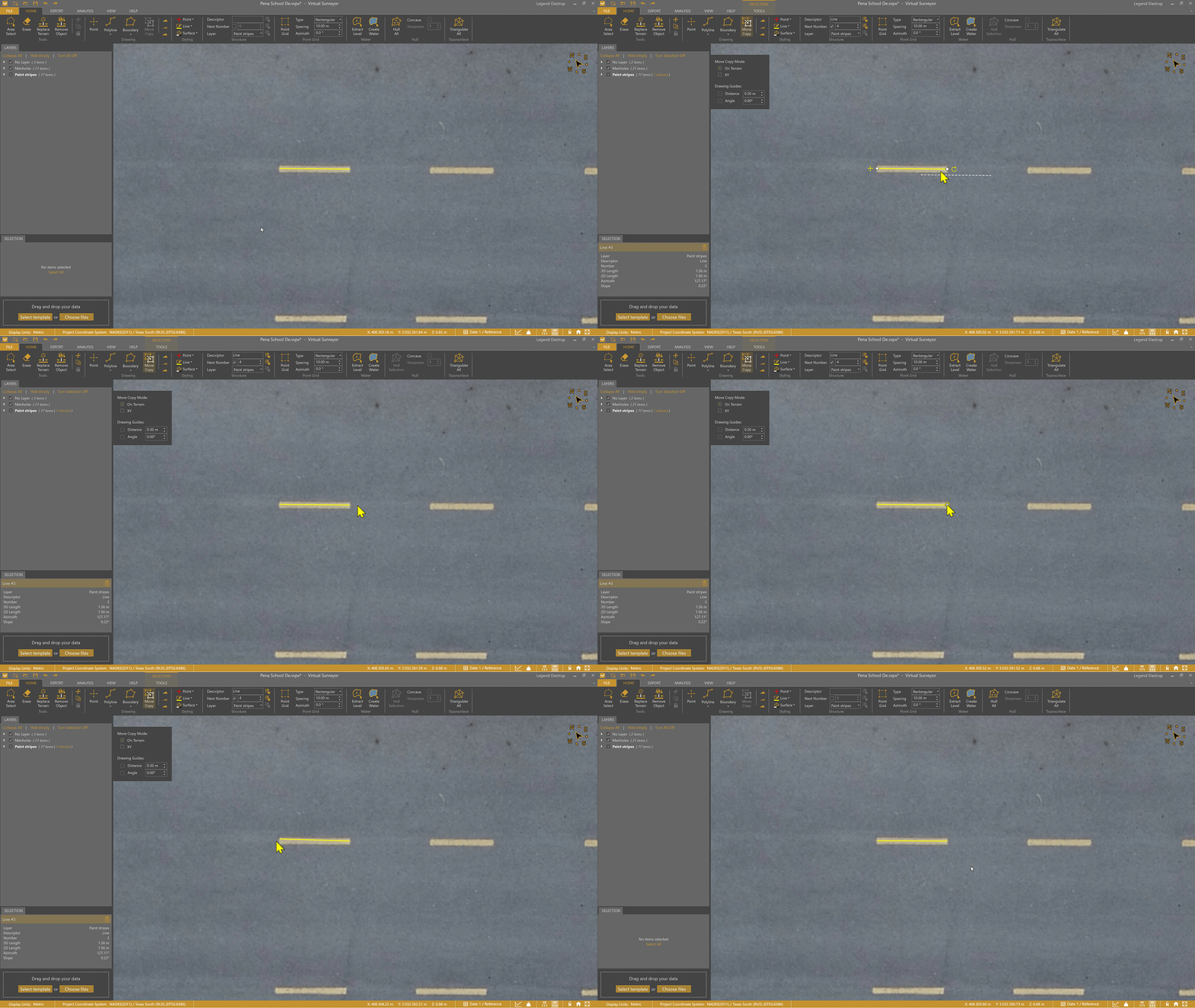
You can swap the positions of the Rotate and Move anchors on a selected geometry.
To switch them, drag one anchor directly onto the other. When they overlap, the anchors automatically exchange positions and snap to the opposite ends of the geometry.
For example, if you’ve drawn a line and want to rotate it around the opposite endpoint, simply swap the anchors. The line will then pivot around the new Move anchor location, giving you precise control over movement and rotation.
Tips & Tricks
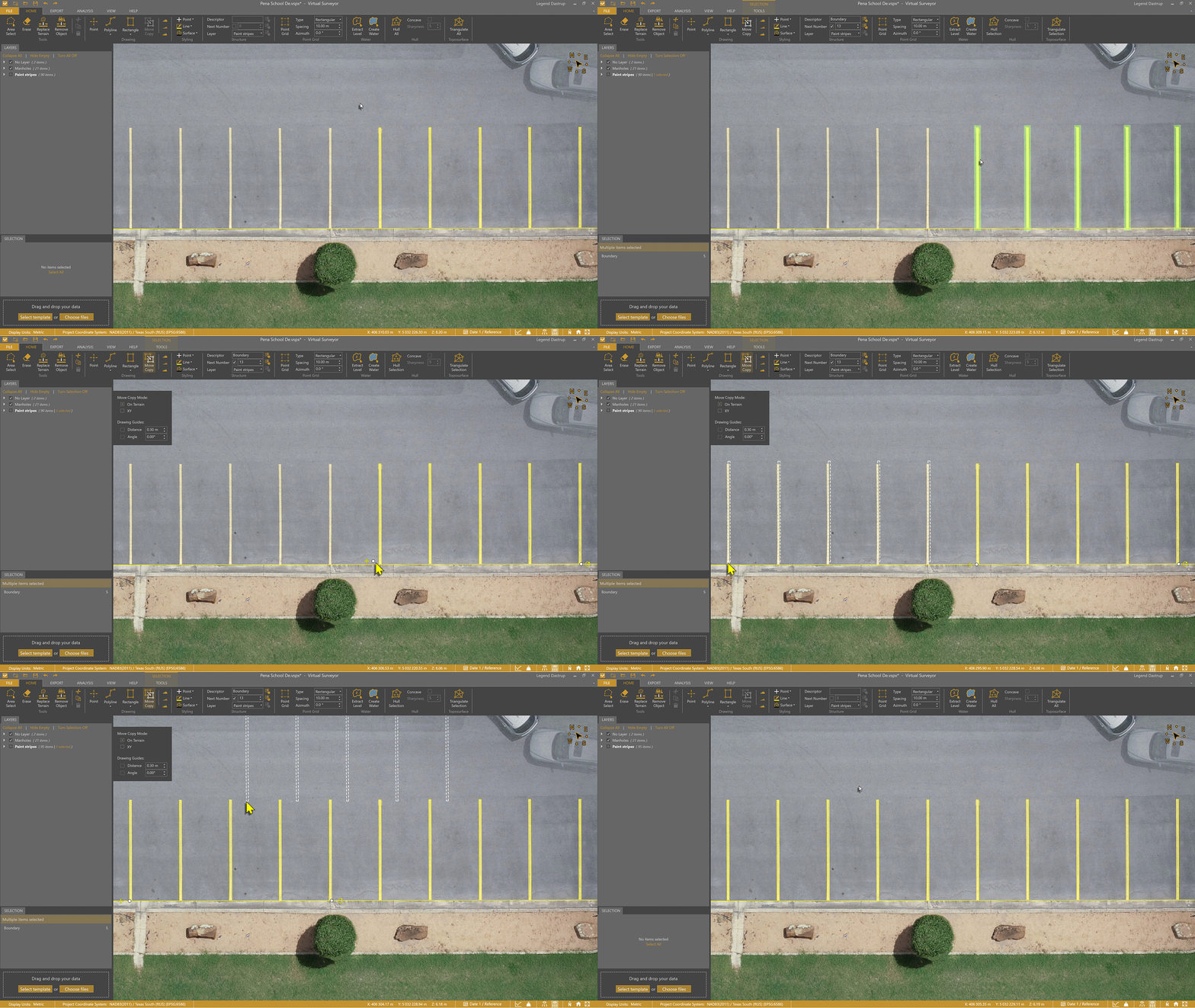
Copy Multiple Geometries
You can save significant time by copying multiple geometries together. Positioning the Move anchor before copying can further improve alignment and placement accuracy.
- Select several geometries.
- Copy them as a group.
- Keep the copied group selected and copy it again.
This method is especially effective for repetitive layouts like parking lines.
Copy Complex Drawings
You can also copy complex drawings by selecting multiple geometries and treating them as a single unit during duplication and placement.
For example, you can copy complex layouts such as handicap symbols or drainage systems by selecting all related geometries and placing them in a new location together.