

Engineering projects often require the highest possible accuracy. That’s one of the main reasons survey teams use Local Coordinate Systems (LCS). Because an LCS is designed for a small area—usually the project site—it helps minimize distortion and keeps your measurements as reliable as possible within that zone.
In this article you'll learn how to create a Local Coordinate System using the Point Mapping technique.
Overview
- Create a Local Coordinate System
- Alternative Option: Create an LCS Using a PCS
- Apply a Local Coordinate System to My Project
- Import and Export a Local Coordinate System
Create a Local Coordinate System
A local coordinate system is created by relating local measurements to known world coordinates at common control points. This relationship is typically stored in a Localization file, which may come from previous survey work or be created for a new site.
In the TerrainCreator app, you construct this relationship in a similar way. To create a Local Coordinate System, you perform a Point Mapping between different measurements of the same physical points:
- World coordinates from GPS/GNSS
- Local coordinates collected with a Total Station
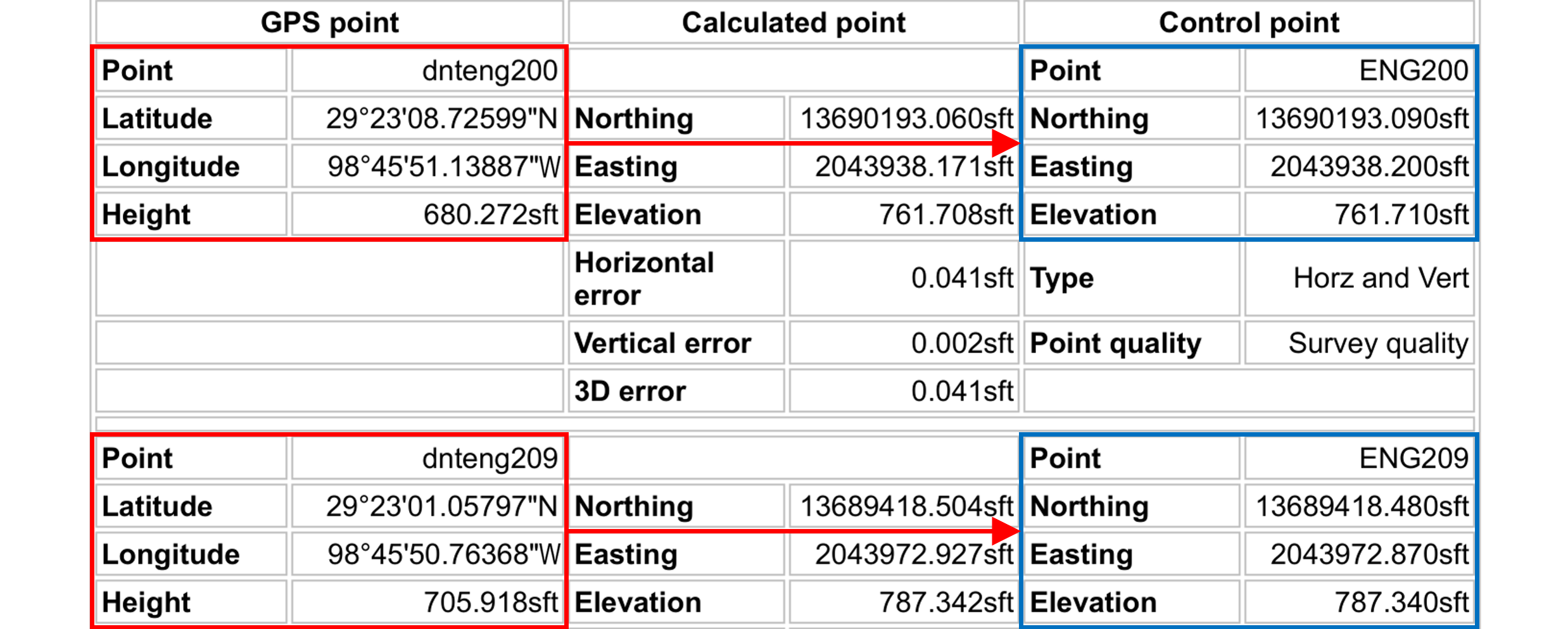
The example illustration shows how points from a Localization file are paired together. The GPS point dnteng200, measured using Latitude, Longitude, and Height (shown in red), corresponds to the same physical point as the control point ENG200, measured using a Total Station in Northing, Easting, and Elevation (shown in blue). The same pairing is shown for GPS point dnteng209 to control point ENG209.
Step 1. Start Creating the Local Coordinate System
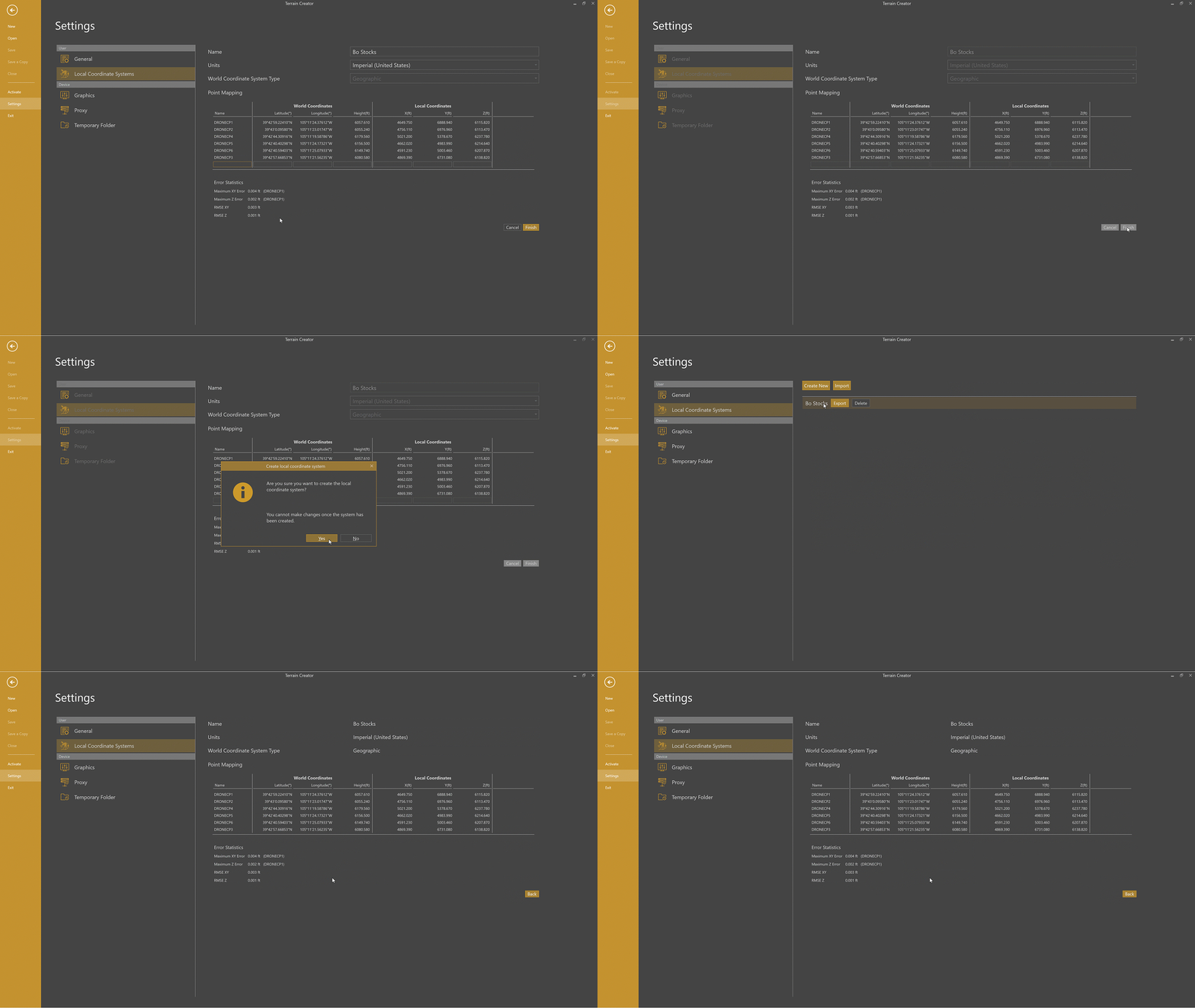
The TerrainCreator app provides a Point Mapping workflow that connects GNSS measurements to Total Station measurements. Using the setup wizard in Settings, you can create an LCS by manually entering points.
When you begin, you’ll choose the type of World Coordinate System you want to link to your local coordinates. Virtual Surveyor supports both Geographic coordinate systems (GCS) and Projected coordinate systems (PCS). The steps below walk through creating an LCS using a Geographic coordinate system first, with notes on how the process differs when using a Projected system at the end of the article.
Create a Local Coordinate System Using a Geographic Coordinate System
Geographic coordinate systems use Latitude and Longitude, expressed in either Degrees, Minutes, and Seconds (DMS) or Decimal Degrees (DD).
To create an LCS from a Geographic system:
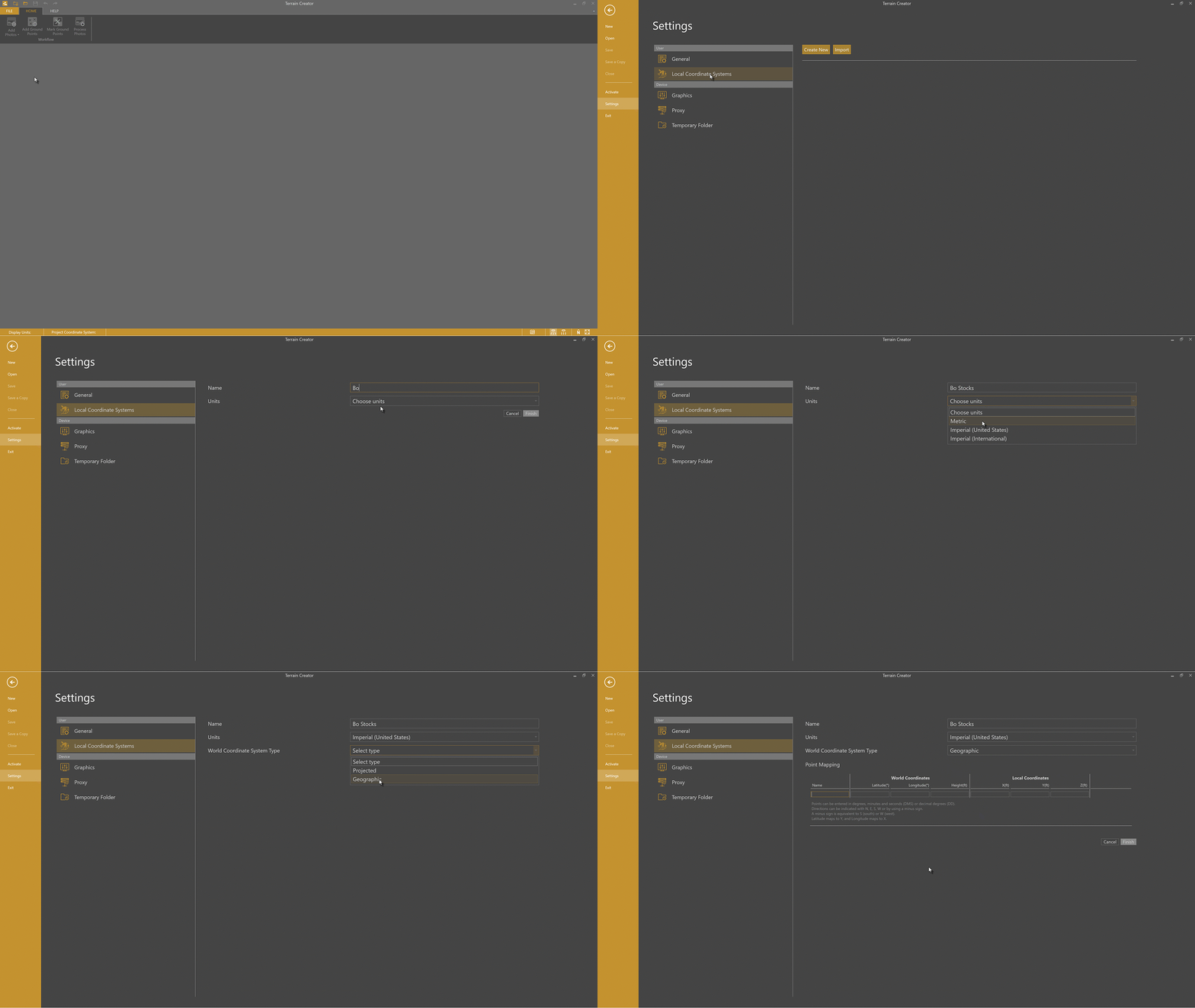
- Go to Settings → Local Coordinate Systems → Create New.
- Enter a name for the Local Coordinate System.
- Choose your measurement units: Metric, Imperial (United States), or Imperial (International).
- This determines the units used for the local coordinate conversion.
- Select Geographic as your coordinate system.
- Enter your Point Mapping data to link local coordinates to geographic coordinates.
Step 2. Enter Control Points with Point Mapping
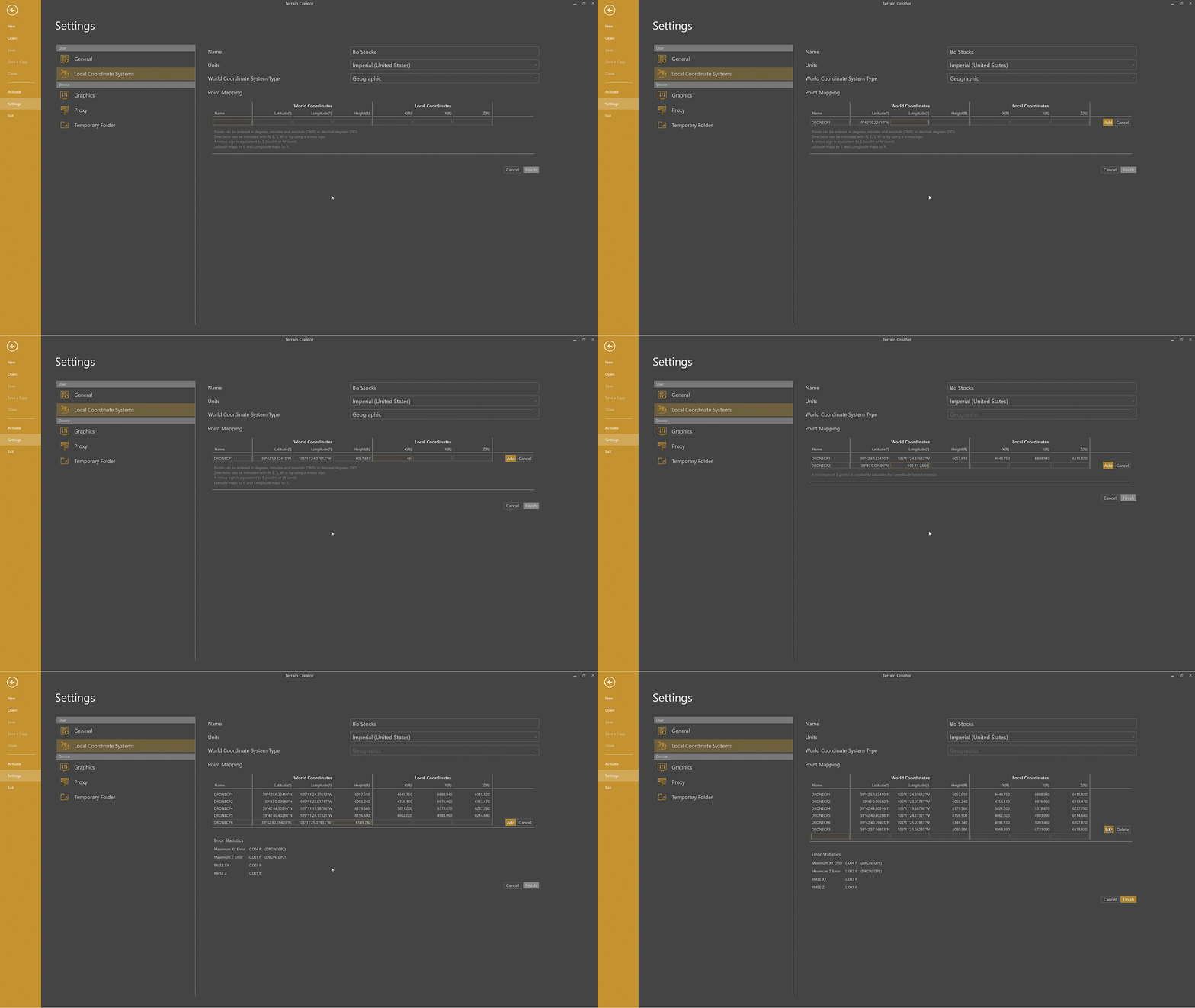
You can type coordinates manually or copy and paste values from your localization file.
- A minimum of three points is required to define the transformation.
- The software handles the calculations automatically — your role is to provide accurate matching point pairs.
Tips for Entering Geographic Coordinates
- Ensure there is a space between each coordinate component for both latitude and longitude.
- If no direction letter (N, S, E, W) is included:
- Latitude defaults to North
- Longitude defaults to East
- You may also use a minus sign to indicate South or West.
Step 3. Verify the Error Statistics
Because real-world points rarely align perfectly, you’ll usually see small differences between the expected local position and the computed result. Those differences are summarized in the Error Statistics.
- Maximum XY Error: the largest horizontal differences among the control points
- RMSE XY: the typical horizontal difference across all points
- Maximum Z Error and RMSE Z: the same measures applied to elevation
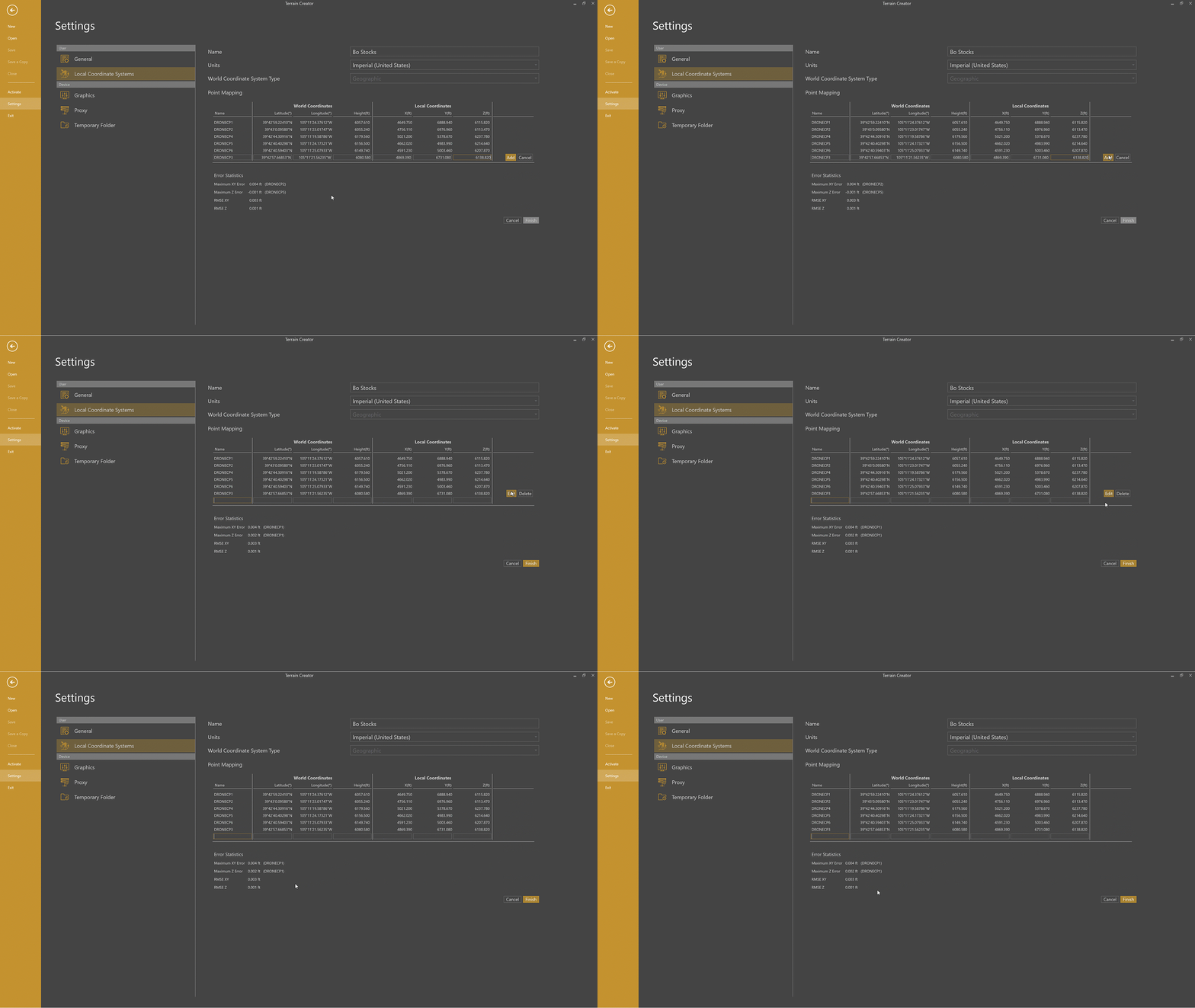
Smaller values indicate a more reliable Local Coordinate System and better alignment across your project data. Small errors are normal and expected, but larger values are a sign that something may need a closer look. In those cases, starting with the point that shows the largest error is often the quickest way to identify input mistakes or inconsistencies.
While creating the Local Coordinate System, you can adjust point inputs and immediately see the error statistics update. Once the Local Coordinate System is created, it becomes fixed and can’t be edited.
Step 4. Save the Local Coordinate System
Click Finish to finalize your Local Coordinate System. With the new LCS created, you'll be back at the overview list where you can click on an LCS from the list and see the point mapping results.
What Happens When You Save
The Local Coordinate System becomes final. An LCS is defined by transformation parameters that act as the reference frame for your entire project. Editing those parameters after creation would effectively shift, rotate, or scale all linked project data (such as drone photo positions and mapped control points). That can invalidate alignments and reduce accuracy.
If you need changes, the best approach is to create a new LCS (with a different name), then decide whether to keep or delete the old one.
All local coordinate systems you create are saved to your user settings and are available anywhere you sign in (with your My Virtual Surveyor ID) and can be reused with other projects.
You can export the LCS as a .vscs file that can be shared and imported by other users.
Bounding Box of a Local Coordinate System
Every Local Coordinate System is valid only within a limited area called its bounding box that is determined by the coordinates of your World Coordinate System. Inside this region, the transformation between world and local coordinates is well-defined and accurate. The bounding box is defined in World Coordinates, and it determines where the LCS can be safely used.
Note on Scale Factors
The Local Coordinate System functionality does not allow applying a scale factor to transform grid coordinates into local coordinates. This is a deliberate design choice to prevent mistakes.
A scale factor on its own is incomplete, because it does not define a clear valid region—making it ambiguous where the scale applies correctly. By using point mapping instead, our apps ensure that both the correct scale factor and its valid bounding box are computed and applied consistently.
Alternative Option: Create an LCS Using a PCS
Projected coordinate systems use X, Y, and Z values expressed in meters or imperial units and require a defined horizontal and vertical reference system.
The overall workflow is the same as for a Geographic system, with a few additional selections:
- Go to Settings → Local Coordinate Systems → Create New.
- Enter a name for the Local Coordinate System.
- Choose your measurement units: Metric, Imperial (United States), or Imperial (International).
- Select Projected as your coordinate system.
- This unlocks additional options.
- Select your Horizontal Coordinate System using an authority code (for example, EPSG).
- Select your Vertical Coordinate System using an authority code.
- Enter your Point Mapping data to link local coordinates to projected coordinates.
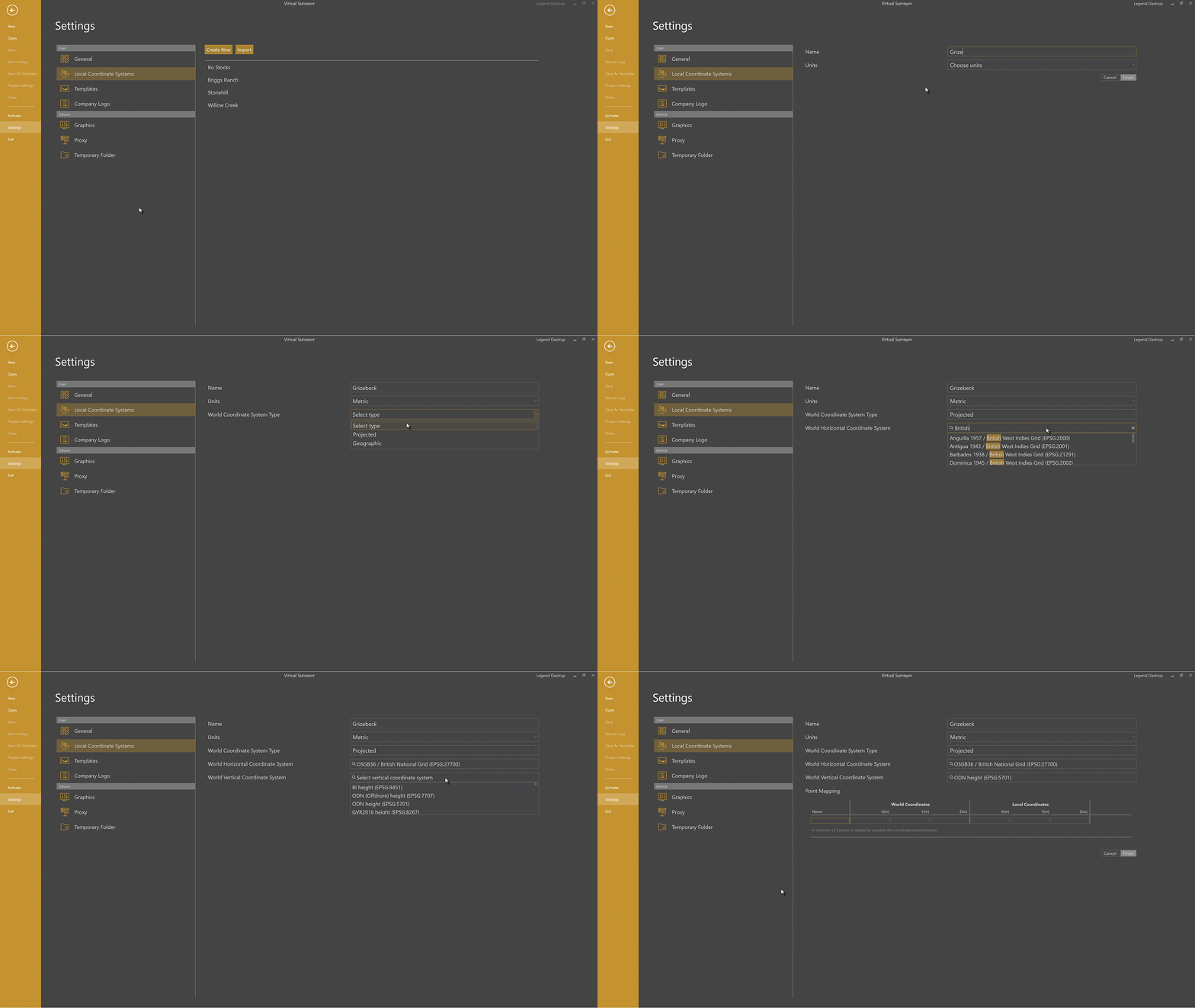
Point Mapping with Projected Data
When entering world coordinates for Projected data, make sure your Northern, Easting, and Elevation values are clearly defined and correctly paired to the matching local coordinates. 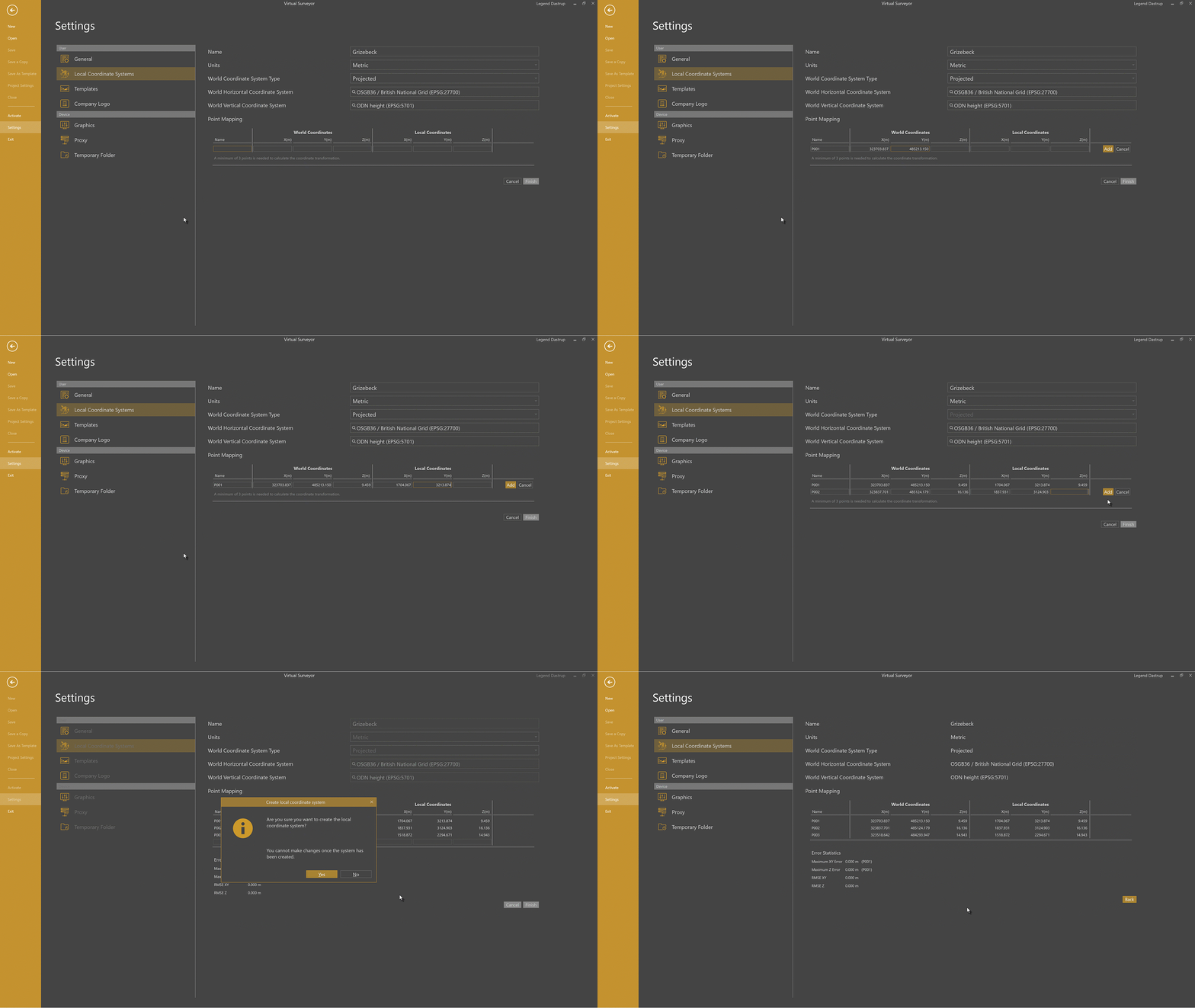
Apply a Local Coordinate System to My Project
A local coordinate system works like any other coordinate system. You can set an LCS as your Project Coordinate System, after which TerrainCreator will reproject drone photo coordinates into their correct positions within the LCS. The main difference is that an LCS is intended for a limited area: its bounding box (valid region) is much smaller, which is why it is called local.
If your LCS doesn’t appear in the list of available coordinate systems, your drone photos are probably located outside the LCS’s valid region.
Additional notes about an LCS:
- You can export points and lines in an LCS to a .kml file because it contains a complete projection definition.
- When you add (external) data with an undefined coordinate system, the software will also offer the LCS with the list of the possible options.
Steps to Set Up a New Project with a Local Coordinate System
After you add drone photos in TerrainCreator, you’ll be prompted to choose a Project Coordinate System:
- TerrainCreator will attempt to recognize the Local Coordinate System and autofill horizontal and vertical datums based on photo metadata.
- If it doesn’t autofill, you can search for and select the Local Coordinate System for the Horizontal datum, and the Vertical datum will apply automatically from the same local system.
- Click OK to load the photos and continue with photogrammetry.
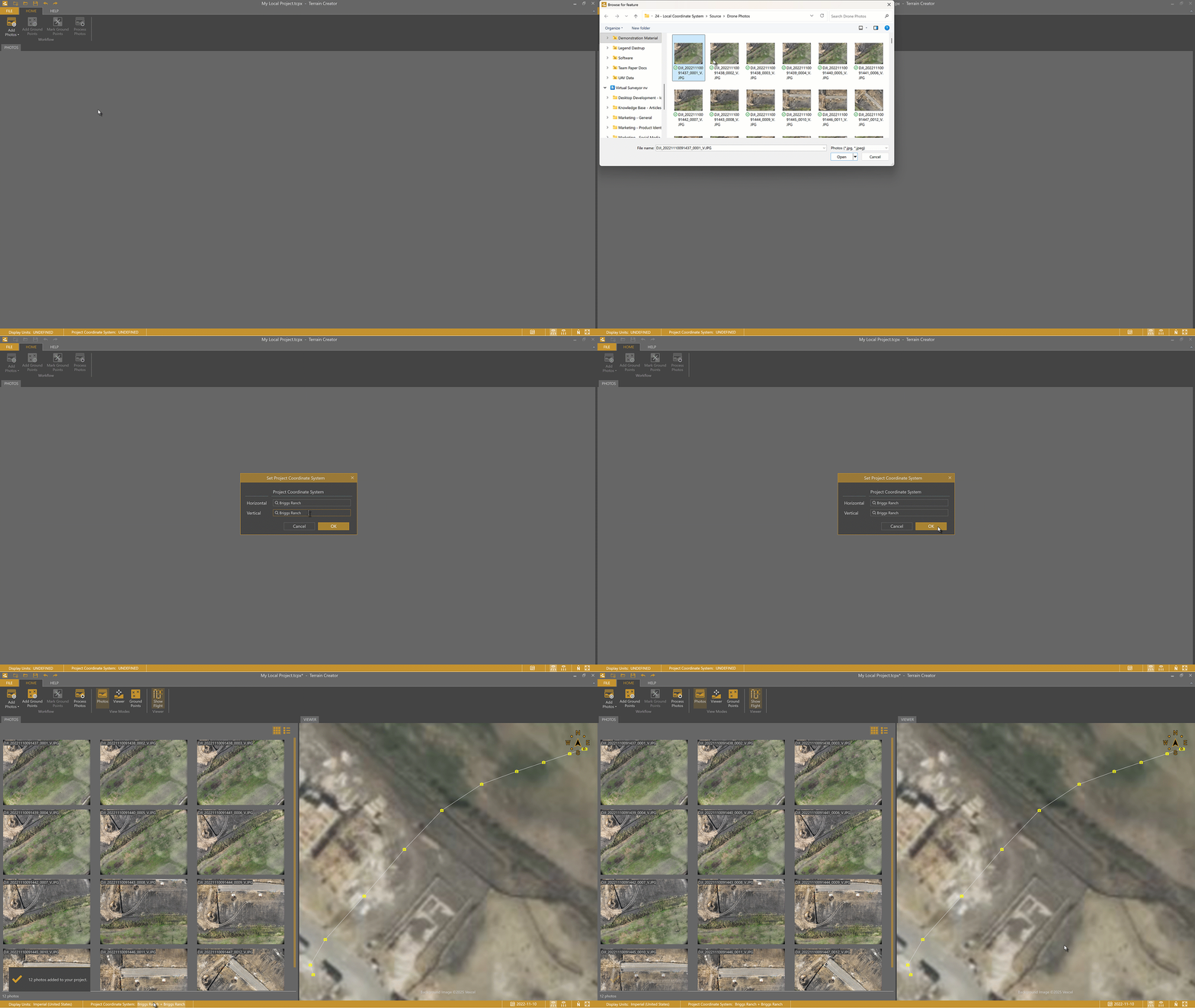
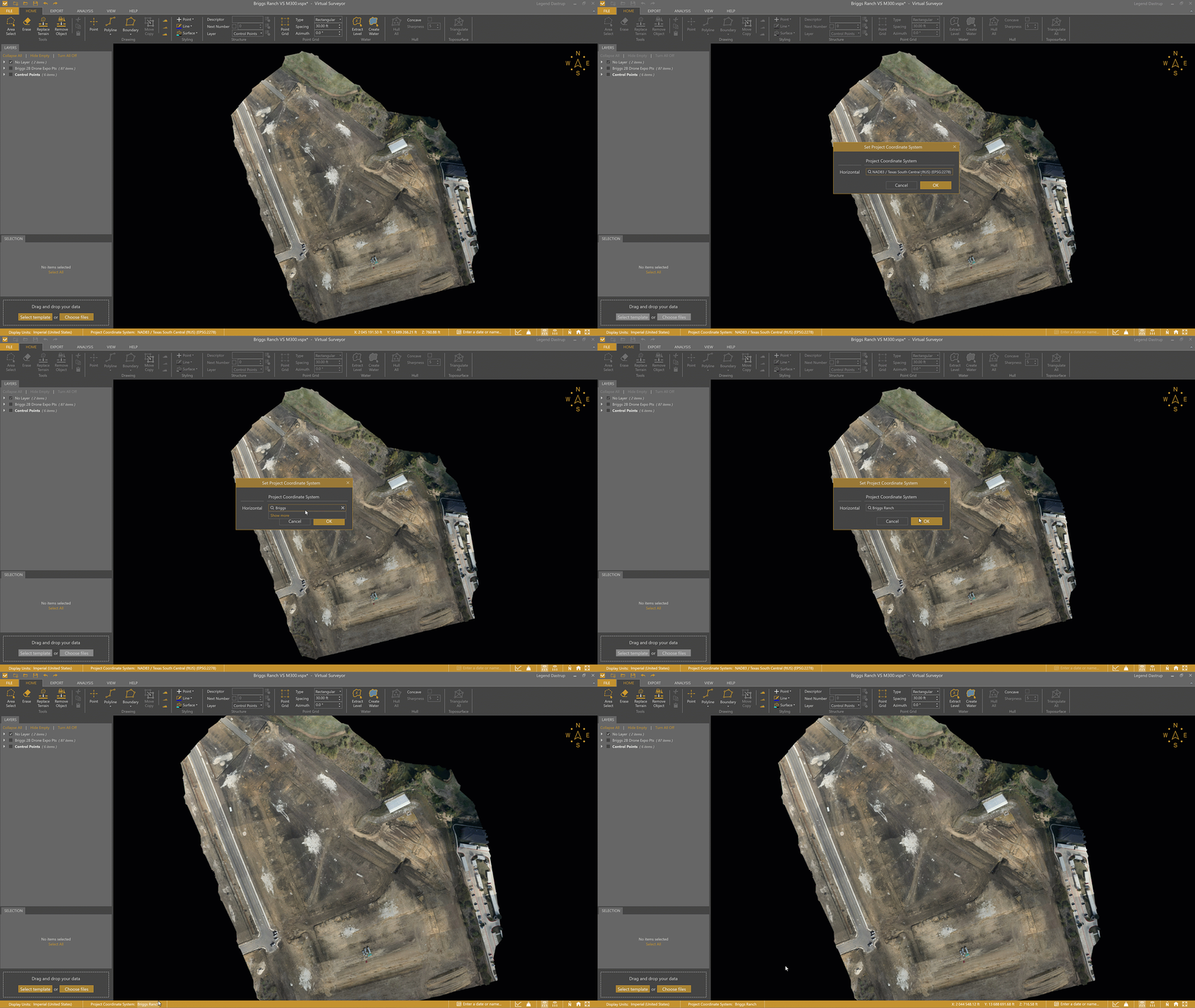
Steps to Reproject to a Local Coordinate System
With your dataset open in the VirtualSurveyor app:
- Click the Project Coordinate System in the Status Bar.
- Search for the Local Coordinate System you created in Settings and select it.
- Click OK.
- Your project is reprojected to the selected Local Coordinate System.
Import and Export a Local Coordinate System
You can share Local Coordinate Systems with teammates or other Virtual Surveyor users by exporting and importing them into the TerrainCreator app.
- The supported import and export localization format is .vscs
- Other localization file formats are not directly supported
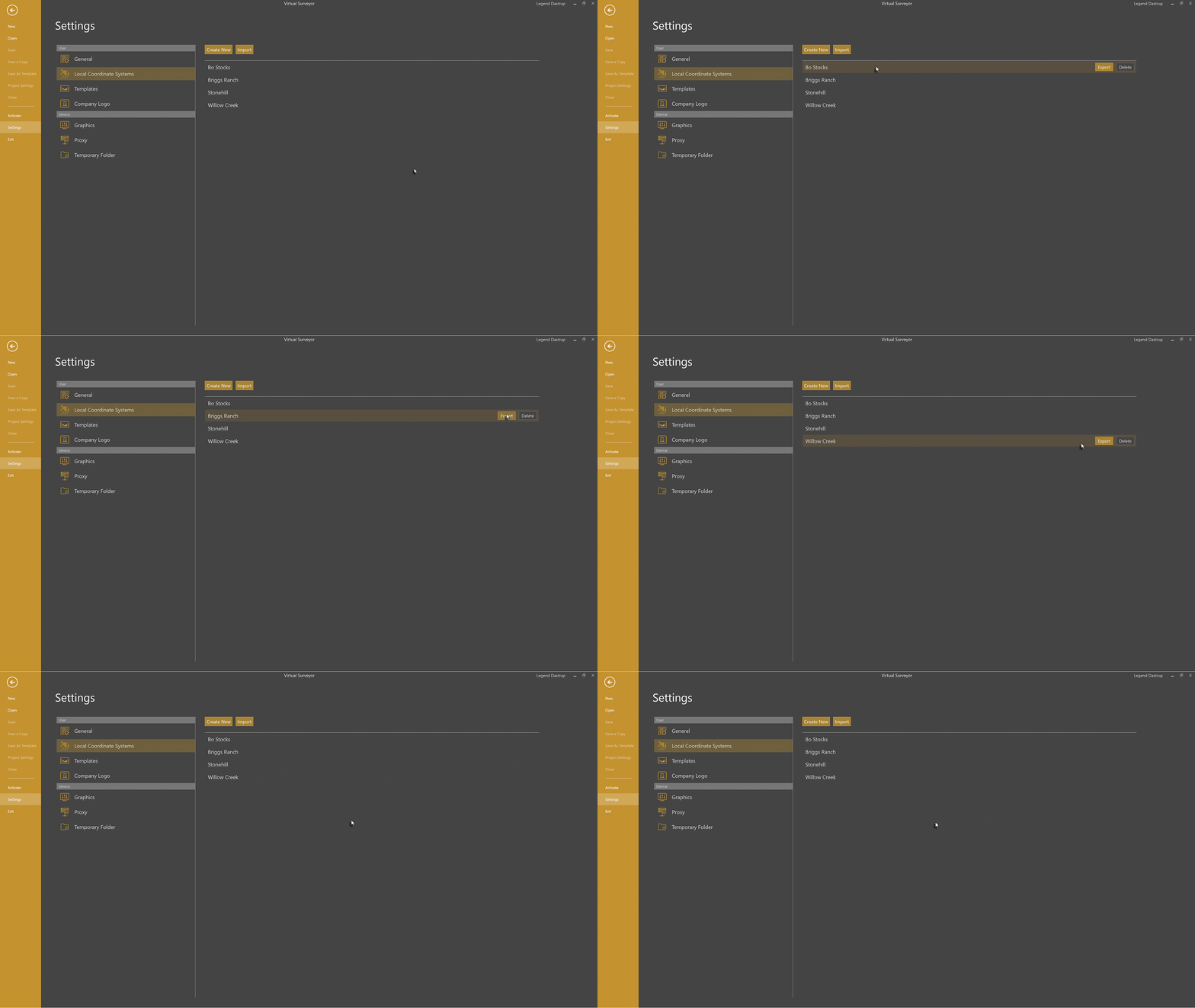
Import a Local Coordinate System
To import an existing Local Coordinate System:
- Go to Settings → Local Coordinate Systems.
- Click Import.
- Select the .vscs file from your file browser.
- Once the import is complete, you’ll see a confirmation message indicating the file was imported successfully.
Export a Local Coordinate System
To export a Local Coordinate System for sharing or reuse:
- Go to Settings → Local Coordinate Systems.
- Select the Local Coordinate System you want to export.
- Click Export.
- Choose a file name and save the .vscs file to your desired project folder.
Other Localization Files
Localization information is often delivered in a variety of formats such as PDF, CSV, JXL, or XML (CSV, JXL, and XML can all be opened in a text editor). While these formats can’t be imported directly into the VirtualSurveyor apps, they still contain the information needed to define a local coordinate system.
In these cases, you can open the file, identify the shared control points, and manually enter the corresponding coordinates into the Point Mapping wizard to create a new Local Coordinate System.