

The TerrainCreator and VirtualSurveyor apps have built-in file and folder navigation, allowing you to browse your projects and folder structure without leaving the application or switching to an external file explorer.
You can quickly navigate your files and folders and stay organized using Locations (including cloud locations), Recent Projects, Breadcrumbs, and Search. You can also save time by assigning frequently used folders as Favorite Locations.
In this article we'll walk through the different components and explain how each one helps you quickly find your projects and folder locations.
Overview
Create New, Open, or Save a Copy
Whether you are creating a new project, opening an existing one, or saving your work, the application provides a fully integrated file navigation experience. File navigation is accessible directly within the application, eliminating the need to switch to an external file explorer.
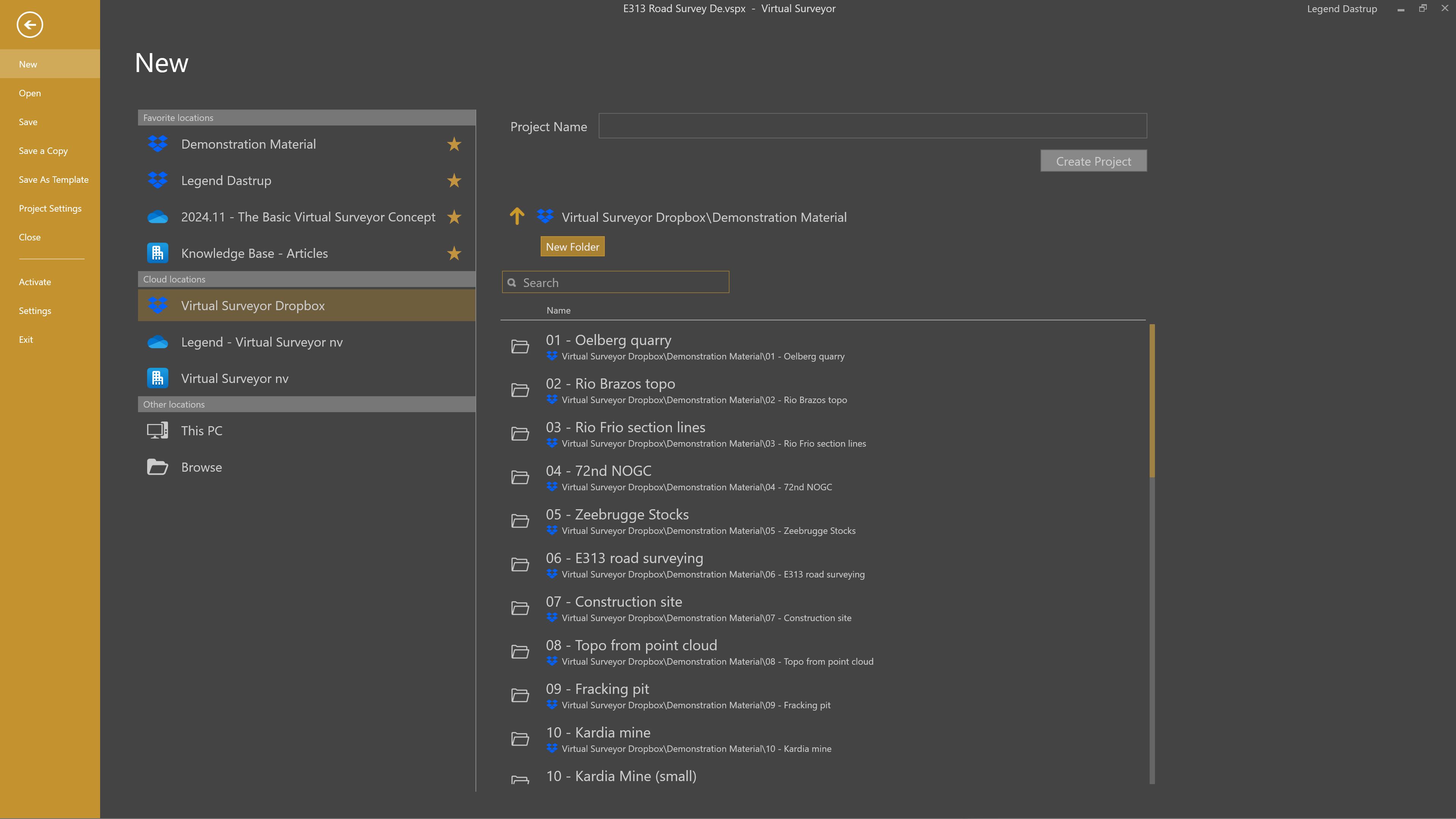
From here, you can:
- Create a new project in any folder you choose
- Open an existing project from your saved locations
- Save a copy of a project to a new folder (helpful for revisions, backups, or sharing)
This setup helps you stay organized—especially when working across multiple projects, clients, or job sites.
Locations
The Locations section helps you quickly choose where you want to browse. Instead of searching through everything at once, Locations lets you jump straight to the place your projects are stored — whether that’s a cloud folder, a local drive, or a recently used project.
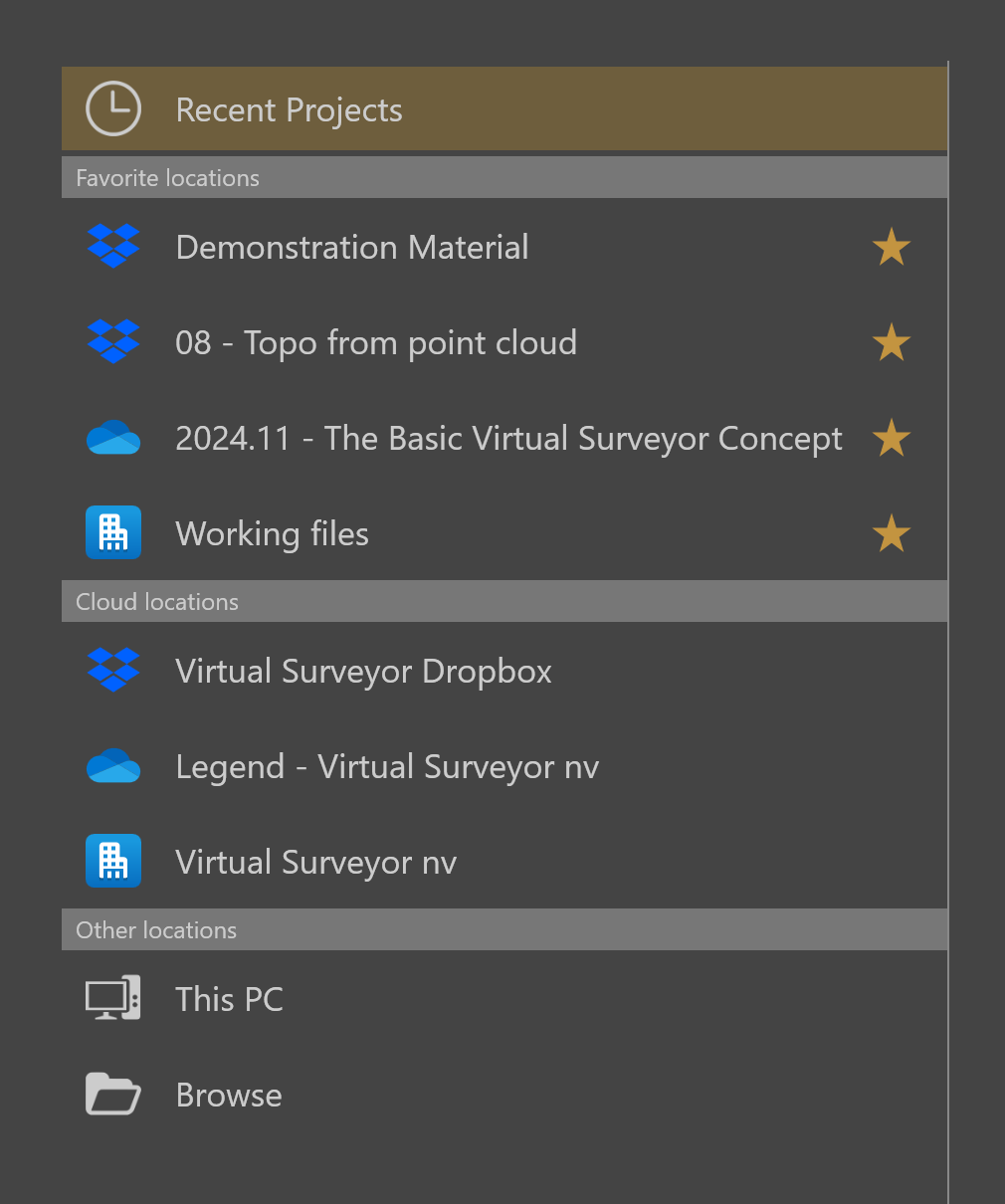
Locations can include:
- Recent Projects (quick access to recently opened files)
- Favorite Locations (folders you’ve starred)
- Cloud Locations (Dropbox, OneDrive, SharePoint)
- Other Locations (This PC, external drives, and Browse/File Explorer)
Recent Projects
The Recent Projects section provides a shortcut to the projects you’ve worked on most recently. This is especially helpful when you’re returning to the same job over multiple days.
- Your most recently opened projects appear at the top of the list.
- Select a project to reopen it instantly.
- Recent projects update automatically as you work.
- Recent Projects stored on a cloud location will follow you wherever you sign in.
- You can remove a location from the list by right-clicking the project and selecting Remove from list.
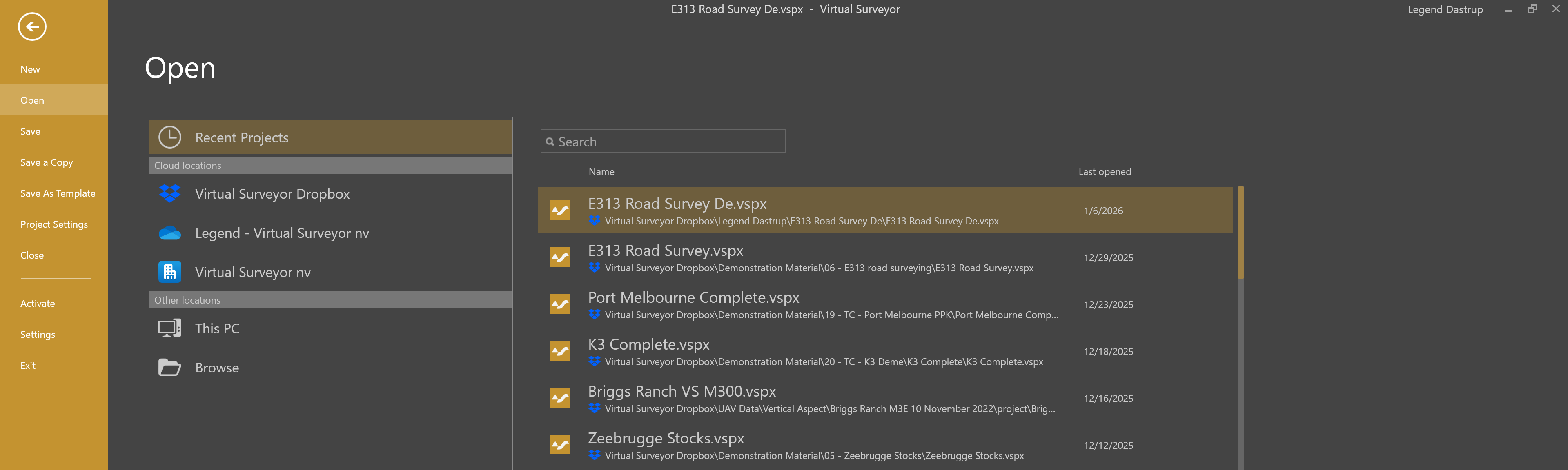
Tip: If the project you want doesn’t appear in the Recent Project list, browse folders manually using Locations - or use the search bar to filter the list to what you are looking for.
Favorite Locations
Favorite Locations help you save time by keeping important folders at the top of the list. This is useful if you frequently work in the same directory (for example, a team folder or a specific client folder).
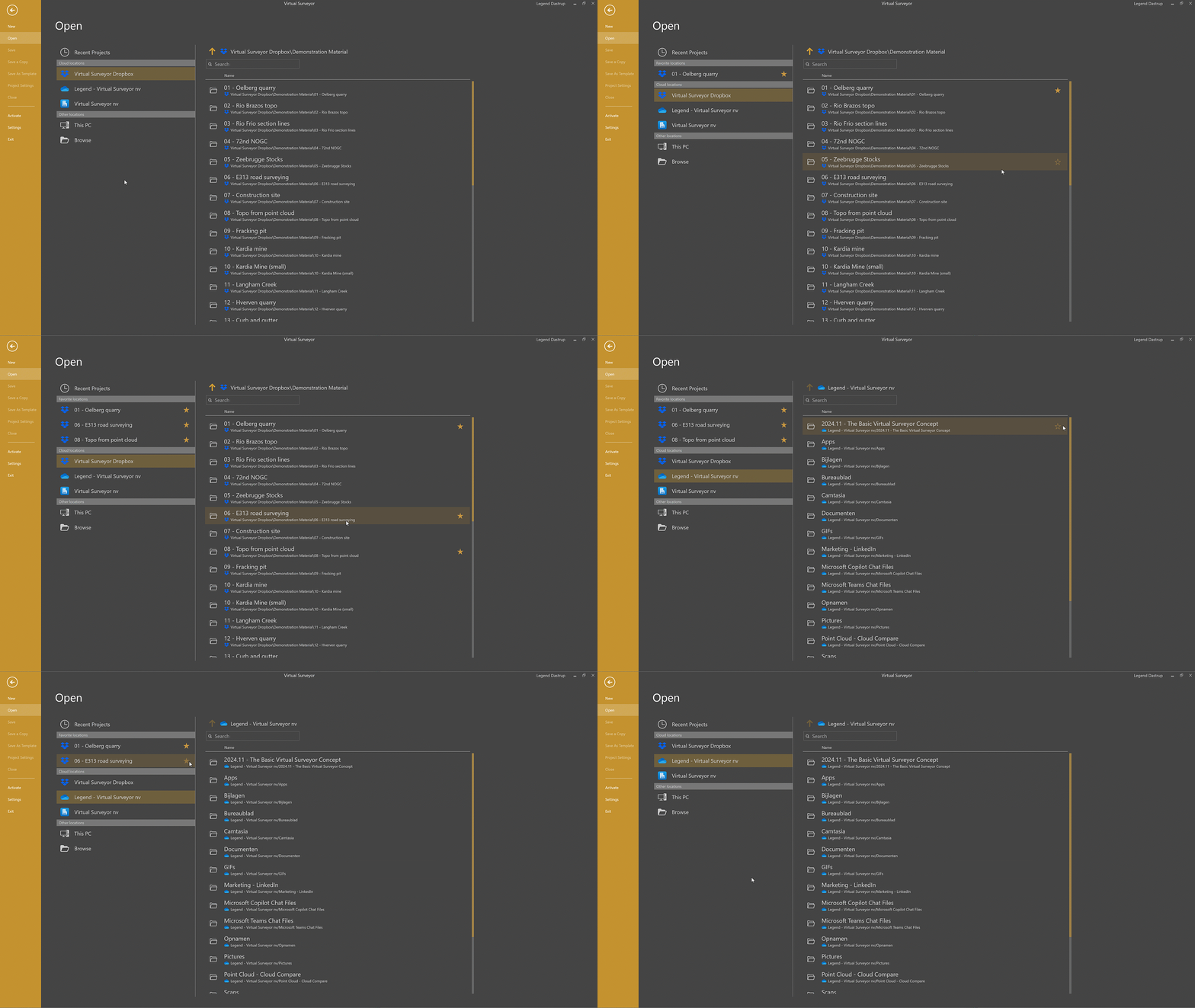
How to create Favorite Locations
- Select the ⭐ icon next to the folder name.
- To remove the folder from favorites, simply click the ⭐ icon again.
Benefits of creating Favorite Locations:
- Favorite Locations are linked and accessible between both the VirtualSurveyor and TerrainCreator apps.
- The Favorite Locations 'follow you' on any computer you sign in to when using a VirtualSurveyor app, with your Virtual Surveyor ID.
- You can favorite any file that is stored on your File Explorer, including Cloud Locations from supported cloud service providers (Dropbox, OneDrive, and SharePoint)
Cloud Locations
Cloud locations are directly integrated with TerrainCreator and VirtualSurveyor, making it easier to open and save projects from cloud storage.
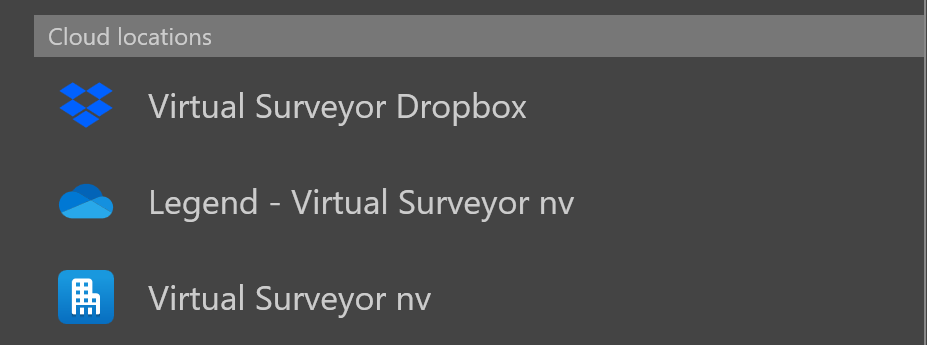
Supported cloud locations include:
- Dropbox
- OneDrive
- SharePoint
Using cloud locations is helpful when:
- you work across multiple computers while keeping access to the same projects
- you collaborate with teammates using shared folders
- you want your projects backed up automatically
Other Locations
Other locations include anything stored locally, such as:
- This PC (documents, downloads, local folders)
- External drives (USB drives, external SSDs, mapped drives)
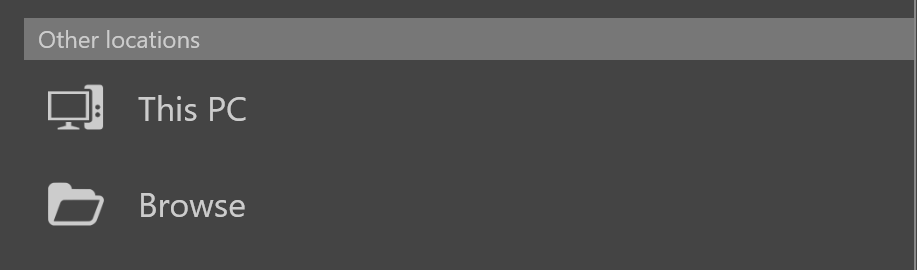
You can also use the Browse option to open File Explorer and navigate using your normal Windows folder structure.
This might help in rare cases when:
- your files are stored outside cloud folders
- you have projects saved on an external drive
- you want to access a custom folder path quickly
Breadcrumbs Bar
The Breadcrumbs Bar appears at the top of the file browser and shows your current folder path. It helps you quickly understand where you are and move around without needing to click “Back” repeatedly.
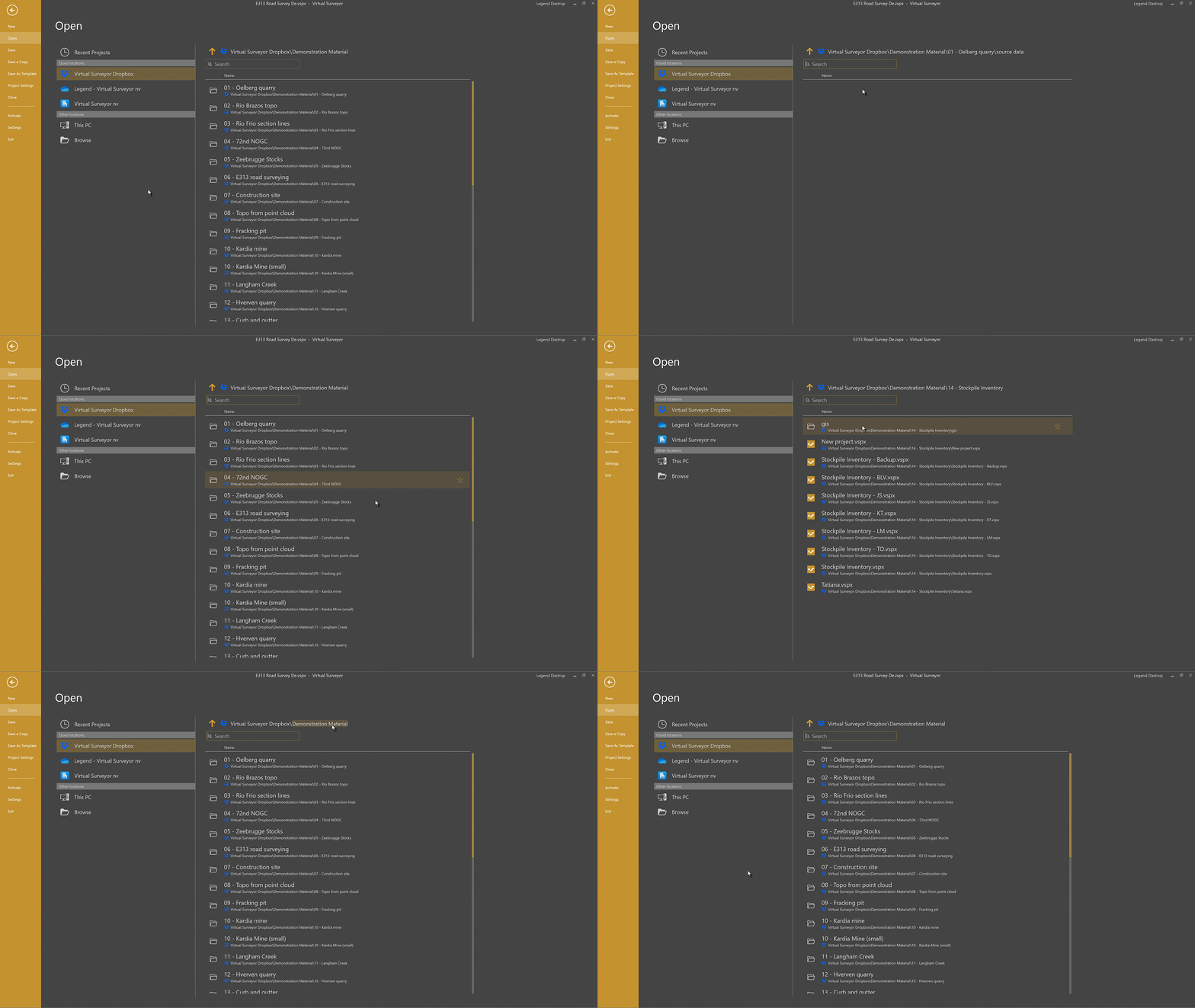
With breadcrumbs you can:
- See the full folder path you’re currently viewing.
- Click any folder name in the path to jump back instantly.
- Move quickly between related folder levels.
Search Bar
The Search Bar helps you quickly find files and folders within your current location.
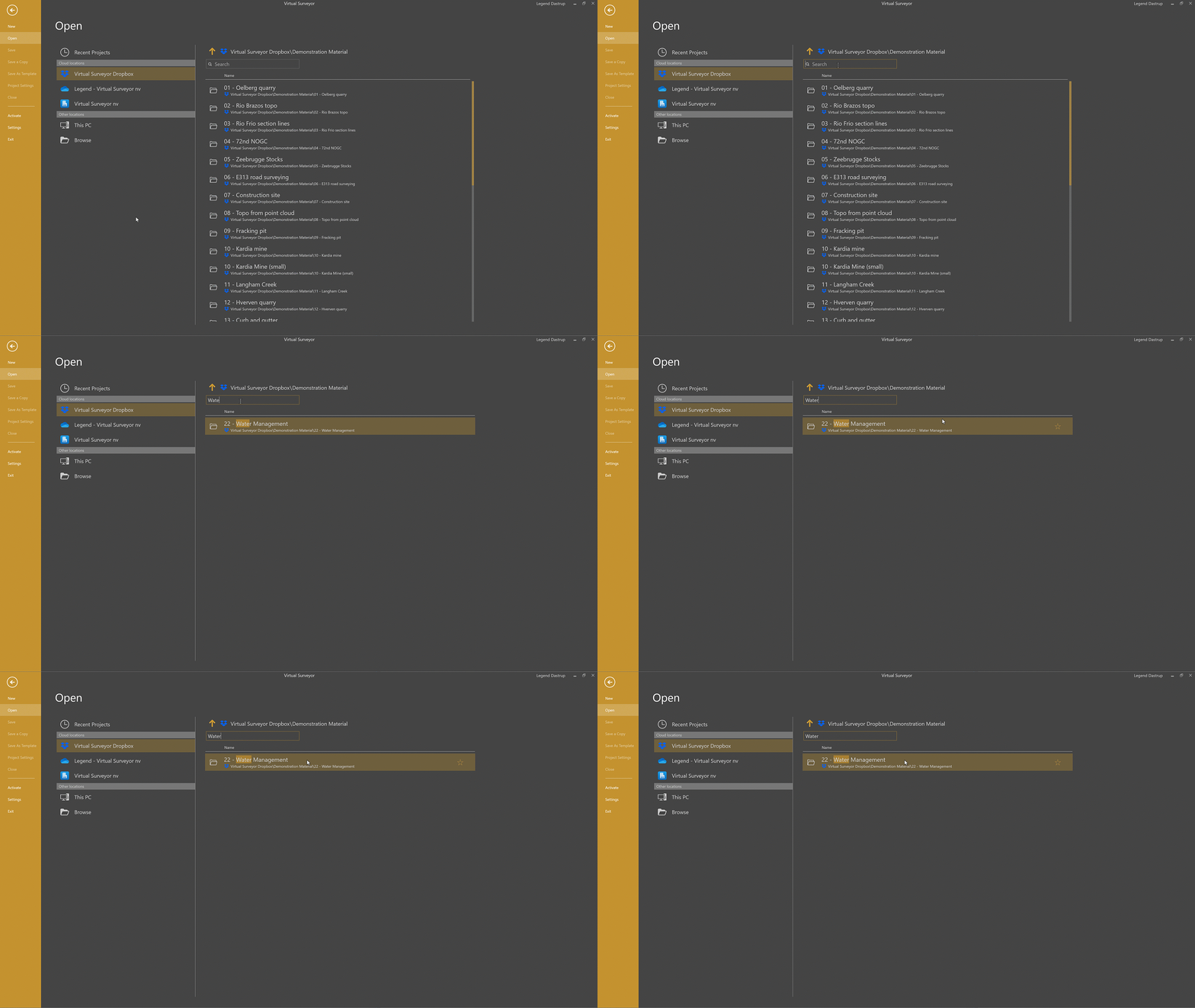
You can use search by selecting a folder, then typing in the search bar to quickly find the file or folder you are looking for.
As you type:
- Matching text is highlighted to help you spot results faster.
- You can scan/scroll through longer lists if many file names match.
Tip: Start by narrowing your search to the correct folder location first. This can help return faster and more accurate results.