

If you want to renew your subscription automatically, manually restart your subscription after a break, or change your subscription to a plan with access to more tools and features, number of licenses, and how long your subscription terms last—this guide walks you through each option step-by-step. Your subscription to a Virtual Surveyor software plan works with your needs.
Overview
Auto-Renew Your Subscription
If you’d like your active Virtual Surveyor subscription to continue without interruption, you can enable Auto Renew in just a few clicks. Once enabled, your subscription will automatically renew at the end of each billing cycle, so you can stay focused on your work without worrying about expiration dates.
To auto-renew your subscription:
- Go to My Virtual Surveyor.
- Sign in with your Virtual Surveyor ID.
- Make sure you are on the Subscriptions page.
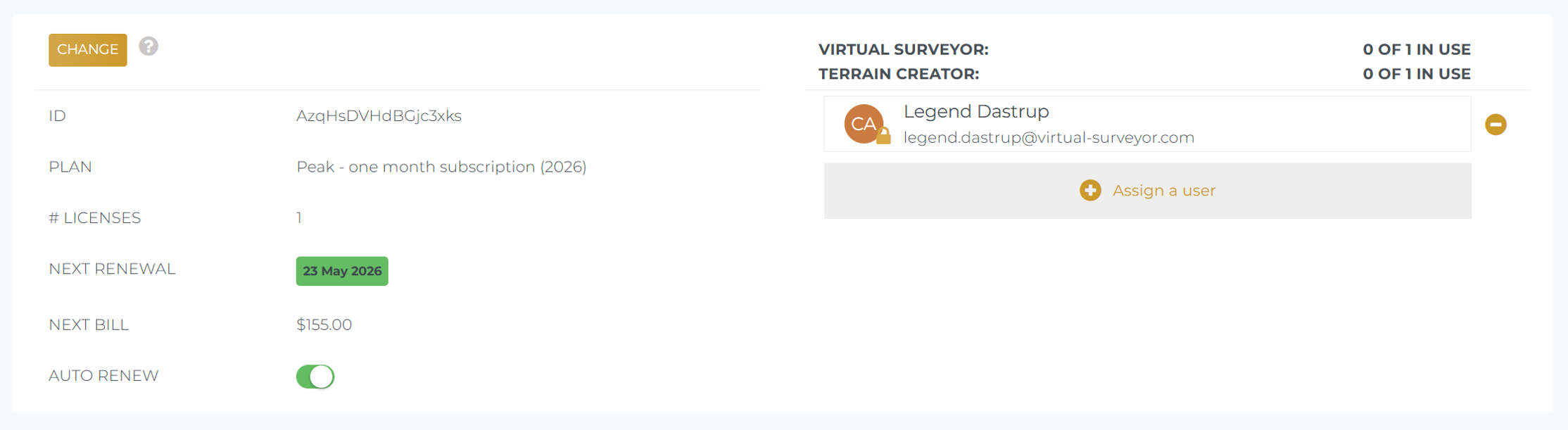
- Toggle the AUTO RENEW switch to so that it illuminates as green.
- If toggled on, a confirmation window will display, summarizing the plan and price.
- Once confirmed, the subscriptions box will then display with the next renewal date along with the next bill.
- That’s it — your subscription will now automatically renew on the date shown.
Disabling Auto-Renew
If you decide to stop automatic renewal, simply return to the subscriptions page and toggle the AUTO RENEW switch to "Off".
When will my license end?
- You have 30 days from purchase down to the second of when you can use the software. Your term is measured from the time of day you activate your license. E.g., if you activate your account on the 20th of June, 12:50 PM UTC, it remains active until the 20th of July, 12:50 PM UTC.
PO Numbers
When your subscription renews automatically, you won’t be able to add a PO number during the renewal process. However, you can add a PO number to the invoice afterward. For more details, see our PO Numbers article.
Or if you prefer, you can also add a PO number when restarting your subscription.
Restart Your Subscription
If your subscription has ended, you can manually restart it again at any time. You can either restart your subscription under the same plan you used before, or start a different plan.
Restarting only takes a few moments, and you'll have access to the application immediately after confirmation.
To restart your subscription:
- Go to My Virtual Surveyor.
- Sign in with your Virtual Surveyor ID.
- Click on RESTART in the subscription box.
- Follow the subscription wizard.
- You can choose your preferred plan, billing cycle, and number of users.
- You will also have the option to add a PO number to the invoice.
- Confirm your order.
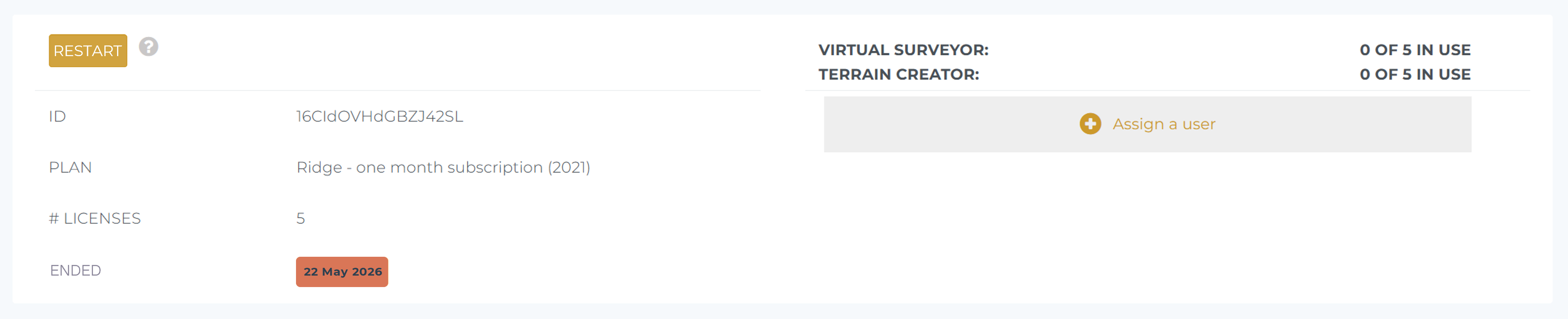
Once the subscription is confirmed, your license is activated immediately so you can get back to work without delay.
Change Your Subscription
As your projects evolve, your subscription can adapt with you. You have the flexibility to adjust several aspects of your plan at any time:
- Feature level - choose a plan with the features that best match your current needs (e.g. Ridge, Mountain, or Peak).
- Billing cycle - select a monthly, yearly, or multi-year option depending on your needs.
- Longer billing cycles reduce how often you need to manage renewals and offers cost savings.
- Number of licenses - increase or adjust how many users can access the software at the same time.
- This is helpful when your team grows or project demands increase.
For example, if you’re working in the Ridge plan and need access to additional tools like cut and fill maps (available in the Mountain plan) or more licenses for simultaneous users mid-project, you can make those changes right away—without waiting for your current billing cycle to end.
To change your subscription:
- Go to My Virtual Surveyor.
- Sign in with your Virtual Surveyor ID.
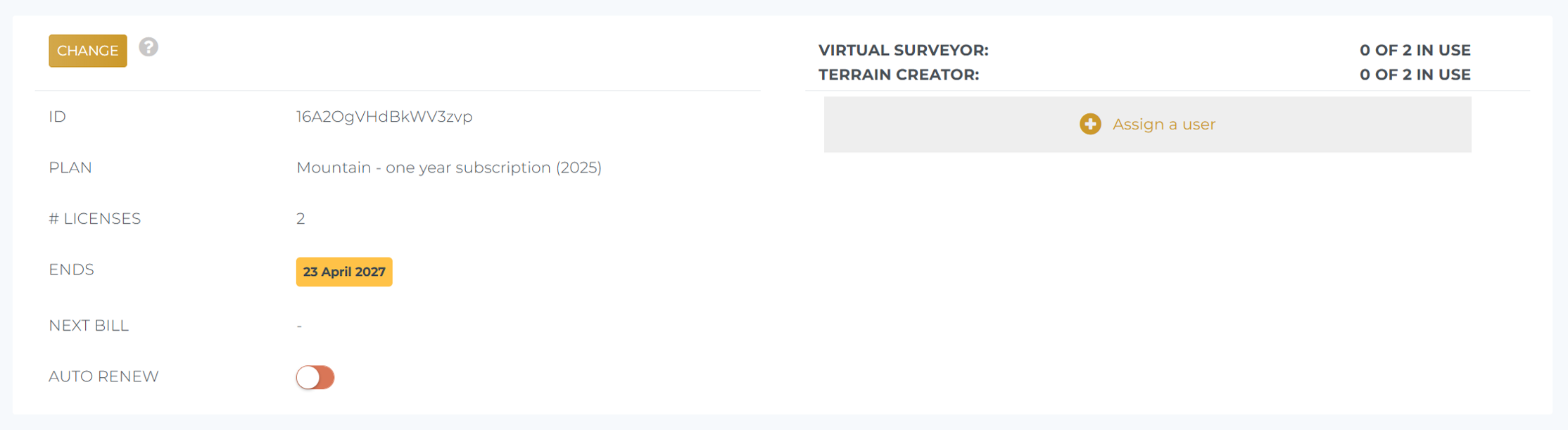
- Click on CHANGE in the subscription box.
- Follow the prompts in the subscription wizard to select the setup that fits your needs.
Your changes take effect immediately after confirmation.
How to Change Between Ridge, Mountain, and Peak Plans
Moving to a Plan with More Features
If you choose a plan with additional features during your current billing cycle, the change is applied right away so you can continue your work without interruption.
You’ll only be charged for the difference in price for the remainder of your current billing period. At the start of your next billing cycle, your subscription will continue at the full price of the updated plan.
Moving to a Plan with Fewer Features
If you’d prefer to use a plan with fewer features, the change will take effect at the start of your next subscription period.
To make this change:
- Turn off Auto-Renew for your current subscription.
- Allow the current billing period to complete.
- Sign back in and click RESTART to select your preferred plan.
This approach keeps your current access unchanged through the end of your billing cycle, and ensures a smooth transition to the new plan.
If you ever need help managing your subscriptions, our account managers are always happy to assist.