

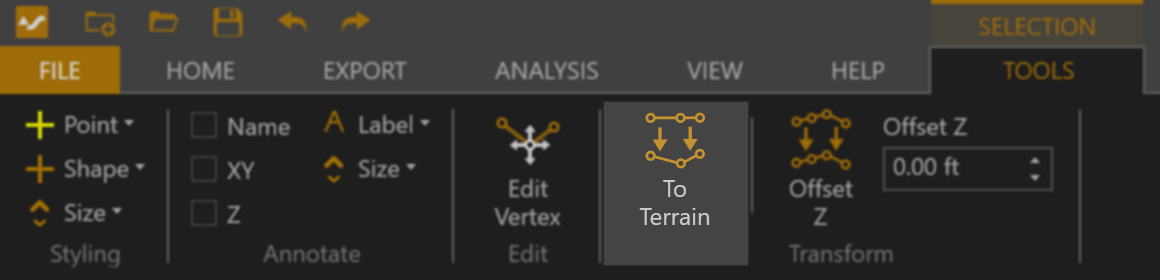
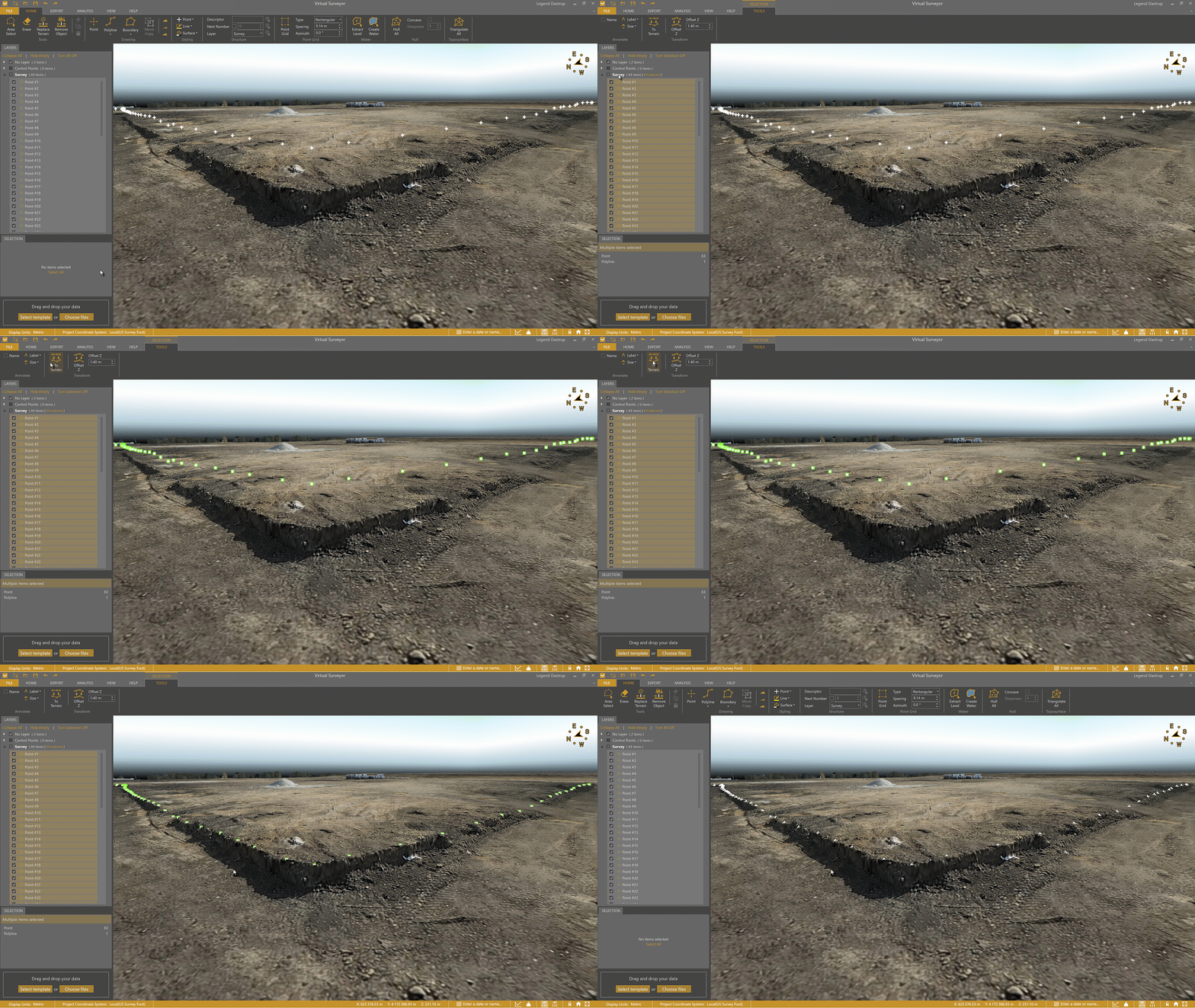
The To Terrain tool lets you place survey geometries onto the terrain model by adjusting their elevation while keeping their horizontal position unchanged. You can find this tool in the Transform group on the Tools tab whenever a geometry is selected.
Overview
How to Use the To Terrain Tool
- Select the geometries (points, lines, or boundaries) you want to place on the terrain.
- Go to the Tools tab.
- Click To Terrain.
When to Use the To Terrain Tool
Planimetric Survey
If the planimetric survey was drawn on the Digital Surface Model (DSM) in 2D view, the geometries will their original terrain elevations. To standardize their elevation, disable the DSM, select all planimetric geometries, and use To Terrain to place them at a consistent height.
Imported CAD Data
To Terrain is especially helpful when working with imported 3D CAD data. If points from an earlier survey are brought in, they will maintain their original elevations. Using To Terrain allows you to update those geometries to match the current terrain without needing to redraw anything—while preserving the exact horizontal positions of all the vertices.
Changing the Vertical Datum
In some cases, your survey may be created using ellipsoidal heights (for example, from photogrammetry), while your client requires a local vertical datum. You can quickly adjust your data using To Terrain together with Offset Within:
- Draw a boundary around your area and select it.
- Go to the Tools tab and use Offset Within to apply the correct vertical offset.
- Select your points, lines, and boundaries, then click To Terrain.
Your survey will now align with the new vertical datum and be ready for export.