

The Virtual Surveyor 10.3 update introduces an improved authentication experience for both the desktop and website applications, including optional SMS/Text verification for two-factor authentication (2FA) in addition to the existing email verification option.
Overview
New Authentication Experience
With version 10.3, signing in to Virtual Surveyor has been updated to provide a more modern and consistent experience across both desktop and web applications.
The sign in process is now aligned across platforms, so you follow the same flow whether you sign in from the Virtual Surveyor or Terrain Creator apps, or sign in directly to My Virtual Surveyor through a browser. This process is also more robust, helping prevent long authentication delays and has the included benefit of signing in with a connection through Starlink.
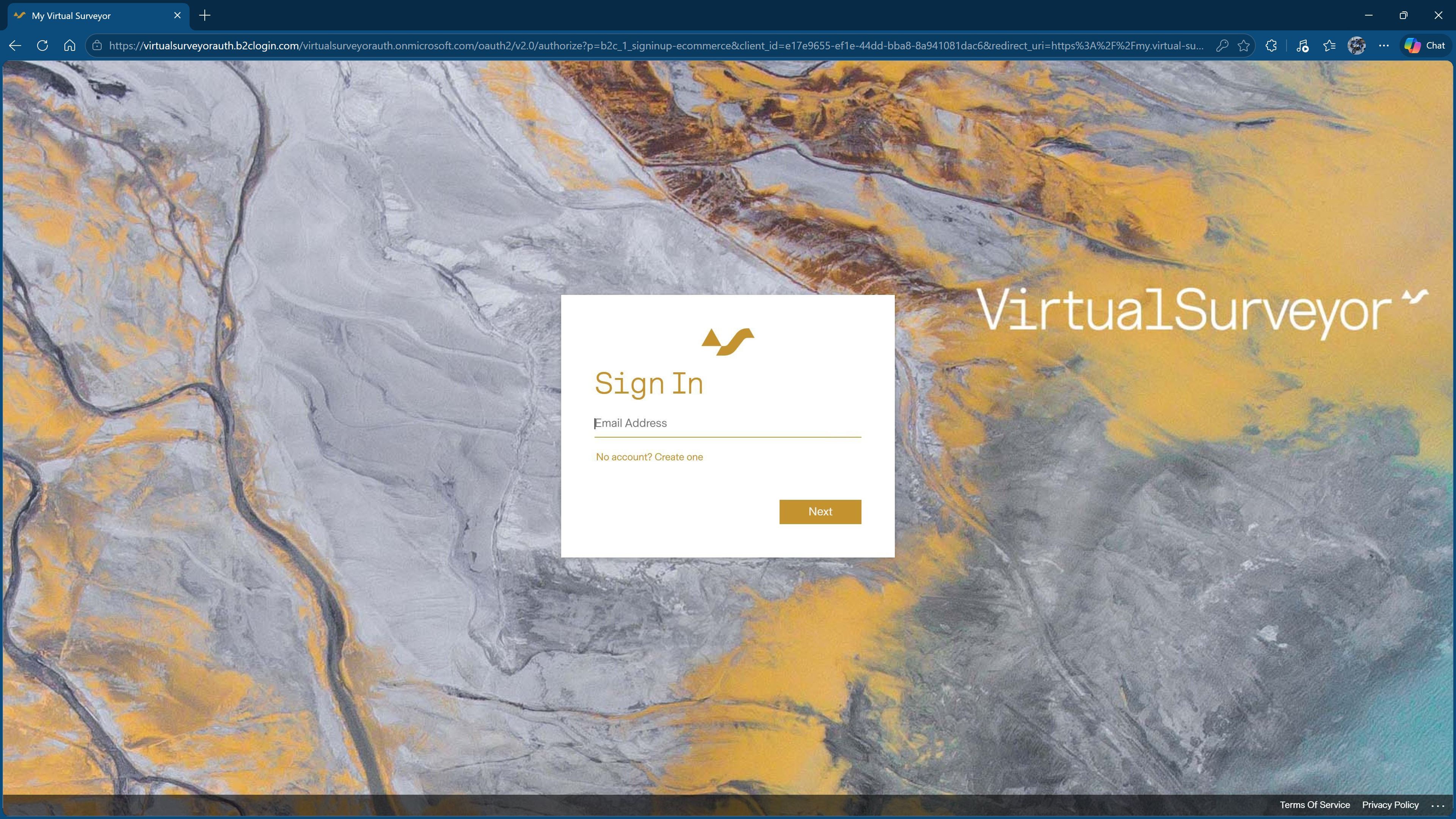
Browser Authentication for Desktop Apps
When signing in to the Virtual Surveyor desktop application, your default web browser now handles the authentication process.
You no longer enter your credentials directly from the desktop app. Instead, the app opens your browser to complete the sign-in process there. After successfully signing in, you will be prompted to return to the desktop application, where you can continue working.
 |  |
Text/SMS Verification
Virtual Surveyor 10.3 adds the option to use SMS/Text messages for two-factor authentication.
This feature works alongside the existing email verification, giving you multiple options to verify your account, but now you can receive a verification code via SMS during sign in.
You can set up SMS authentication at my.virtual-surveyor.com/Identity.
Using SMS verification can be helpful when:
- Your email verification code is delayed.
- Your company firewall blocks or filters verification emails.
- You want an alternate verification method available for your account.
- You want a faster way to receive your sign-in code.
What Happens When You Upgrade to the Latest Version
After installing 10.3, you will be prompted to sign in using the updated authentication process.
- Your email and password have not changed, simply sign in to your existing account to continue where you left off.
- No new features are included in this update, and your projects and workflow should not be interrupted.
Older Versions
You can still sign in using an older version of Virtual Surveyor, but fewer authentication options are available.
- The password reset is no longer available in older versions.
- If you forgot your password, you will need to install the latest version of Virtual Surveyor before you can reset it and sign in again.