

The sign in process for both the desktop software and My Virtual Surveyor portal is the same experience for both apps and uses two-factor authentication by default. Depending on what you want to do, you can sign in to the online portal to get immediate access to your account information and the ability to manage licenses, subscriptions, and users, or you can sign in through the desktop app and to start working right away.
Overview
Signing in to Virtual Surveyor
Signing in to either the website portal or through a desktop app is the same experience, but you get there through different paths depending on what you want to do.
To sign in for managing licenses, subscriptions, and users, simply go to my.virtual-surveyor.com.
To sign in and work using the VirtualSurveyor or TerrainCreator apps, you'll need to go to File, click on the Activate tab, then click on Sign In.
Both options will take you to the Virtual Surveyor sign in page on your default browser.
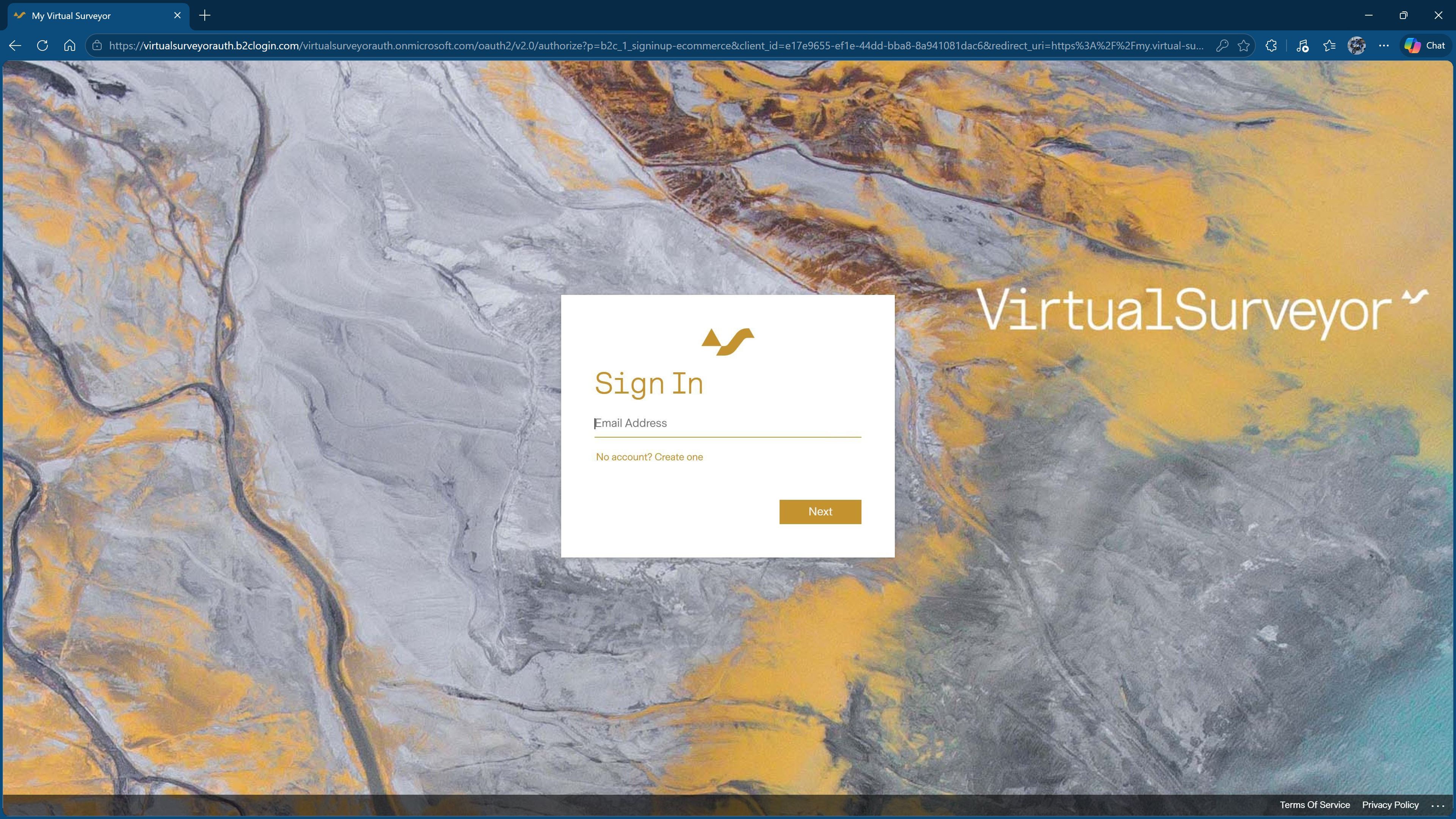
- After entering your email and password, choose your preferred method of authentication, either via email or SMS/Text.
Email is initially the only option until you set up the SMS/text option.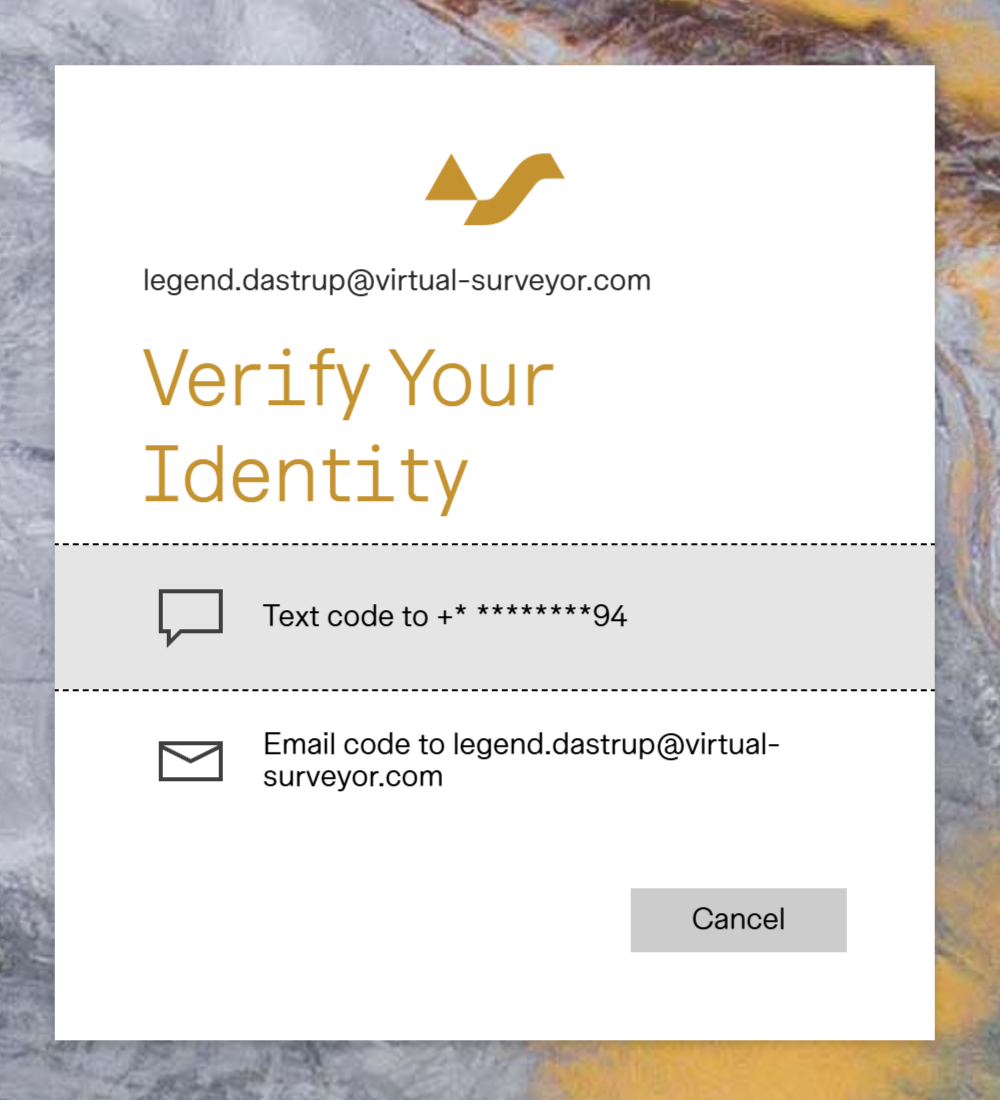
- Type in or copy-and-paste the verification code.
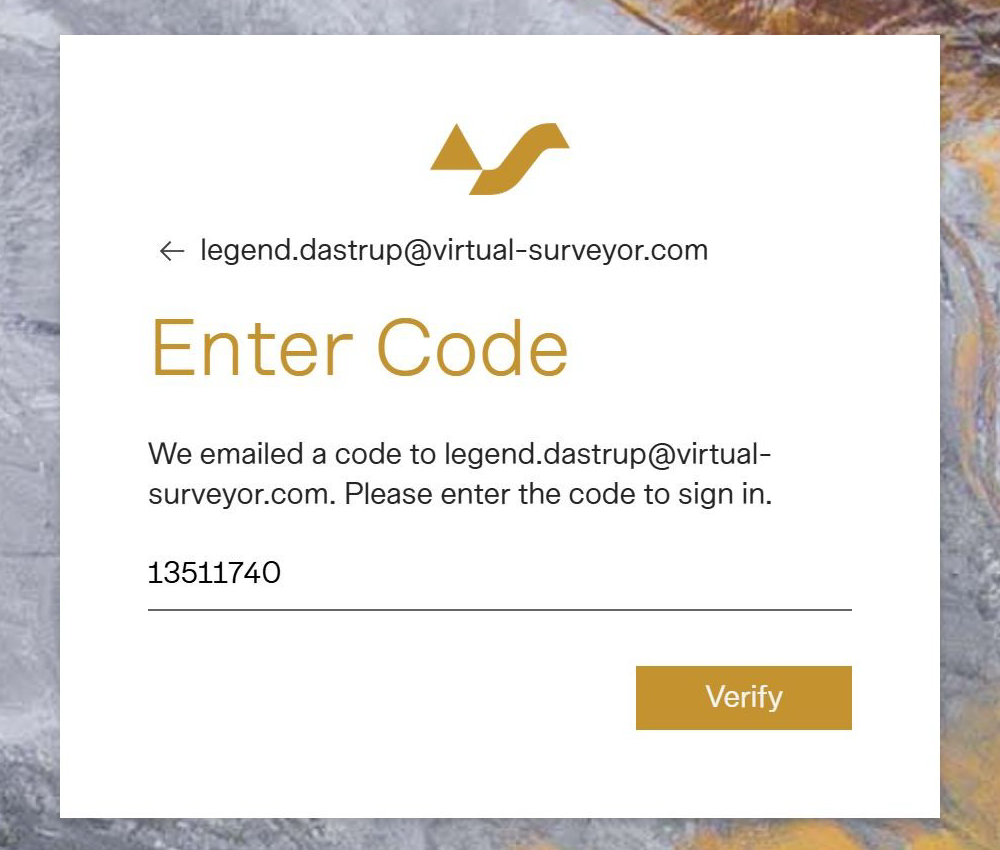 Click Verify, and you will be sent to the Home/Subscriptions page of the My Virtual Surveyor account or redirected back to the software if signing in through the desktop apps.
Optional: Use SMS/Text for Two-Factor Authentication
You can choose to receive verification codes by SMS/text message instead of email. To enable SMS/text authentication, you must first successfully sign in using an email verification code.
After signing in with email verification, we recommend setting up SMS/text authentication as soon as possible. It provides a reliable backup option in case email verification codes are delayed, blocked by spam filters, or affected by personal or company email settings.
Note: your phone number is not accessible to anyone except yourself, and is only used for two-factor authentication.
To enable SMS/text authentication:
- Click on the Virtual Surveyor ID tab from your My Virtual Surveyor account page.
- Click Enable Text from the Two-Factor Authentication section.
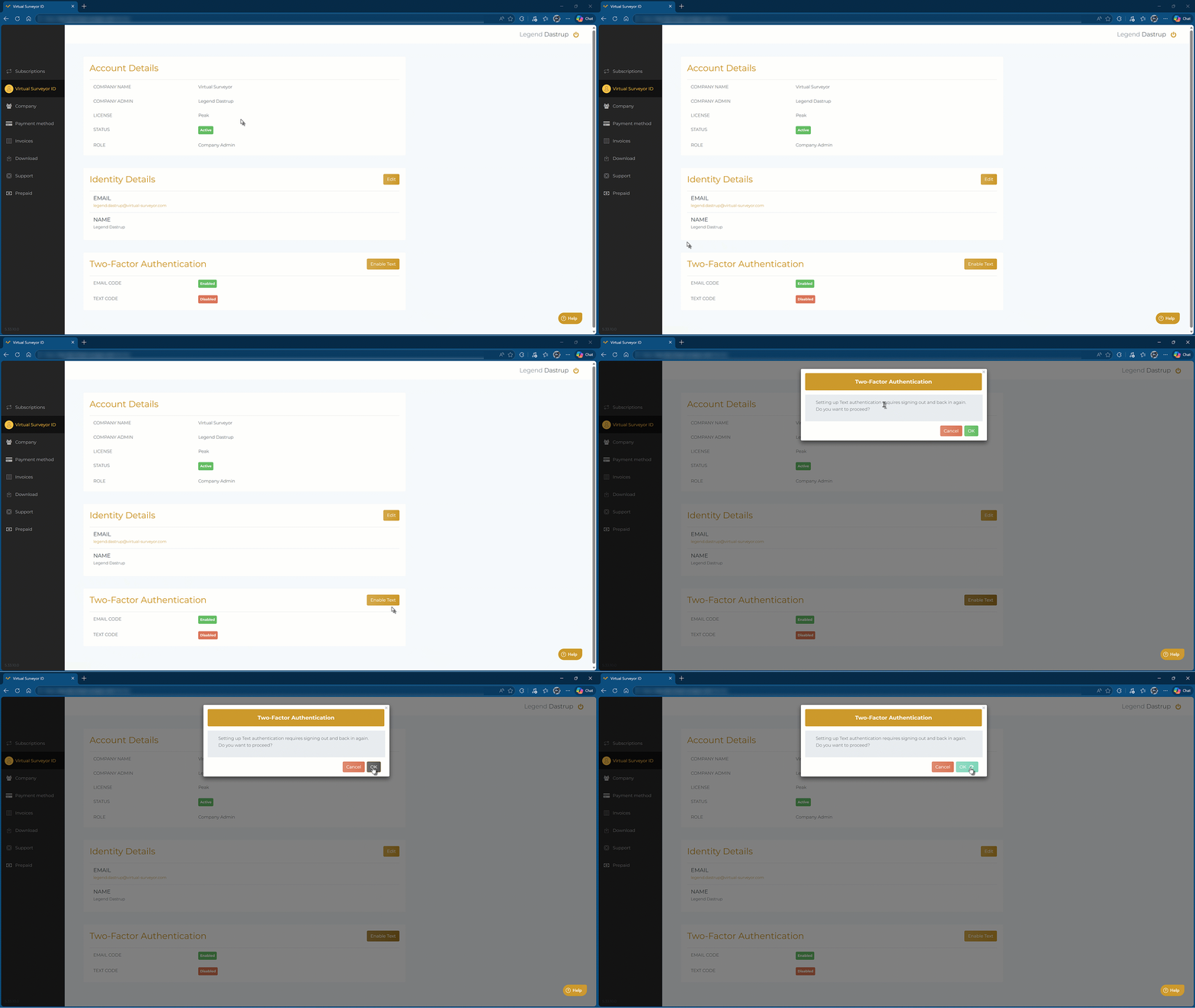 You will be signed out and will need to sign in again.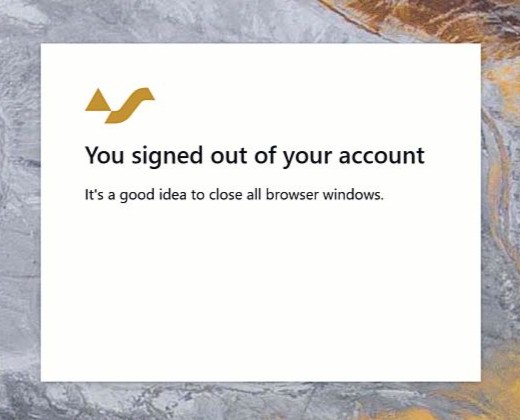
- Sign back in, and you will be prompted to set up your phone number.
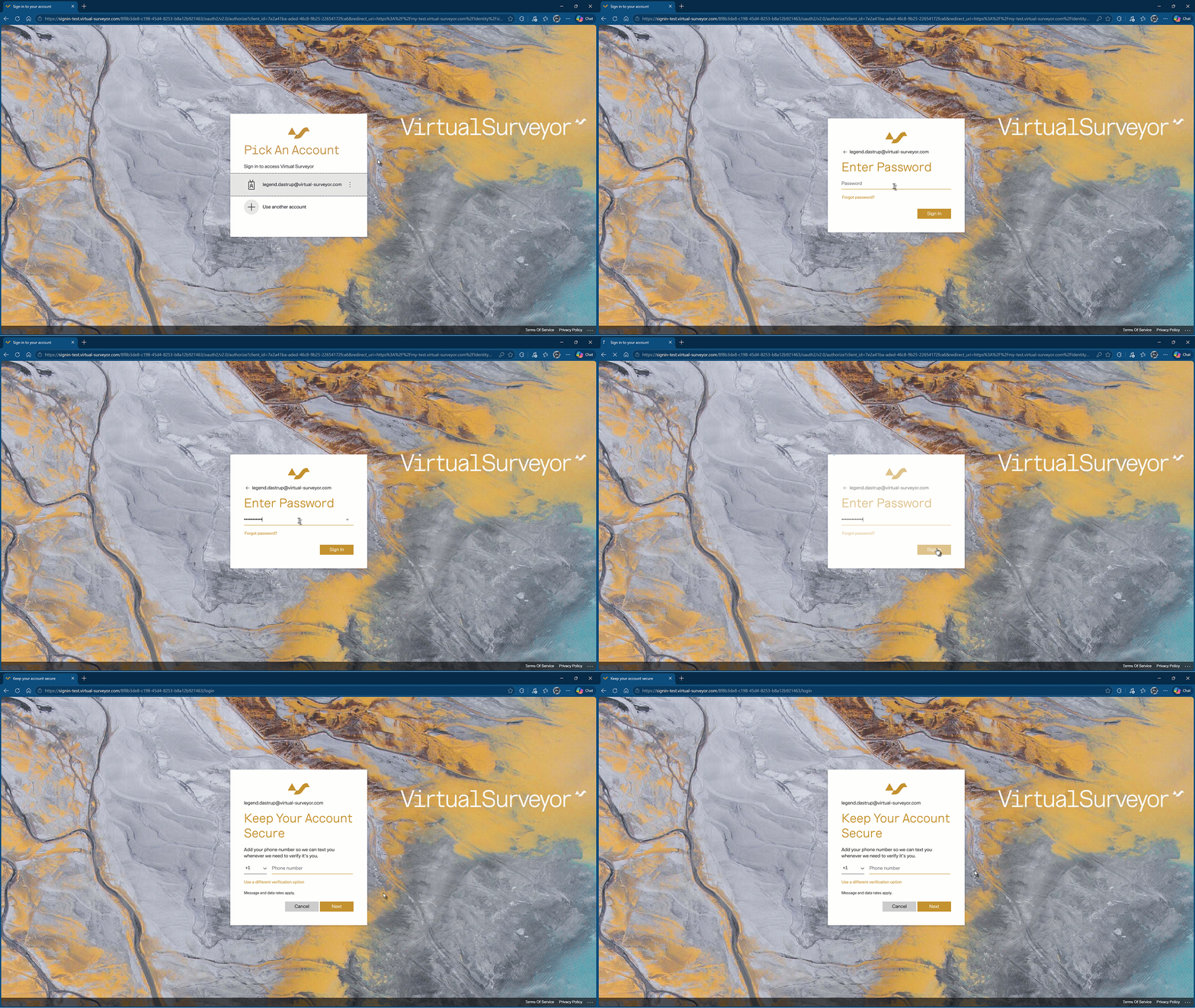
- After entering your phone number, you will be sent another verification code through SMS.
- Enter the SMS/text verification code to finish signing in and enabling text as your alternate two-factor authentication method.
Common Problems When Signing In
- Forgot my password: If you forgot or need to update your password, follow the steps in our How Can I Update My Password article.
- Not receiving a verification code: If you are having trouble finding your email verification code for two-factor authentication, see our I Did Not Receive the Initial Verification Code article for more information.
- Can I turn off two-factor authentication? No. Two-factor authentication adds an extra layer of security to protect access to your personal account, which is standard practice today. Multiple team members can access a license without needing to use the same account. Read more about getting everyone on your team running with the software here.