
To use Ridge, Mountain, or Peak features in the Virtual Surveyor desktop software, a user must be assigned to an active Ridge, Mountain, or Peak subscription. This article walks you through how to assign and manage Valley Users within a subscription.
Info! Assigning and Unassigning users can only be done by users with the Company Admin and User Admin role.
Overview
- Assign a User
- Assign Multiple Users
- The User is Not Available
- Assign a User Button is Not Available
- Unassign a User
- Tip to Easily Assign Users
Assign a User
To assign a user, you will need to first invite them as users on your company domain.
Follow these steps to assign a user to a Peak, Mountain, or Ridge subscription.
- Sign in to My Virtual Surveyor using your Virtual Surveyor ID.
- Keep in mind that when a subscription is first created, available users are not automatically assigned to it.
New users are automatically added to the Valley plan. - In the Subscriptions section, click Assign a user and follow the on-screen steps to add a user to the Peak, Mountain, or Ridge license.
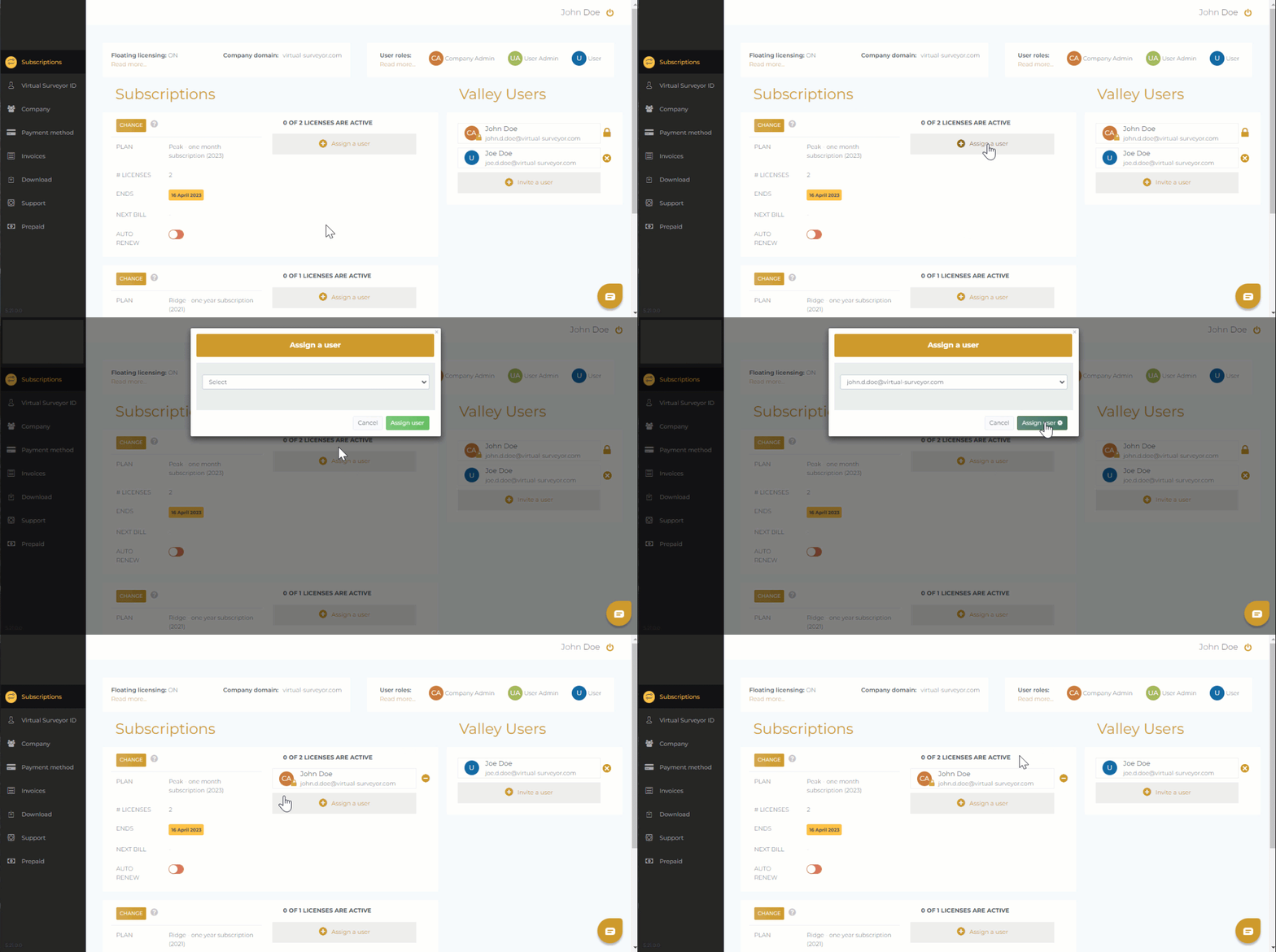
- Once assigned, the user will appear in the Subscriptions box, showing how many Peak licenses are currently in use (for example, 0 of 2) .

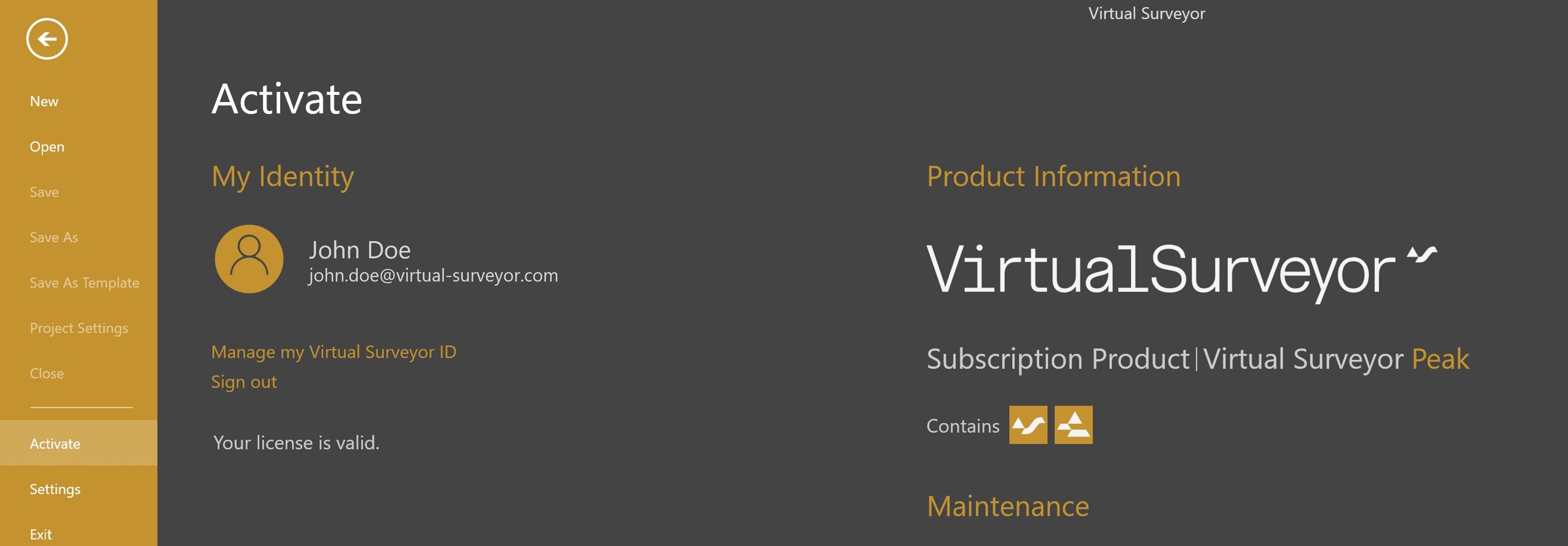
- The next time the user opens the Virtual Surveyor app, they can sign in with their Virtual Surveyor ID and immediately access all Peak features
Assign Multiple Users
You can assign more users than the number of licenses you own:
- For example, four users (Jane, John, Jake, and Jesse Doe) can be assigned to a subscription with two Peak licenses.
- All assigned users have full access to Peak features, but only two users can actively use Peak at the same time, since that’s the number of licenses purchased.
This setup makes it easy to share licenses across a team without needing one license per person.

The User is Not Available
If the user is not available in the dropdown list when assigning a user:
- The user hasn't been added to the company account yet.
Solution: Add the user to your company account before assigning them to a subscription. - Virtual Surveyor can't confirm the user belongs to your company.
Solution: Make sure the user is added using a company email address.
Important! Virtual Surveyor verifies company membership based on the user’s email domain. The email domain must match the company domain linked to the subscription.
Assign a User Button is Not Available
If the Assign a user button is disabled, it usually means your license is not floating yet.
- When a subscription isn’t linked to a company domain, floating licenses aren’t active, and user slots are limited to the number of licenses purchased.
Solution: Contact an account manager to configure a company domain and enable floating licenses.
Unassign a User
- Click the Unassign user icon (the minus icon) next to the user's name in the subscription list.

- As soon as the user is unassigned, they lose access to Ridge, Mountain, or Peak features.
- The user is automatically moved back to Valley Users and will continue to have access to the Valley version of the software.
Tip to Easily Assign Users
For even faster user management, you can use drag and drop:
- Drag a user profile from Valley Users to a Subscription license to assign them to that license.
- Drag them back to Valley Users to unassign them.
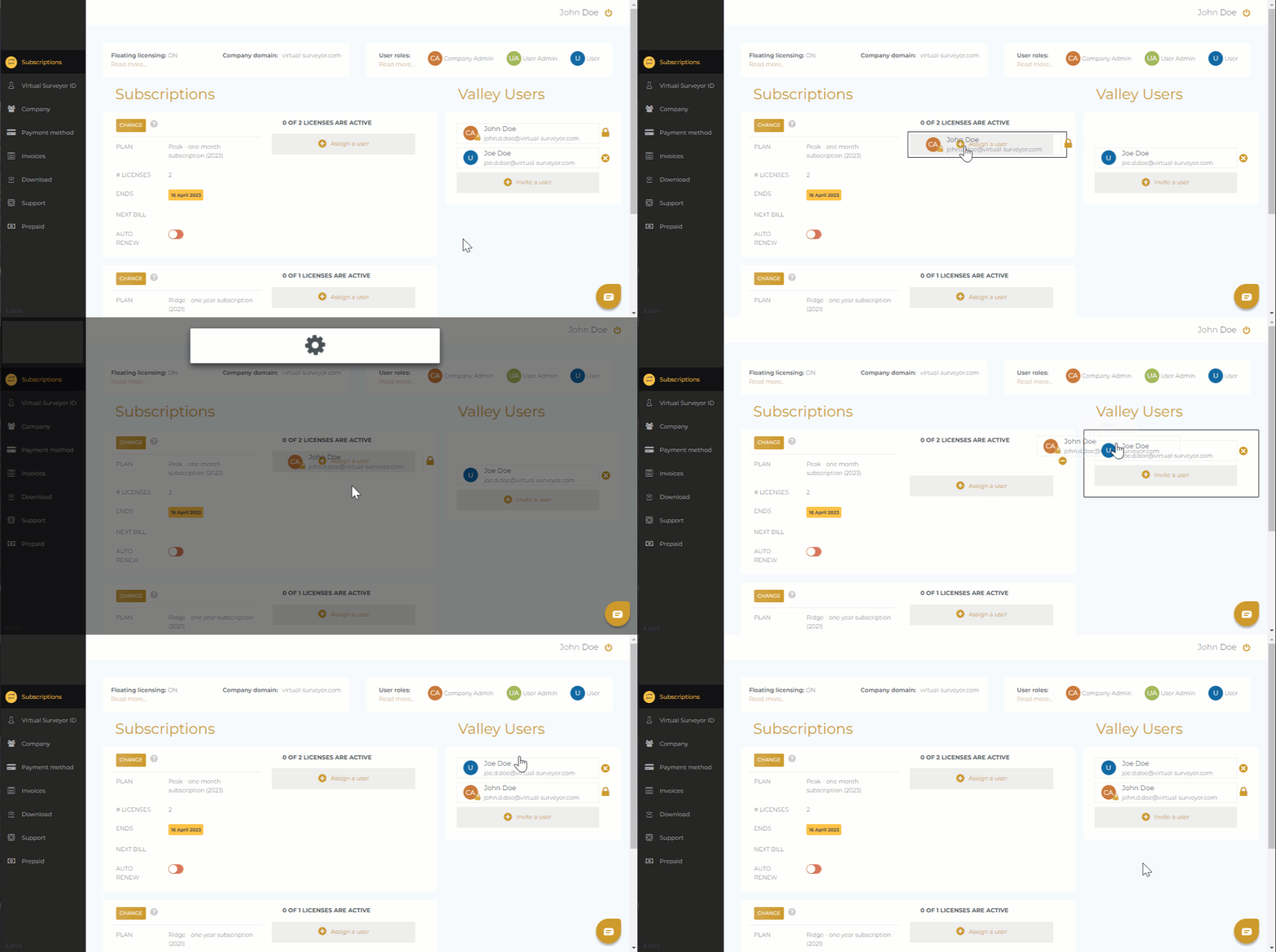
It’s a quick, visual way to manage access—especially helpful for larger teams.