

By combining your drone survey with total station data or other terrestrial measurements (such as GPS), you can fill in gaps and complete your survey with confidence. These additional points can be collected using standard ground-based survey equipment and imported into VirtualSurveyor to complete your model.
Overview
CSV File Format
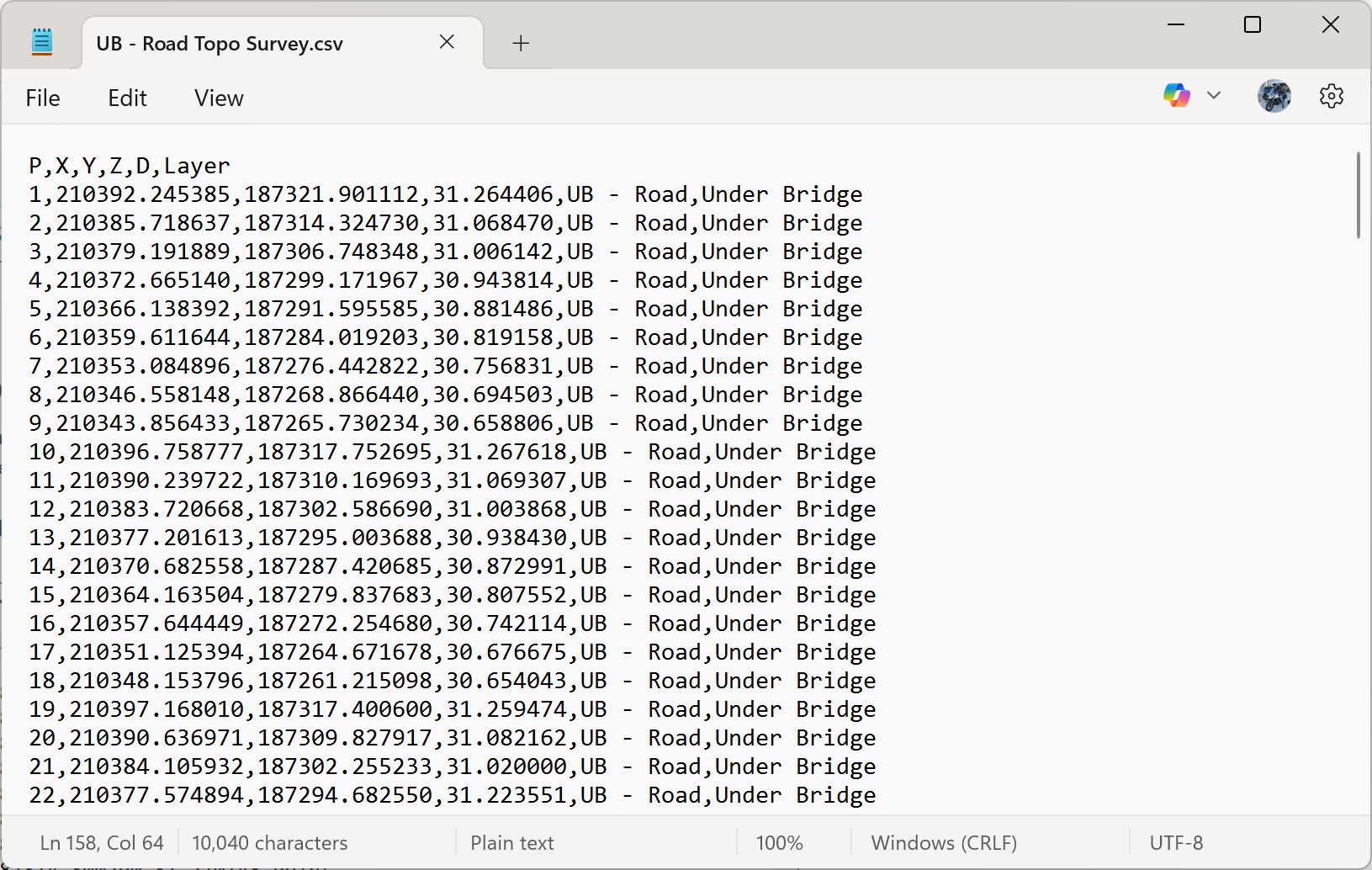
To ensure compatibility with Virtual Surveyor, your .csv file must follow the correct format. For detailed guidance, refer to our article on Importing CSV Files.
As a quick reference, when opened in a text editor like Notepad, your file should look similar to this:
Import Your CSV File
You can import your CSV file into Virtual Surveyor in two simple ways:
Option 1: Drag and Drop
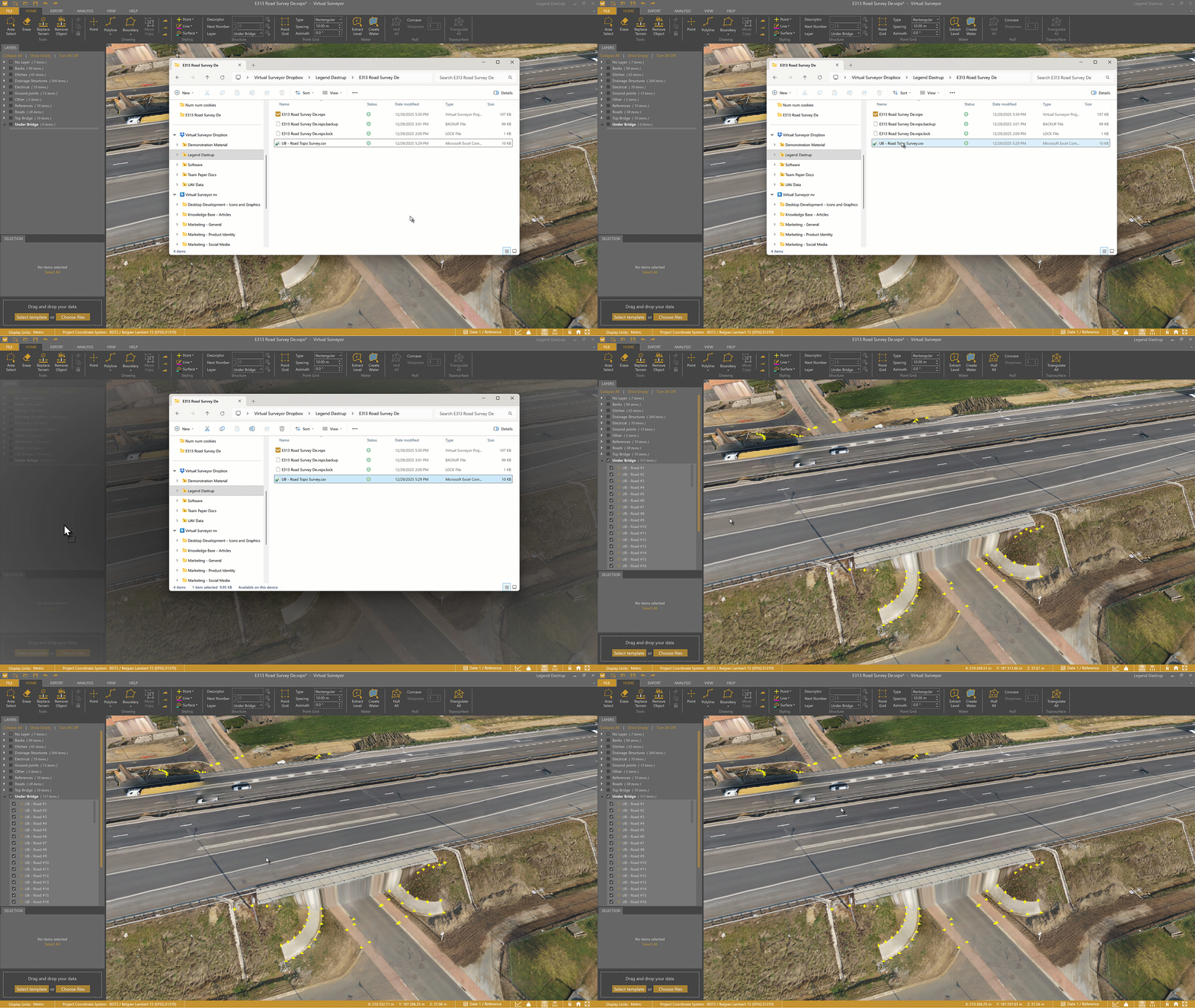
Drag the .csv file anywhere into the Virtual Surveyor workspace. A new layer will automatically appear in the Project View using the file name (unless your file includes a Layer column).
Option 2: Open from File Explorer
Click Open (or Choose Files) in the bottom-left corner of the Virtual Surveyor application. Then browse to your file and open it from the File Explorer.
Using Total Station Data to Survey Under a Bridge
This is a common real-world example of how terrestrial data can complement drone surveys. Since drones typically can’t capture terrain beneath a bridge, total station data is an excellent way to fill in those missing areas. You can also use other forms of terrestrial data anywhere drone imagery is limited or unavailable.
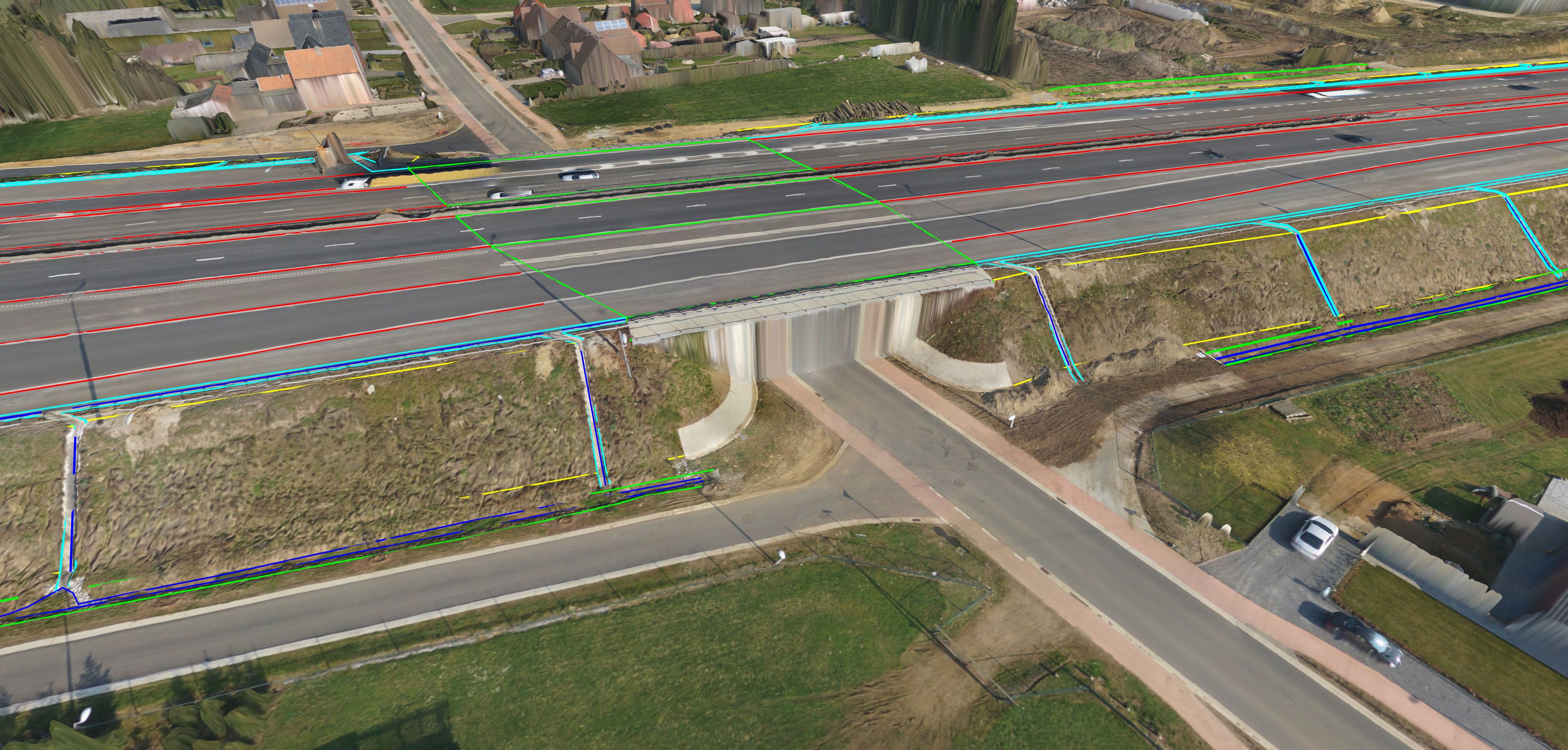
Workflow example:
- Drag and drop the .csv point file into VirtualSurveyor.
- Switch the view mode to 2D to clearly see the total station points beneath the bridge.
Alternatively, you can use the Transparent Terrain Lens to visualize the points under the bridge while remaining in 3D view.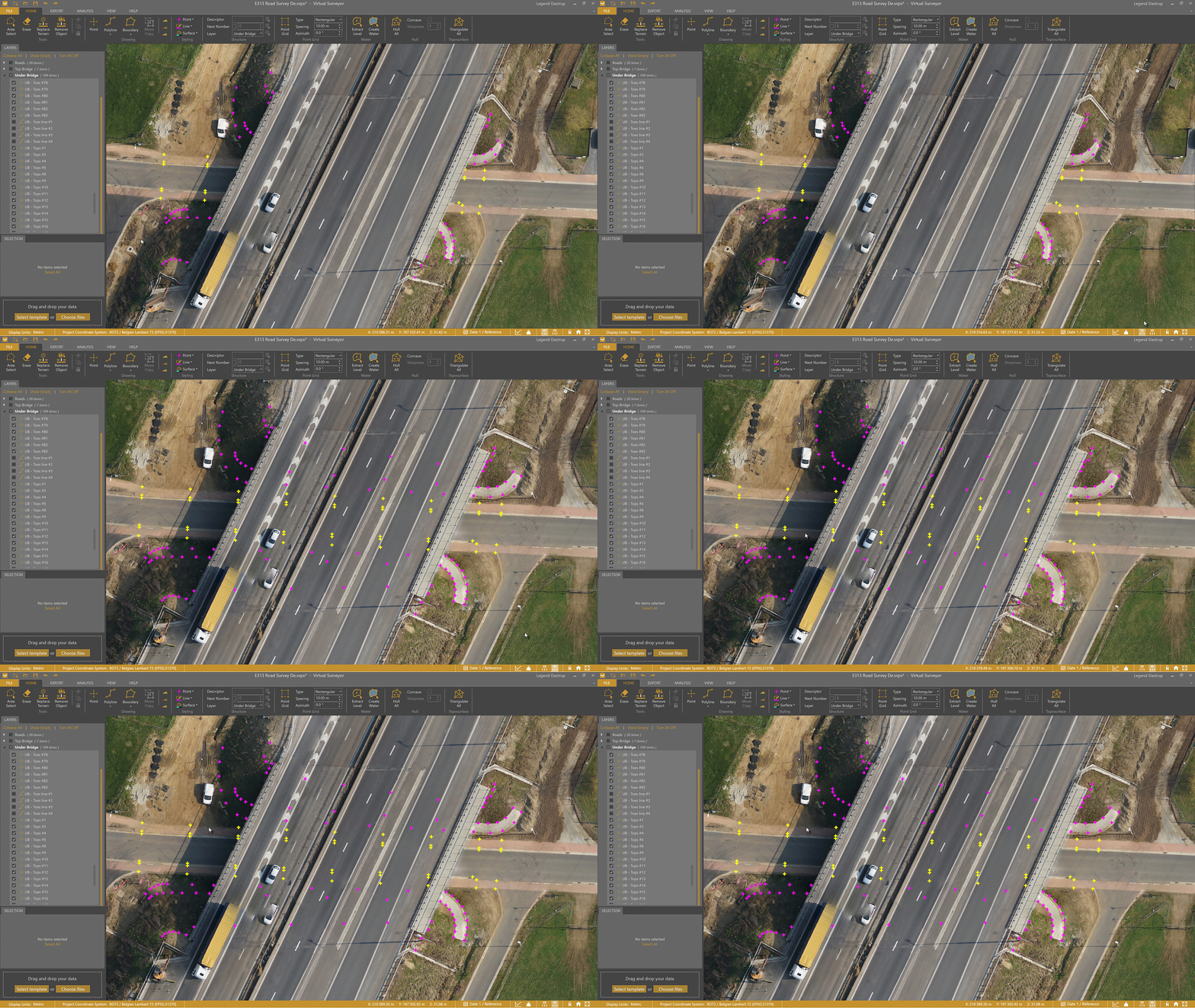
- Draw lines connecting the points to define the survey area under the bridge.
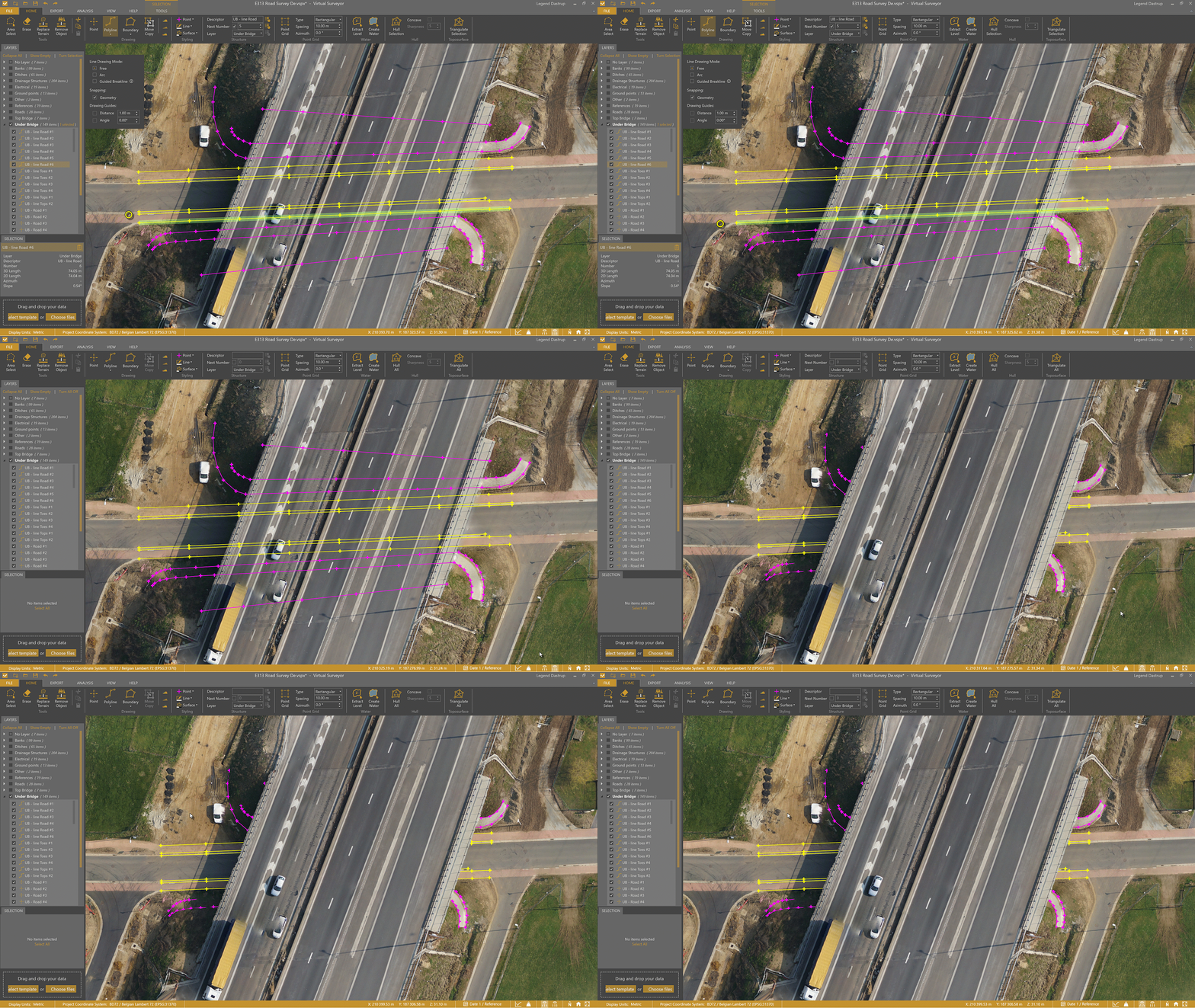
- Triangulate the survey to create a surface beneath the bridge.
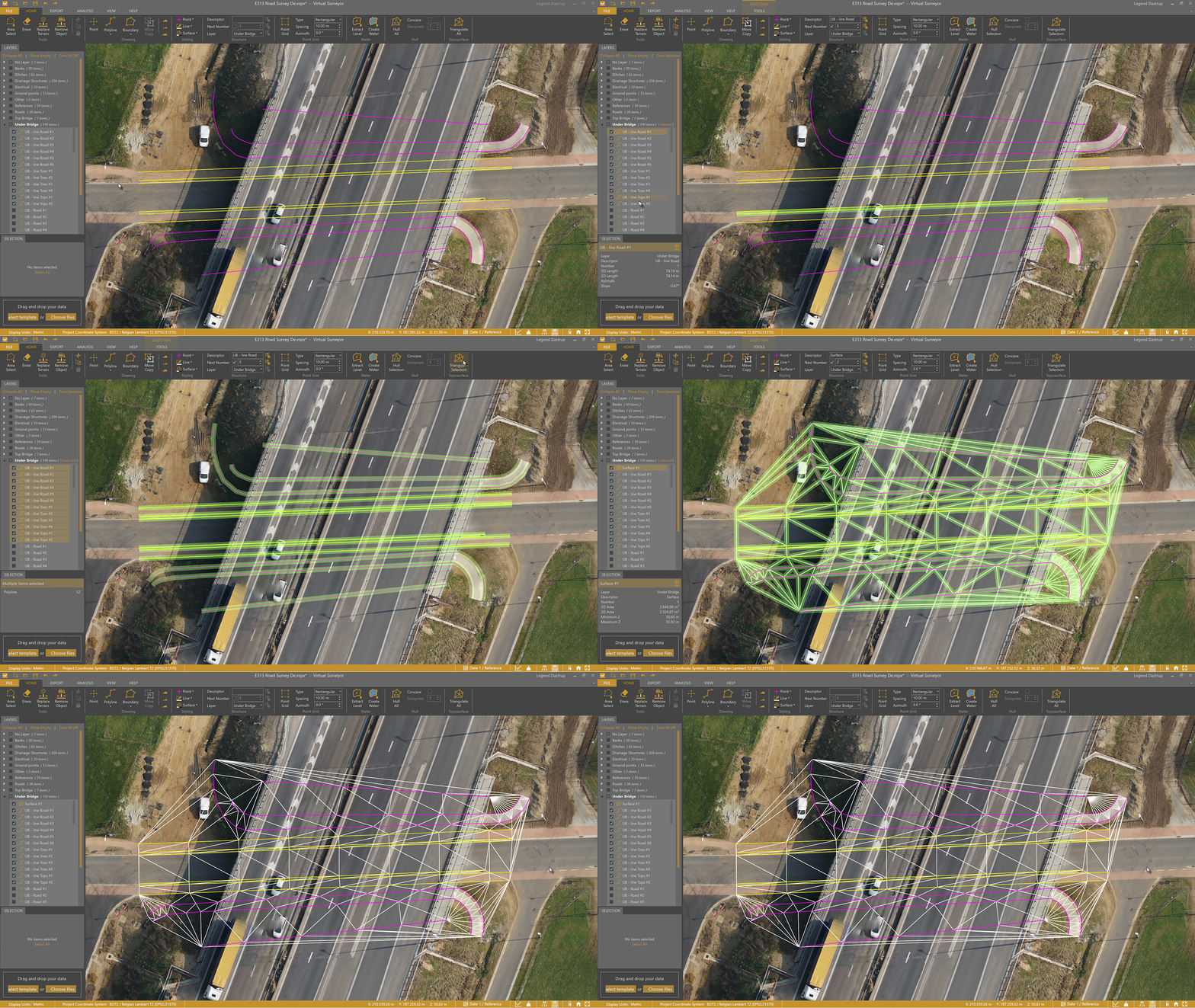
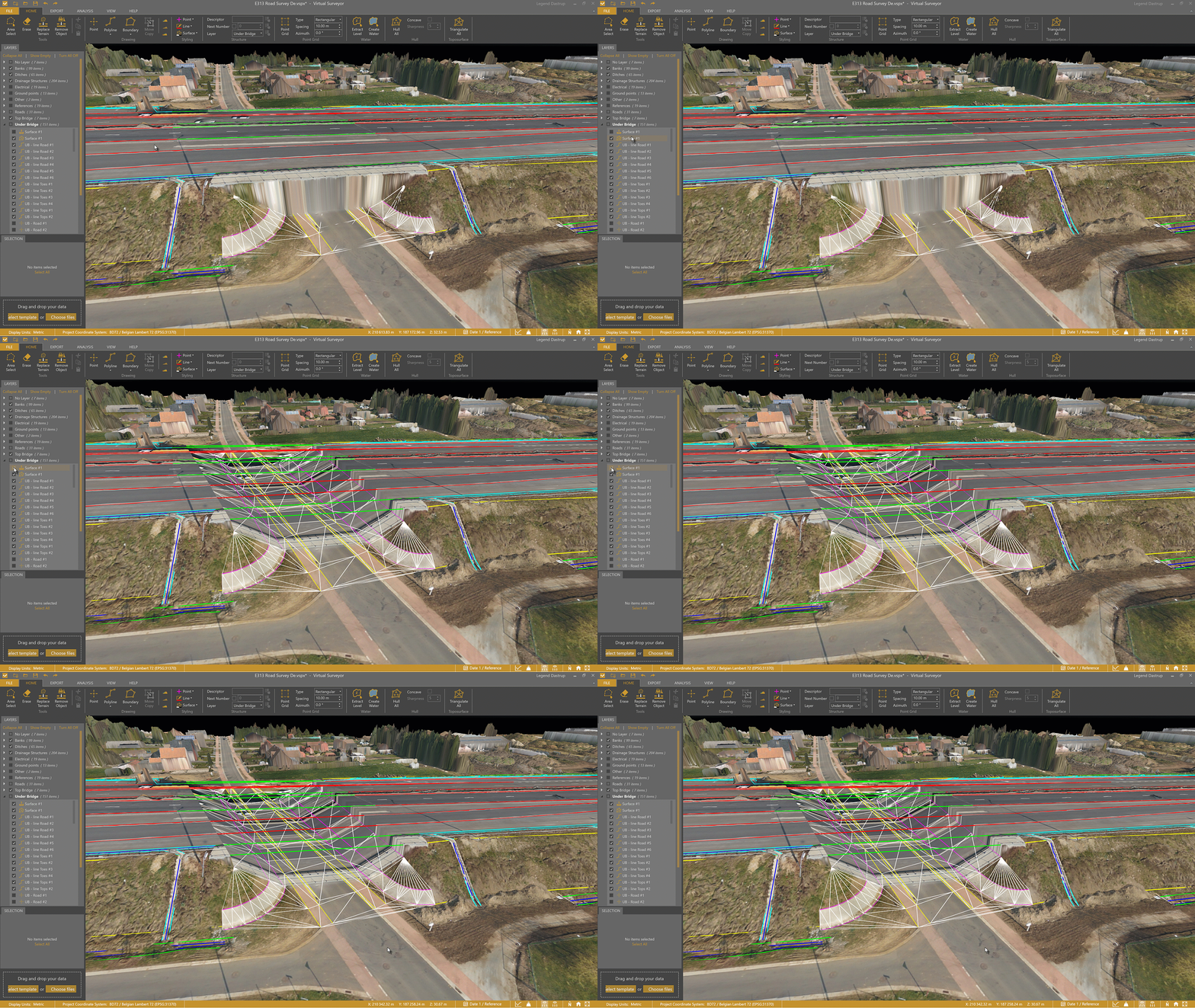
- Your road survey is now complete—both above and below the bridge—and ready to be exported.
Tips and Tricks
- In addition to .csv files, you can also import CAD files exported from your survey equipment.
- These files may include not only points, but also survey elements such as lines or boundaries.
- Virtual Surveyor also supports other formats, including Shapefile (.shp) and Drawing Exchange Format (.dxf).