

Keep Inside is a surface item modification tool that keeps a specific area within a surface and removes TIN segments that are outside of a selected boundary.

The Keep Inside button appears in the TOOLS tab and only works if both a surface and boundary are selected.
Overview
- How to Use Keep Inside
- Where to Use the Keep Inside Tool
- Tips to Get the Most Out of the Keep Inside Tool
How to Use Keep Inside
- Select the surface and the boundary (hold Ctrl on your keyboard when clicking the items).
- Go to the TOOLS tab.
- Click Keep Inside.
- The triangles outside the boundary are removed from the surface.
- The triangles crossed by the boundary are cut out to fit inside the boundary.
Where to Use the Keep Inside Tool
- Use Keep Inside to create a smaller surface that focuses on your area of interest.
| Create a surface | Draw a boundary within the surface | Select the boundary and use Keep Inside |
|---|---|---|
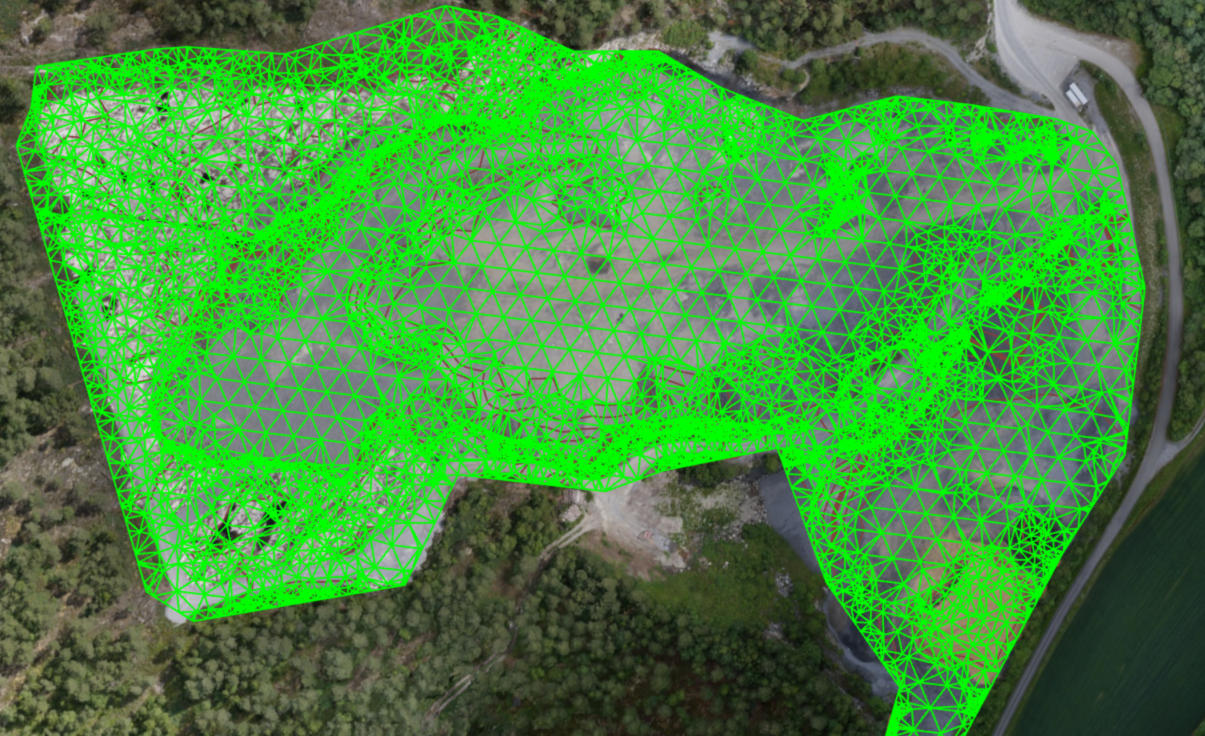 | 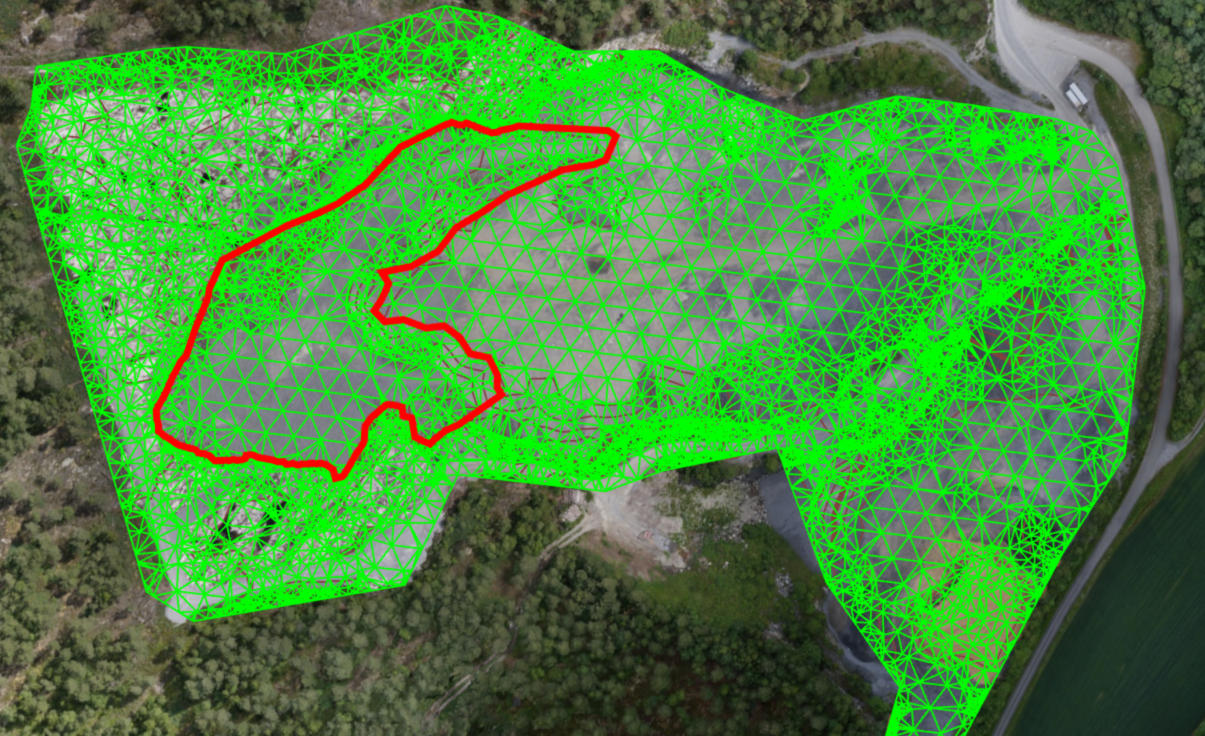 | 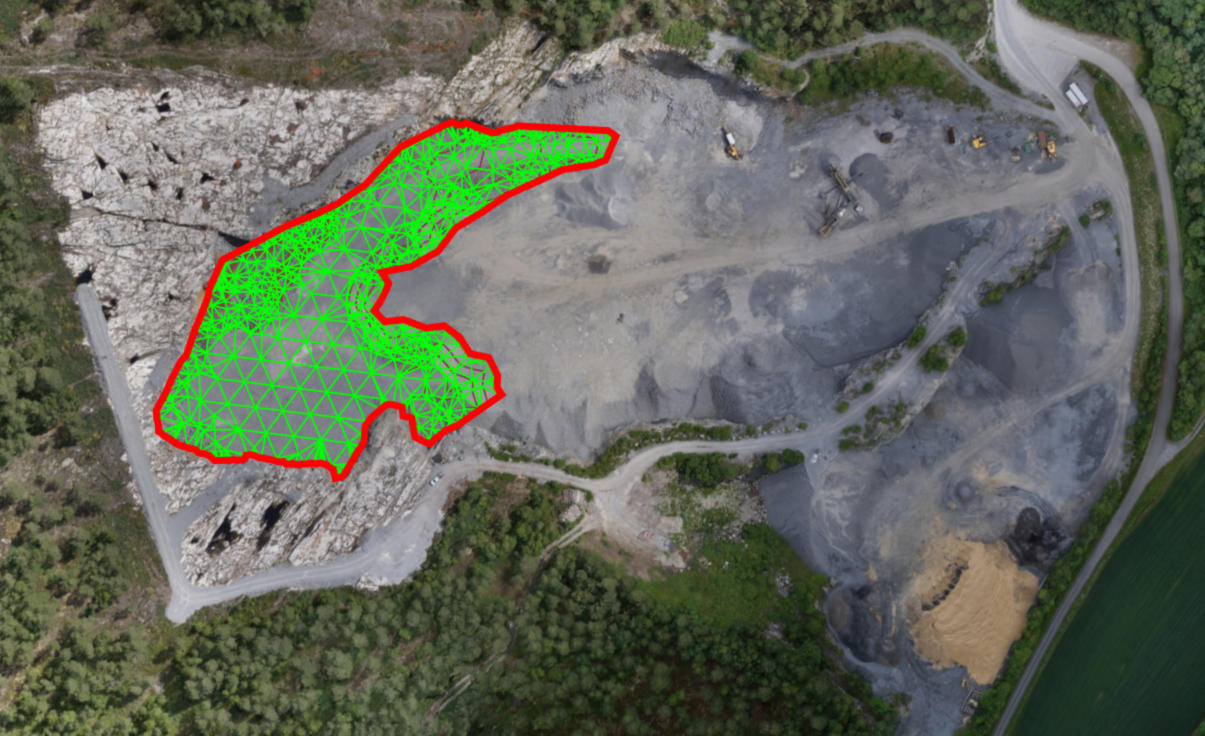 |
Tips to Get the Most Out of the Keep Inside Tool
- The elevation of the kept surface area remains the same as the original surface.
- The elevations of the boundary vertices are not included in the kept surface item.
- Using Keep Inside completely deletes the external part of the surface from your project.
- It is possible to keep multiple smaller sections within a surface simultaneously by selecting the surface along with multiple boundary areas within.